
Your Azure invoice lands, and the number is higher than expected. For a lot of Australian small businesses, schools, and growing teams, the problem isn’t that Azure is wrong for the job. It’s that too many virtual machines are still running long after staff have gone home.
That’s where cost control usually gets misunderstood. Plenty of owners assume a VM that looks off is no longer costing money. In Azure, that’s not always true. The method used to stop the VM matters, and that detail is often the difference between reducing spend and paying for idle compute overnight.
Your Azure Bill is High, Now What?
If you’ve got development servers, training environments, test machines, or internal office application servers in Azure, there’s a good chance some of them don’t need to run all day and all night. This is common in Melbourne businesses, regional offices, and school environments where demand follows business hours.
The first fix is simple, but it has to be done properly. A VM that is only shut down from inside Windows or Linux can still keep its hardware lease and still be billed for compute. Microsoft explains that only a VM in Stopped (Deallocated) state stops compute billing, while a VM in Stopped state can still incur compute charges, as outlined in Microsoft’s explanation of Azure VM billing when a machine is shut down.

If you’re still deciding whether Azure itself is the right fit for your business model, this guide on Azure vs on-premise for Australian small businesses is worth reading alongside your cost review.
TLDR Your Quick Guide to Azure VM Savings
Shutting down Azure VMs can save money, but only when the VM is deallocated. If it’s merely powered off inside the guest operating system, compute charges can continue.
The best shutdown candidates are usually non-production workloads with predictable idle windows, such as dev, test, training, and back-office systems used during business hours. For one-off machines, Azure Auto-shutdown is a quick win. For groups of VMs, scheduled automation is usually the better fit.
Practical rule: If a VM doesn’t need to be available overnight, weekends, or school holidays, it should at least be reviewed for scheduled deallocation.
What usually goes wrong
Most cost blowouts in this area come from three mistakes:
- Stopping the wrong way. Staff shut down the OS and assume the billing has stopped.
- Applying shutdown to the wrong workload. A production application server gets treated like a dev box.
- Ignoring local usage patterns. Teams in different Australian states work to different hours, and daylight saving can catch people out.
That’s why the question isn’t just when to shut down Azure VMs to save money and how to automate it. It’s which VMs should be automated, which should stay on, and how to do it without interrupting the people who rely on them.
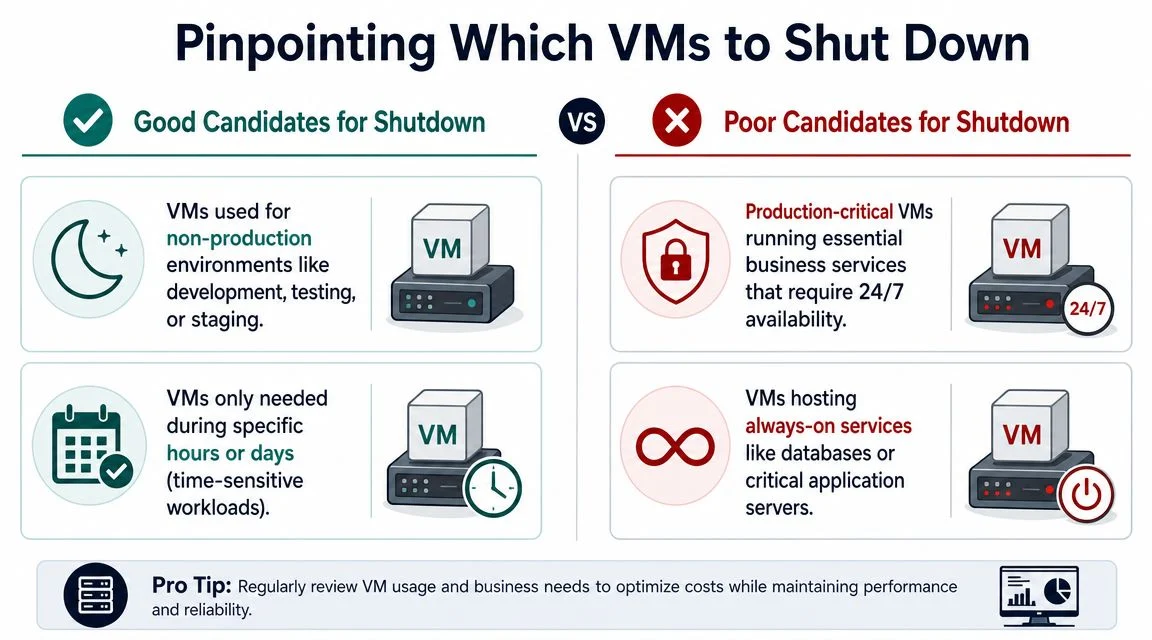
Pinpointing Which VMs to Shut Down
The expensive mistake is usually not leaving every VM on. It is shutting down the wrong one, or stopping it in a way that does not stop compute billing.
For Australian SMBs, the first filter is simple. Only target workloads with a clear idle window and a clear business owner. The second filter matters just as much. The VM must be deallocated, not just shut down from inside Windows or Linux. A VM in Stopped (Deallocated) state stops compute charges, while disks and some related resources can still cost money. This Azure VM deallocation guide explains the difference clearly.
If you’re also checking whether a machine is too large for its workload, this Azure VM sizing guide for small business environments covers the other side of the cost problem.
Good candidates for shutdown
These workloads usually suit scheduled deallocation well:
- Development and test VMs. Teams use them during business hours, then they sit idle overnight and on weekends.
- Training labs and classroom systems. Schools, RTOs, and internal training setups often have very predictable usage windows.
- Back-office application servers. Finance, payroll, reporting, and admin systems may only need to run while staff are working.
- Project or seasonal systems. Some VMs are only needed during month-end processing, short-term projects, or specific campaigns.
A common Australian example is an internal line-of-business server used by office staff in Brisbane or Melbourne from morning to late afternoon. If nobody needs it after hours, scheduled deallocation is often a straightforward saving.
Poor candidates for shutdown
Other VMs need more caution because the business risk is higher than the saving:
- Production systems with customer or staff dependency. If the VM supports sales, service delivery, or online access, downtime has a direct cost.
- Database and application back-end servers. These often support more jobs, integrations, and services than expected.
- Remote access or jump servers used outside standard hours. This matters for businesses with staff travelling, working from home, or spread across time zones.
- Systems with no clear owner. If nobody can confirm what the VM does and when it is needed, do not automate anything yet.
The practical test is boring but effective. Ask three questions: who uses this VM, when do they use it, and what breaks if it is off?
Match the shutdown approach to the workload
These efforts often help small businesses save time and avoid rework. Different VM types need different shutdown methods.
A dev or test VM with regular office-hour use is a strong fit for automated stop and start schedules. An office app server used by one team may also fit, but only after checking for after-hours integrations, backups, and batch jobs. A production application server with unpredictable demand is usually a poor fit for simple scheduling, even if usage looks low overnight.
That trade-off matters more in Australian businesses than many people expect. Public holidays differ by state. Daylight saving does too. A schedule that works for a Sydney office can annoy staff in Brisbane or break access for a Perth user logging in later in the evening.
Good shutdown candidates have predictable idle time, low after-hours dependency, and someone accountable for approving the schedule.
Check the pricing model before changing anything
I see this missed regularly. If a VM is covered by a Reserved Instance, shutting it down may not reduce what you pay for that reservation unless the discount can be used by another running VM that matches the reservation scope and series.
That creates a practical split:
| Workload type | Better fit |
|---|---|
| Predictable, always-on production systems | Reservation planning |
| Intermittent, non-production systems | Deallocation during downtime |
| Mixed environments | A blend of both |
For many SMBs, the cleanest setup is simple. Keep reservations for systems that must run all the time. Use scheduled deallocation for the rest.
How to Estimate Your Potential Savings
You don’t need a complex spreadsheet to work out whether this is worth doing. Start with one VM and build a rough savings model from there.
If you want a broader planning view before changing anything, this guide to Azure cost for a small business is a useful companion.
Use Azure’s own tools first
Open the Azure portal and identify a likely candidate. Pick a VM that has obvious idle periods, such as a dev machine, training server, or internal office app server.
Then work through it in this order:
- Check the VM size and region in the Azure portal.
- Use the Azure Pricing Calculator to understand its current monthly cost when left on continuously.
- Compare that with actual business usage. Ask when people really use it.
- Review Azure Cost Management and usage metrics to confirm the machine sits idle at known times.
Look for idle behaviour, not assumptions
A lot of businesses know a VM is “probably not needed” after hours, but that’s not enough. Check the actual usage pattern. If CPU and network activity drop away every evening and stay low until the next morning, that’s the kind of behaviour that supports an automation decision.
This is also where teams often find surprises. A server that seemed non-essential may still be handling overnight sync jobs, third-party integrations, or remote staff access. Another VM may turn out to be doing almost nothing outside office hours and become an easy win.
Build a shortlist, not a giant project
Start with a small batch:
- One personal dev VM
- One shared test server
- One training or lab VM
- One internal app with clear office-hour use
That gives you a controlled trial. You’ll see what restarts cleanly, what dependencies were missed, and what notifications staff need before shutdown happens.
Don’t chase perfect modelling first. Pick the obvious idle machines, confirm they restart properly, and use that as the template for the next group.
Your Azure Automation Toolkit
Picking the right tool matters because Azure has a few different ways to shut down VMs, and they solve different problems.
For an Australian SMB, the wrong choice usually shows up in one of two ways. The first is wasted effort. A simple office-hours VM gets a custom runbook when a built-in schedule would have done the job. The second is avoidable outages. A shared line-of-business server gets put on a basic timer even though staff in Perth still use it after Sydney has finished for the day.
The other gotcha is Azure VM state. A VM that is only stopped can still keep charging for compute. To reduce running costs, the VM needs to be deallocated. Any shutdown method you choose should be checked against that outcome, not just whether the screen says “stopped”.
The main options in plain English
Azure Auto-shutdown suits one VM with a clear finish time each day. It is a good fit for a developer box, a training machine, or a test server that nobody needs overnight.
Start/Stop off-hours works better when several VMs follow a shared schedule. That is common in dev/test environments, school labs, and internal systems used during business hours only.
Azure Automation runbooks are the next step up. Use them when you need logic such as exclusions for month-end processing, dependency-aware startup order, tag-based targeting, or different schedules for different teams.
Logic Apps and custom workflows fit cases where shutdown is part of a wider process. For example, send an approval request, notify a team channel, stop connected services in order, then deallocate the VM.
Policy and tag-based governance are less about the shutdown action itself and more about consistency. They help larger environments apply the same standards across subscriptions, business units, or managed customer estates.
Comparison of Azure VM Automation Methods
| Method | Best For | Complexity | Cost |
|---|---|---|---|
| Azure Auto-shutdown | Single VMs with a fixed daily shutdown time | Low | Low |
| Start/Stop off-hours solution | Groups of non-production VMs with planned schedules | Medium | Varies with supporting Azure services |
| Azure Automation runbooks | Custom logic, dependencies, tagging, exceptions | Medium to high | Varies with implementation |
| Logic Apps or custom workflows | Approval flows, notifications, multi-step orchestration | Medium to high | Varies with usage |
| Tag and policy-based governance | Larger environments that need consistency | High | Depends on broader Azure setup |
What works well in small business environments
Most SMBs should keep the first rollout simple.
Use Auto-shutdown for one-off dev and test machines. Use grouped scheduling when a set of VMs all follow the same office pattern. Add runbooks only after you hit a real requirement such as timezone differences, startup sequencing, or exceptions for backups and overnight jobs.
That approach keeps the testing burden low. It also makes it easier to confirm which applications come back cleanly in the morning and which ones need a service check, a dependency started first, or a user notification before shutdown.
If you are still cleaning up older servers before putting schedules in place, this Azure migration guide for reviewing what to move, resize, or retire will help.
When to get help
Some environments outgrow basic schedules quickly. Multi-site businesses, healthcare practices, professional services firms with after-hours access, and organisations spanning east coast and WA time zones often need tighter control than a simple timer can provide.
That usually means checking dependency order, backup windows, reservation impacts, exclusions, and who gets notified when a machine does not stop as expected. Tbourke Solutions provides Azure cloud support as part of its managed IT and consulting services for businesses that need help choosing and implementing the right level of VM automation.
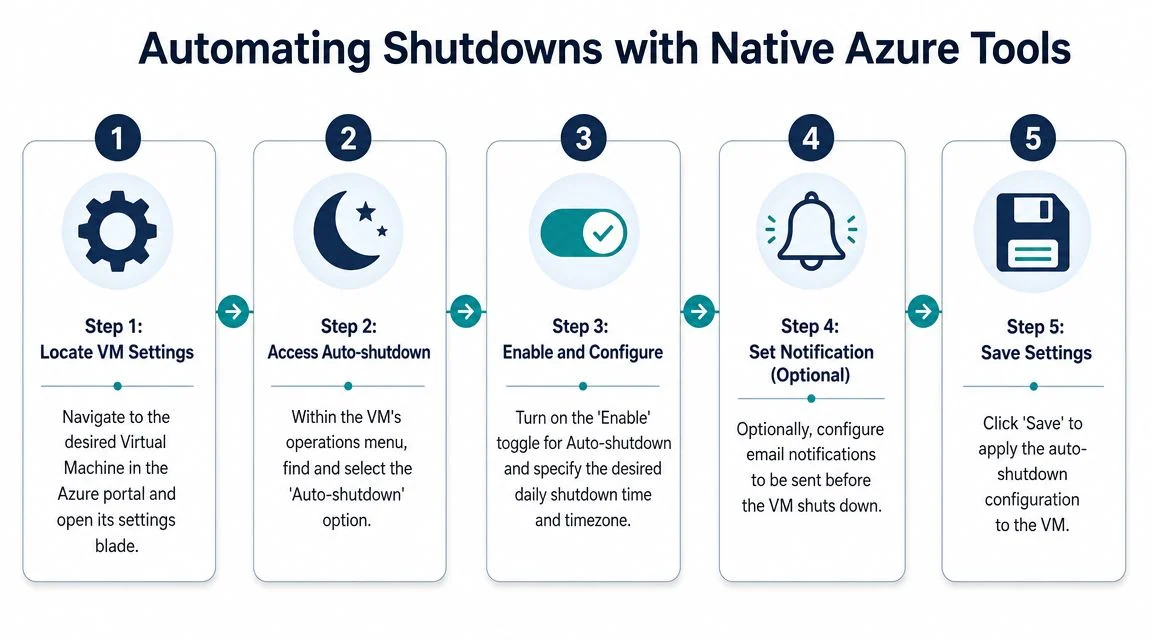
Automating Shutdowns with Native Azure Tools
For most SMBs, native Azure tools are the best starting point because they’re already in the platform and don’t require a full custom build.
Microsoft documents Auto-shutdown at the VM level in the Azure portal, and for wider fleet control Microsoft’s Start/Stop off-hours solution is designed to target specific VMs or resource groups with separate start and stop schedules, which makes it suitable for dev/test, training labs, and school environments after hours, as shown in Microsoft’s guidance on Azure VM auto-shutdown and off-hours scheduling.
If you’re cleaning up or relocating older VM estates first, this Azure migration guide can help you sort out what should be moved, resized, or retired before automation is applied.
Auto-shutdown for single VMs
This is the fastest win when one VM has an obvious finish time each day.
Use it when:
- One person owns the VM
- The shutdown time is predictable
- You don’t need automated startup
- The machine isn’t business-critical
Basic setup is straightforward in the Azure portal:
- Open the target VM.
- Go to Operations.
- Select Auto-shutdown.
- Enable the setting.
- Choose the shutdown time and time zone.
- Add pre-shutdown notifications by email or webhook if needed.
- Save the configuration.
The notification option matters more than people think. It gives users a chance to postpone if they’re still working.
Start and stop schedules for groups of VMs
Single-VM settings become messy when you’ve got several machines across resource groups. That’s where centralised scheduling is easier to manage.
This suits:
- Shared dev environments
- Test fleets
- Training labs
- School or classroom workloads
- Back-office systems with consistent opening hours
A useful pattern is to group VMs by tags or resource groups that match a business purpose. That way, one schedule can control a defined set of non-production machines without touching production.
If the schedule applies to a business function rather than a random list of servers, it’s much easier to maintain.
Metrics-based shutdown is safer than guesswork
Microsoft-oriented guidance for startups recommends using Azure Monitor to find low-usage candidates, then deallocating them when usage stays below a threshold for a sustained period. One example uses a custom alert on Percentage CPU with Average aggregation, threshold less than 2%, checked every 15 minutes with a 15-minute lookback, as described in Microsoft’s article on automatically shutting down idle Azure VMs.
That doesn’t mean every business should copy that exact baseline. It does show the right approach. Use metrics to identify idle machines, then trigger an action that deallocates the VM rather than powering it off.
A practical rollout order
For most organisations, this sequence works well:
- Start with one or two obvious non-production VMs
- Enable notifications before shutdown
- Test morning restart and application health
- Expand to groups with similar hours
- Only then consider usage-based automation
That staged rollout avoids the usual Monday morning problems.
Advanced Automation and Governance
Once the environment grows, fixed schedules often stop being enough. That’s especially true when you’ve got teams in different states, mixed workloads, or VMs with dependencies that need a controlled shutdown order.
A major Australian challenge is time-zone handling. Microsoft community guidance highlights that organisations often need custom scripts in Azure Automation or Logic Apps to automate shutdown safely across different time zones and daylight-saving rules, as discussed in Microsoft’s Q&A on automating VM shutdown and startup across Azure environments.
When custom automation makes sense
You’ve probably outgrown basic schedules if you need to handle things like:
- Different office hours across states
- Exceptions for late-working staff
- A dependency order between application tiers
- Checks for active sessions before shutdown
- Approval or notification workflows before action
At that point, Azure Automation runbooks or Logic Apps give you more control than the built-in settings.
Governance matters as much as scripting
The technical side is only half the job. True savings stick when governance is built in.
That usually means:
- Using tags to mark which VMs are eligible for shutdown
- Assigning an owner to each scheduled VM
- Documenting exceptions such as month-end processing or school events
- Alerting on failures so a missed startup doesn’t become a support disaster
Good automation isn’t just about turning VMs off. It’s about making sure the right people know what will happen, when it will happen, and how to override it safely.
For many SMBs, advanced governance is the point where outside help becomes worthwhile because the risk shifts from wasted spend to service disruption.
Start Saving Today and Frequently Asked Questions
A common pattern in Australian SMBs is paying for Azure VMs all night, all weekend, and through public holidays because nobody set a shutdown rule properly. Then the owner checks the bill, sees no real drop after “stopping” a few machines, and assumes Azure savings are overstated. In practice, the issue is usually simpler. The VM was stopped in the guest OS but not deallocated, or the shutdown plan was applied to the wrong workloads.
The starting point is straightforward. Shut down VMs when they have a genuine idle window, the business can tolerate them being offline, and the process deallocates the VM so compute charges stop. Keep production systems, domain controllers, and anything with overnight integrations out of the first round unless there is a clear operating model behind it.
If you want to tie cloud savings back to broader cost control, this IT budget planning guide for small business technology spending is a useful next step.
Frequently asked questions
What happens to my VM’s data when it’s deallocated?
The OS disk and attached data disks stay in place. You still pay for storage, backups, and any other attached services, but the machine itself can be started again with its data intact.
Will shutting down a VM always save money?
No. It usually saves money on pay-as-you-go VMs that sit idle after hours. It may not deliver the result you expect if the VM is covered by a reservation, or if other costs such as premium storage, licensing, or network components remain unchanged.
What is the mistake that catches SMBs most often?
Confusing stopped with deallocated.
If a user shuts down Windows from inside the VM, Azure can keep allocating the compute resource and billing continues. For office apps, test servers, and training environments, the shutdown method matters as much as the schedule.
Which workloads are usually the safest to automate?
Development, test, training, classroom, and internal office application servers are usually the safest place to start. The best candidates have predictable hours and low risk if they stay off until the next business day. If staff in Perth, Sydney, and Melbourne use the same system, check the actual usage pattern before setting one national schedule.
Do I need custom scripting straight away?
Usually not. Many SMBs do well with native Azure scheduling first. Custom runbooks or Logic Apps make sense when you need exceptions, approval steps, dependency handling, or different shutdown rules across teams and states.
How Tbourke Solutions can help
If your Azure bill is high and you are not sure which VMs are safe to shut down, an outside review can prevent expensive guesswork. Tbourke Solutions works with Australian small and medium businesses on cloud planning, support, and practical infrastructure decisions. If you want help reviewing VM usage, identifying shutdown candidates, or setting up automation that matches how your business operates, send an enquiry through the contact page.
If you want a second set of eyes on your Azure environment, Tbourke Solutions can help you review VM usage, identify safe shutdown candidates, and put practical automation in place without disrupting day-to-day operations.
Share This Story, Choose Your Platform!