
You open the Azure invoice, scan down the line items, and one thought lands straight away: why is this VM costing this much? For most small businesses and schools, that’s the moment cloud stops feeling flexible and starts feeling vague. The problem usually isn’t Azure itself. It’s that the virtual machine was picked too quickly, copied from an old server, or sized for a worst-case scenario that rarely happens.
Azure VM sizing is one of the most important cost and performance decisions in a cloud setup. Get it right and the workload runs cleanly without wasting money. Get it wrong and you either pay for idle capacity every month, or staff complain that the app is slow, the database freezes, or remote access drags during the school day.
If you’re weighing cloud options more broadly, it also helps to compare the bigger picture of Azure vs on-premise for Australian small businesses. But if you’ve already decided to use Azure and need to choose the right VM size, the practical answer is simpler than most vendor docs make it sound.
Introduction Getting Your Azure Bill Under Control
Azure VM costs usually drift for a simple reason. The first size chosen was convenient, not proven. I see this a lot with Australian SMBs and schools that move quickly into Azure, copy the specs from an old server, and then keep paying for capacity nobody is using.
Right-sizing means matching the VM to the workload. That requires looking at CPU, memory, disk activity, and network traffic together. If one of those gets ignored, the result is often a VM that is expensive, slow, or both.
Practical rule: If you haven’t measured the workload, you’re not sizing it. You’re guessing.
TLDR
Choose an Azure VM size from measured workload data, not from the old server label or the cheapest option on the pricing page. Check CPU, memory, storage I/O, and network as a set, then match that pattern to the right VM family. For Australian organisations, also confirm the size is available in your target local Azure region before planning a resize. If you are still weighing cloud against keeping servers in-house, this comparison of Azure vs on-premise for Australian small businesses helps frame the bigger cost decision.
Why Australian organisations get caught out
Australian organisations get tripped up when they follow generic US or European sizing advice without checking how it plays out locally. Region availability, user location, data residency, and internet path all affect how a VM feels in day-to-day use.
A common Melbourne example is a school or small business running a line-of-business app from a VM in Singapore because it looked available and affordable at the time. On paper, the VM spec can look fine. In practice, staff see slower logins, delayed screen loads, and more complaints during busy periods. A smaller, properly matched VM in Australia Southeast can feel faster because the workload is closer to the people using it.
That is the part many sizing guides skip. VM sizing is not just a horsepower exercise. It works more like choosing a delivery van for suburban routes. Bigger does not automatically mean better if the route is wrong, the load is uneven, or the running costs are out of proportion to the job.
For Melbourne businesses, schools, and not-for-profits, the goal is straightforward. Pick a VM that fits the application, fits the region, and fits the budget without leaving staff waiting for systems to respond.
Understanding the Building Blocks of an Azure VM
Azure VM sizing gets easier once you separate the decision into four parts: CPU, memory, storage, and network. These are the controls that affect performance, user experience, and monthly cost. Get one of them badly wrong and the VM can feel slow even if the spec looks generous on paper.
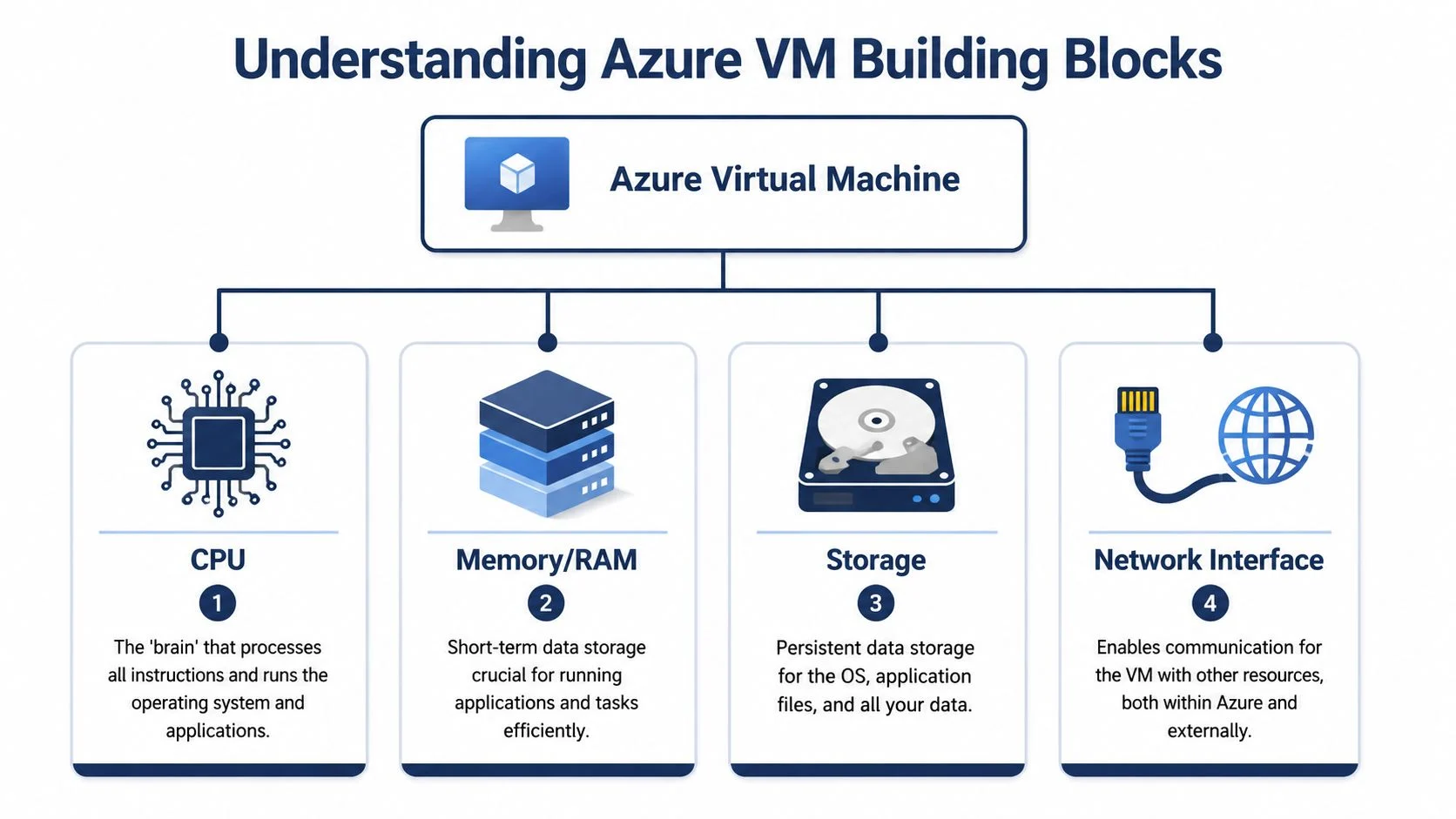
CPU determines how much work the VM can process
CPU affects how quickly the VM handles instructions and how many active tasks it can keep up with at once. High CPU demand shows up in workloads such as application servers with heavy transaction processing, reporting jobs, batch tasks, or systems doing constant calculations in the background.
The common mistake is to treat CPU as the default fix for every performance complaint. In practice, I often see Melbourne businesses add more vCPUs to a VM when the underlying issue is slow storage, memory pressure, or users connecting across the wrong region. That adds cost without fixing the bottleneck.
Azure’s VM size options vary widely, and Microsoft’s Azure VM sizes overview is the best place to compare the families properly. The important point for planning is simple. A small general-purpose VM and a compute-focused VM can behave very differently even if the vCPU count sounds similar.
Memory controls how much active data the VM can keep ready
Memory affects whether applications can keep working data available without constantly falling back to disk. When RAM is too tight, the server starts working harder just to keep up. Users usually experience that as lag, delayed screen loads, and sluggish application response rather than a clear error message.
This matters a lot for SQL Server, practice management systems, school administration platforms, finance software, and remote desktop hosts. These workloads often look moderate on CPU but still perform poorly because they do not have enough memory to hold active sessions and data comfortably.
For Australian SMBs and schools, this is one of the easiest places to overspend or undersize. Too little RAM creates daily frustration. Too much ties up budget in capacity that never gets used.
Storage affects both space and speed
Storage decisions are not just about how many gigabytes you need. They also affect input and output performance, latency, and how the application behaves under load. A VM with enough CPU and RAM can still struggle if the disk tier cannot keep up with reads and writes.
This catches out file servers, database servers, and older line-of-business applications moved into Azure without much redesign. The server itself may be fine, but the disk choice holds everything back. Premium SSD, Standard SSD, and other storage options exist for a reason. Picking the cheapest disk for a busy production system often creates false savings.
Capacity still matters, of course. Speed usually matters more.
Network affects how the VM feels to real users
Network performance covers throughput, latency, and the path between the VM, users, and connected systems. If staff in Melbourne or regional Victoria are opening an app hosted in the wrong Azure region, no amount of extra CPU will fully hide that delay.
Generic sizing advice often falls short for Australian organisations. A school with cloud-based student systems, shared file access, and remote staff may get a better result from a properly placed VM in Australia Southeast than from a larger machine hosted further away. The same applies to small businesses with office staff, warehouse users, and VPN-connected branches. Distance and application chatter matter.
A practical way to look at it is this. CPU, memory, and storage define what the server can do internally. Network determines how that experience reaches the person using it. If one side is out of balance, the whole service feels wrong.
The expensive mistake is focusing only on the VM size label and ignoring how these four parts work together. Good sizing starts with the workload, the users, and the region. Then you choose the VM shape that fits.
How to Accurately Measure Your Current Workload
Most bad VM choices start with one bad sentence: “We think this should be enough.”
That’s not a sizing method. It’s a gamble. The better approach is to measure the workload you already have, whether that’s an on-prem server, a Hyper-V guest, or an oversized Azure VM that’s been left alone for too long.

If you’re preparing for migration as well as sizing, this Azure Migrate guide is a useful starting point.
What to collect
In Windows environments, Performance Monitor is still a practical tool for this job. It’s not glamorous, but it gives you the basics you need. You want a view of normal behaviour and peak periods, not just one busy hour or one quiet afternoon.
Track these kinds of signals over a typical business cycle:
- CPU use such as
% Processor Timeso you can see average load and short spikes. - Memory pressure such as
Available MBytesso you can tell whether the server is constantly short on working space. - Disk activity such as
Disk Bytes/secor I/O counters, because many application issues are really storage bottlenecks. - Network throughput such as
Network Interface Bytes Total/secfor workloads serving users, branch offices, or remote sessions.
The point isn’t to build a perfect scientific model. The point is to stop relying on feel.
The four-input rule still holds up
One of the more useful older Azure sizing approaches described in 2018 relied on four core inputs: CPU utilisation, memory utilisation, total disk IOPS, and total disk capacity, as explained in this automated Azure VM sizing approach. That same methodology also noted a workload cap of about 448 GB and an IOPS cap of 80,000 when filtering candidate sizes, and pointed out that even a modest 2-core standard VM may provide only 3,750 IOPS in some configurations.
Those details matter because they show why people get sizing wrong when they only compare vCPU counts. A database-heavy workload can fail on storage performance long before CPU becomes the issue.
Don’t collect metrics for a single “busy day” and call it done. Schools have timetable cycles. Businesses have payroll runs, month-end reporting, backups, and seasonal bursts.
A simple measurement checklist
Here’s a practical way to approach it:
Pick a representative period
Use a normal business week at minimum. If your workload has monthly peaks, capture those as well.Measure both average and peak behaviour
Average use tells you about waste. Peak use tells you about risk.Separate user complaints from technical evidence
“It feels slow” is useful feedback, but you still need to see whether the issue is CPU, memory, disk, or network.Look for consistency
A server sitting mostly idle with rare bursts needs a different answer from one that’s under pressure all day.Use Azure Migrate for structured assessments when appropriate
For migrations or larger estates, Azure Migrate gives a more organised assessment process than manual note-taking.
What doesn’t work
A few habits cause expensive mistakes:
- Copying the old server spec because “that’s what we have now”.
- Sizing only for CPU because it’s the easiest graph to read.
- Ignoring disk performance for SQL, ERP, and document-heavy apps.
- Choosing a size before checking actual workload patterns.
Measured data removes emotion, removes vendor pressure, and usually removes waste.
Mapping Your Needs to the Right Azure VM Family
A lot of Azure overspending starts here. An office in Melbourne moves a server to Azure, picks a VM family that looks familiar, and leaves it there for years. The application changes, staff numbers change, usage patterns change, but the VM size does not.
Azure VM families are really hardware profiles. The family you choose affects CPU-to-memory ratio, storage behaviour, and the features available to that workload. For Australian SMBs and schools, that matters because the common workloads are usually predictable: domain controllers, file servers, SQL for finance or student systems, Remote Desktop or published apps, and a handful of line-of-business applications that everyone relies on but nobody wants to touch.
If remote access and desktop workloads are part of the mix, review how Azure Virtual Desktop suits different user patterns before treating them as a standard server sizing exercise.
The main families in plain English
D-series is the usual starting point for balanced workloads. It fits many application servers, domain controllers, smaller file services, and general business systems where CPU and memory needs are fairly even.
E-series is built for workloads that need more RAM per vCPU. That usually makes it a better fit for SQL Server, school management systems, ERP platforms, and older applications that keep a lot of working data in memory.
L-series suits storage-heavy and I/O-heavy jobs. If performance problems come from disk latency or throughput, this family can make more sense than forcing a general-purpose VM to do a storage-optimised job.
That last point is where many teams get caught. A VM can look cheap on paper and still cost more overall if users sit waiting on storage.
Common workload patterns
These are practical starting points, not fixed rules:
| Workload | Example Recommended VM Series | Key Consideration |
|---|---|---|
| Domain Controller | D-series | Usually a balanced workload. Oversizing is common and rarely justified |
| File Server | D-series or L-series | Capacity alone is not enough. File activity, concurrency, and burst patterns matter |
| Remote Desktop Host | D-series or E-series | Session density depends on application mix, user behaviour, and memory consumption |
| Small SQL Database | E-series | Memory pressure is often a bigger issue than CPU shortage |
| Application Server | D-series | A sensible default when CPU, RAM, and disk demand are reasonably balanced |
| Data-heavy line-of-business app | E-series or L-series | First identify whether the limit is memory or storage performance |
SQL is usually where bad sizing gets expensive
Generic advice breaks down quickly with databases.
For SQL Server on Azure VM, Microsoft’s guidance says smaller SQL Server environments can start around a 4:1 memory-to-vCore ratio, like D-series, while mission-critical OLTP workloads should start around an 8:1 ratio, with Ebdsv5 recommended as a starting point, according to the Microsoft SQL Server on Azure VM sizing guidance. That is why a CPU upgrade can miss the underlying problem.
For payroll systems, ERP, student platforms, and legacy databases, I regularly see the same mistake. Users report slowness. Internal IT or a vendor assumes the answer is more CPU. In practice, the workload is often short on memory or waiting on disk.
A database server with the wrong memory ratio will constantly swap data to disk, creating a performance bottleneck that more CPU power cannot fix.
That is especially relevant for schools and smaller businesses running one or two critical systems on tight budgets. If the finance system, student management platform, or reporting database is slow, staff feel it immediately. Choosing the right VM family early is usually cheaper than trying to brute-force the issue later with larger general-purpose instances.
Microsoft’s SQL guidance also notes that newer NVMe-based Azure VM images can change local disk behaviour, which affects some SQL deployment and startup scenarios. That sort of detail matters in real projects because it affects not just cost, but how the server behaves during maintenance, failover, and recovery.
Ongoing Optimisation and When to Seek Expert Help
A school in Melbourne rolls out a new learning platform mid-term. A small business adds remote staff and starts running more line-of-business software on the same VM. Nothing looks dramatic on day one, but three months later the server feels slow and the Azure bill has climbed. That is how sizing problems usually appear in practical scenarios. They often emerge subtly, then become undeniable.
Azure VM sizing needs a review cycle, not a set-and-forget decision. The pattern is straightforward: monitor the workload, compare it to the original assumptions, then resize if the numbers and business risk justify it.
Day-two operations that matter
Day-two work is usually less about chasing technical perfection and more about catching drift before it turns into wasted spend or a support issue.
Useful habits include:
- Review utilisation trends to spot VMs that are mostly idle, regularly short on memory, or hitting storage limits at busy times.
- Check cost changes after new software, extra users, or timetable changes in a school environment.
- Compare current demand to the original sizing assumptions because those assumptions often stop being accurate once the system has been in use for a while.
- Test resize windows carefully for production systems where downtime affects payroll, classes, finance, or remote access.
For Australian SMBs and schools, this matters because one VM often carries too much responsibility. It might be a file server, application server, and integration point at the same time. That saves money at the start, but it also means one sizing mistake can affect several services at once.
Resizing safely in Australia
Resizing a VM is not only a technical choice. It is also an availability and operations decision.
A common trap is assuming the next size up will be available exactly where the VM already runs. In practice, the target SKU may not be available in the same region, zone, or cluster at the time you want to change it. Before approving a resize, check what sizes are available for that VM, confirm whether the machine needs to be deallocated, and plan a validation window after the restart.
That is especially relevant for Australian deployments. If your systems are kept in Australian regions for latency, data handling, or internal policy reasons, your options can be narrower than generic sizing advice suggests. A right-sizing plan that looks good on paper can stall if the preferred SKU is unavailable where the workload lives.
When to get help
Bring in outside help when the risk of guessing is higher than the cost of a proper review.
That usually applies when:
- You cannot isolate the main bottleneck between CPU, memory, storage, and network.
- The VM supports a business-critical system such as payroll, student management, finance, or production software.
- You are migrating from on-premises infrastructure to Azure and want a realistic starting size rather than a rough copy of the old server.
- Azure costs are climbing without a clear operational reason.
- The environment has multiple VMs, SQL workloads, remote desktop users, backups, or hybrid dependencies that need to be assessed together.
A short review can prevent a long series of expensive guesses. I have seen organisations spend months paying for oversized VMs because nobody stopped to confirm whether the problem was compute, memory, disk throughput, or poor workload placement.
If you are trying to tie sizing decisions back to budget, this guide to Azure cost planning for a small business is a useful companion to a technical review.
Sometimes the cheaper option is one careful sizing assessment before the next invoice cycle, not another upgrade made under pressure.
Continuous review beats one-off clean-ups
Annual clean-ups are rarely enough. A lighter quarterly review usually works better, especially for schools with term-based demand changes and SMBs adding services over time.
An internal admin can handle the basics if they have clear reporting and time to review it. An external provider can help when the environment is more complex, the stakes are higher, or there is no room for trial and error. Tbourke Solutions supports Melbourne SMBs and schools with Azure sizing reviews, migration planning, infrastructure support, and ongoing cloud management.
Strategies for Significant Azure Cost Reduction
Right-sizing cuts waste, but cost control doesn’t stop there. The other half of the equation is how you pay for the VM you’ve chosen.
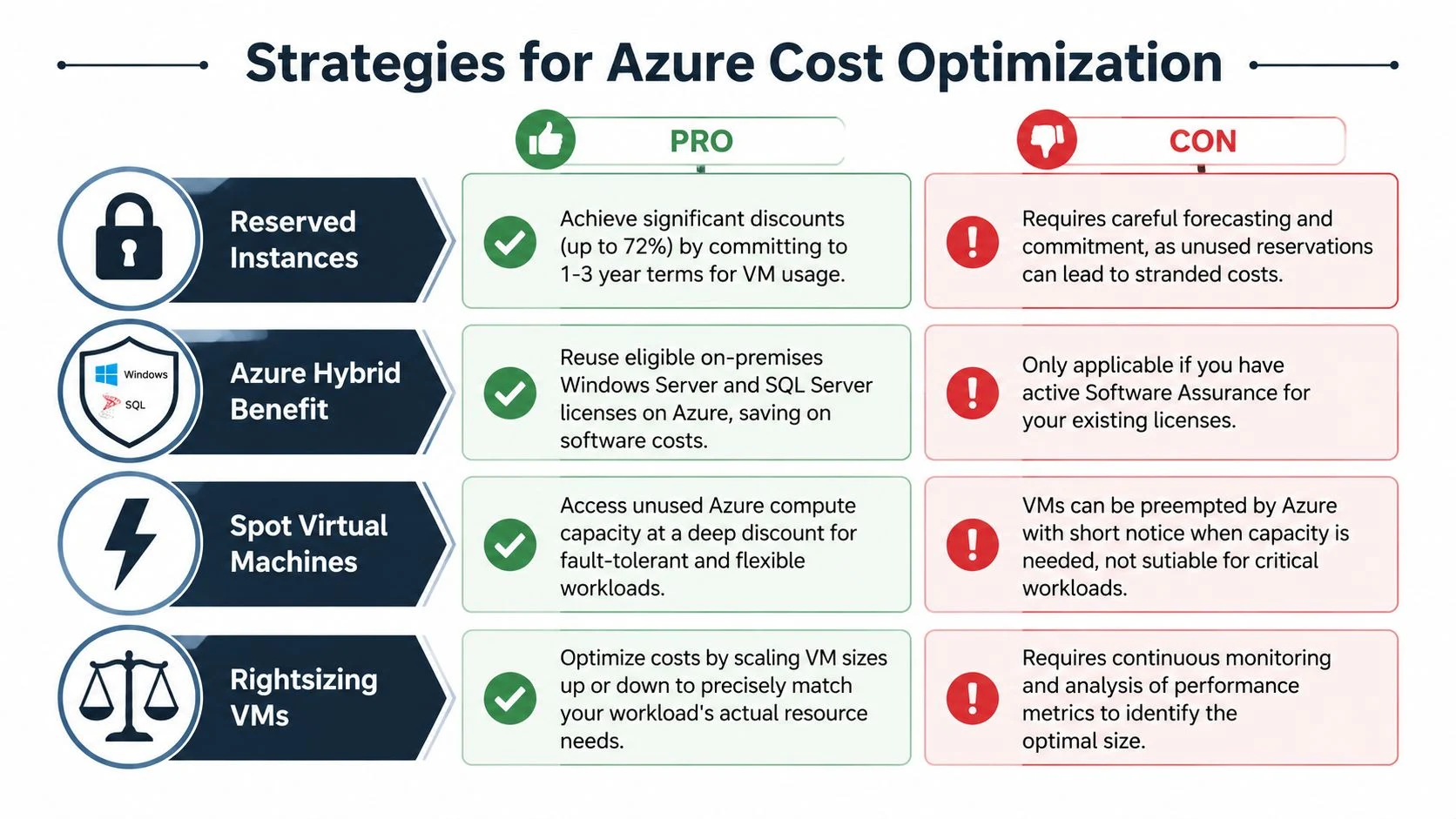
If you want a business-focused breakdown of cloud spend, this article on Azure cost for a small business is worth reading alongside your sizing review.
Don’t use one pricing model for everything
A stable file server and a short-term test machine shouldn’t be treated the same way. One is predictable. The other is not.
That means your commercial approach should fit the workload:
- Pay-as-you-go suits temporary, uncertain, or changing workloads.
- Commitment-based options make more sense for stable VMs that are expected to run continuously.
- Licence reuse options can reduce waste if you already hold eligible Microsoft licensing.
Reserved usage and licence benefits
For long-running infrastructure such as domain controllers, core application servers, or steady business systems, commitment models can make sense because the usage pattern is known in advance. The key is being honest about whether the workload is stable. If you commit too early on the wrong VM, you can lock in the wrong shape of spend.
The same applies to licensing. If your business already holds eligible Microsoft licences, Azure Hybrid Benefit can materially change the economics of running Windows Server or SQL in Azure. It’s one of the first items worth checking during a cost review because it affects software cost, not just compute.
The cost mistakes I see most often
These aren’t unusual:
- Oversizing a VM and then focusing only on tariff discounts instead of fixing the base problem first.
- Leaving non-production systems running continuously when they’re only needed during business hours.
- Putting every workload on the same purchase model because it feels simpler.
- Avoiding reviews because the environment is “working fine” even though the bill says otherwise.
Save money in the right order. First pick the correct VM family and size. Then optimise how you buy it.
How Tbourke Solutions Can Help and FAQs
Choosing an Azure VM size shouldn’t require guesswork, and it shouldn’t turn into a monthly surprise on the invoice. For Melbourne businesses and schools, the job usually involves more than selecting a VM from a dropdown. It often includes migration planning, workload measurement, SQL performance checks, licensing review, region selection, and ongoing cost control.
Tbourke Solutions is a Melbourne-based IT provider with over 20 years of experience supporting SMBs, schools, and sole traders across managed IT, infrastructure, cloud solutions, cybersecurity, and consulting. That matters because Azure VM sizing sits across all of those areas. It isn’t just a cloud task. It’s an operational decision that affects users, budgets, and business continuity.
If you want help assessing an existing Azure environment, planning a migration, or reviewing whether a current VM is oversized, undersized, or in the wrong family altogether, submit an enquiry through the Tbourke Solutions contact page.
FAQs
Is the cheapest Azure VM usually the best starting point
No. The cheapest VM is often the most expensive mistake if the workload needs more memory, disk performance, or network capability than that size can provide.
Should I size for peak usage or average usage
You need both. Average usage shows whether you’re wasting money. Peak usage shows whether the workload has enough headroom to stay stable.
Is CPU the main metric for VM sizing
Not on its own. CPU is important, but many performance problems come from memory pressure, storage I/O limits, or network constraints.
Are SQL workloads different from normal application servers
Yes. SQL often needs a different memory-to-vCore balance, so a general-purpose VM can be the wrong fit even when CPU looks acceptable.
Can I resize an Azure VM later
Yes, but you need to plan it properly. Some resizes require deallocation and restart, and the target size may not be available in your current region or hardware cluster.
Should I use one large VM or multiple smaller ones
It depends on the workload. For some services, a single larger VM is fine. For others, especially where latency, scaling, or resilience matter, a smaller local footprint with autoscaling is the better design choice.
If you want a practical review of your Azure environment, Tbourke Solutions can help assess your current workloads, identify sizing issues, review cloud costs, and recommend a cleaner path forward for your business or school.
Share This Story, Choose Your Platform!