
Let’s be honest, patch management is one of those thankless IT jobs. It’s absolutely critical for security, but it’s also repetitive, time-consuming, and often gets pushed aside for more urgent tasks. This is where Windows Autopatch comes in, and it’s a bit of a game-changer.
Think of it as Microsoft offering to take over the entire update process for you. It’s a cloud service that automates updates for Windows, Microsoft 365, Edge, and Teams. Essentially, it’s like having a dedicated, tireless assistant on your IT team who works 24/7 to make sure every computer is patched and secure, without you having to lift a finger. This service shifts patch management from a manual, often-dreaded chore to a smart, automated process.
TL;DR: What’s This All About?
In short, this guide explains how Windows Autopatch can automate your update process, saving your IT team significant time and boosting security. We cover what the service is, its real-world benefits like increased productivity, and how its clever ring-based deployment system works to prevent widespread issues. You’ll also learn the key requirements for getting started and see how it has transformed operations for major companies, giving you a clear path to modernise your patch management.

What Is Windows Autopatch, Anyway?
Imagine you’re managing a fleet of company vehicles. Each one needs regular maintenance—oil changes, tyre rotations, software updates for the GPS. Trying to coordinate all of that manually would be a logistical nightmare, filled with scheduling headaches and vehicle downtime.
Now, what if those vehicles could maintain themselves? They’d automatically book their own service, get updates installed overnight, and report back once the job was done. That self-maintaining fleet is the perfect way to think about Windows Autopatch. It automates that same tedious, cyclical process of patch management for all your organisation’s devices.
Shifting From Manual to Automated Patching
Traditionally, IT teams have burned countless hours testing, approving, and deploying updates. It’s a manual grind that’s not only slow but also wide open to human error, often leaving security gaps exposed for weeks longer than they should be.
Windows Autopatch completely changes this dynamic. It’s not just another update tool; it’s a fully managed service that lifts the operational burden of keeping your Microsoft environment current. It’s built to work hand-in-glove with tools like Microsoft Intune, which is the foundation of modern endpoint management today.
By handing over this critical function to automation, you get some serious advantages:
- Enhanced Security: Patches get deployed much faster, which massively shrinks the window of vulnerability for cyber-attacks.
- Increased Productivity: Your IT staff are freed from mundane patching cycles, allowing them to work on more strategic projects that actually grow the business.
- Improved Stability: Its phased rollout approach means potential issues are caught early on a small group of devices, minimising disruption for everyone else.
The Real-World Benefits of Automated Patching
Let’s be honest, patching is a grind. It’s a never-ending cycle of testing, deploying, and chasing down failed updates. But what if it didn’t have to be? Switching to Windows Autopatch isn’t just about saving your IT team a few hours here and there; it’s about fundamentally changing how you manage your devices for the better. You move from being constantly on the back foot to proactively securing your entire organisation.

The most obvious win is a massive security boost. When you’re patching manually, it’s easy for devices to be left vulnerable for weeks, creating a wide-open door for cybercriminals. Autopatch slams that door shut. It gets critical security updates deployed across your entire fleet quickly and consistently, but only after they’ve been safely vetted. This rapid, reliable deployment is a non-negotiable part of modern endpoint security.
Enhanced Productivity and Fewer Interruptions
Now, think about your staff. Nothing kills productivity faster than a forced update in the middle of an important task or a wonky patch that causes system crashes. Those issues create frustrating downtime and clog up your helpdesk with tickets. Autopatch handles updates far more intelligently, creating a stable, predictable experience for everyone.
Fewer interruptions and less time wasted on troubleshooting means your team can actually focus on their work, not on fighting with their computers.
By automating routine patching, Windows Autopatch not only minimises device downtime but also frees up skilled IT professionals to focus on strategic projects that drive genuine business value, rather than getting bogged down in repetitive maintenance.
This isn’t just a theory; the numbers back it up. A detailed Forrester study found that organisations using Windows Autopatch saw a 13 percentage point increase in patch success rates and a major drop in helpdesk tickets. Even better, the labour hours spent on feature updates were slashed by 50% to 95%. That’s a huge efficiency gain. You can delve into the full economic impact of Windows Autopatch to see how these savings stack up.
A Clear Return on Investment
For Australian businesses and schools, the business case for Windows Autopatch is crystal clear. Every hour your IT team spends babysitting manual patches is an hour they’re not spending on improving systems, supporting growth, or innovating.
When you add it all up, the benefits are compelling:
- Stronger Security: You dramatically reduce the risk of a costly data breach by closing vulnerability gaps much faster.
- Lower IT Overhead: Your team gets thousands of hours back annually, allowing them to focus on high-impact projects.
- Increased Employee Productivity: You minimise disruptions and keep your staff focused and effective.
- Simplified Compliance: Automated reporting and consistent patching make it far easier to meet regulatory standards.
Ultimately, Windows Autopatch delivers a powerful return on investment. It transforms a costly, time-consuming chore into a strategic asset that makes you more secure, more productive, and ready to focus on what really matters.
How Autopatch Works Behind the Scenes
The real magic of Windows Autopatch isn’t just that it handles updates for you, but how it does it without breaking everything in the process. The secret is a clever, ring-based deployment model. Think of it as a series of quality-control gates that every single patch has to pass through before it reaches the masses.
Instead of blasting an update out to every device at once (and hoping for the best), Autopatch organises your computers into distinct groups called deployment rings. This simple but effective method ensures any sneaky issues are caught early and contained within a small, controlled group, stopping a minor glitch from becoming a company-wide meltdown.
The Journey Through the Deployment Rings
By default, Autopatch creates a logical, staggered rollout for updates. While you can tweak things later, the standard setup involves four main rings that an update must successfully navigate. Each ring represents a gradually larger slice of your total device fleet.
The service is smart about this, automatically assigning devices to these rings to create a representative sample of your environment at each stage. It’s this methodical approach that makes automated patching something you can actually trust.
Here’s what that journey looks like:
- Test Ring: This is the first stop and the canary in the coal mine. It’s a tiny group, usually just a handful of machines belonging to your IT team or a few willing testers. The goal is simple: validate the update in a live environment with almost zero risk.
- First Ring: Once an update gets the all-clear from the Test ring, it graduates to the First ring. This group is a little bigger, making up about 1% of your total devices. It’s your early warning system before things get serious.
- Fast Ring: Next, the audience expands quite a bit. The Fast ring typically includes around 9% of your devices, giving the update a much broader test across different hardware models and software setups.
- Broad Ring: This is the final stage, covering the remaining 90% of your organisation’s computers. By the time a patch makes it here, it’s been thoroughly vetted through the previous stages, giving you solid confidence in its stability.
The table below breaks down how each ring contributes to a safe and steady rollout.
Understanding the Autopatch Deployment Rings
This table outlines the purpose and device allocation for each deployment ring, showing how Autopatch ensures stable and progressive update rollouts.
| Deployment Ring | Purpose | Typical Device Allocation |
|---|---|---|
| Test | The initial validation stage to catch immediate issues with minimal impact. | Your IT team or a few designated test devices. |
| First | An early-adopter group that acts as a broader early warning system. | Approximately 1% of your total devices. |
| Fast | A significant group used to test the update across a wider variety of configurations. | Approximately 9% of your total devices. |
| Broad | The final, widespread deployment to the rest of the organisation. | The remaining 90% of your devices. |
As you can see, the whole system is built on a simple, powerful idea.
The core principle behind this ring-based model is progressive exposure. By starting small and gradually increasing the number of devices, Windows Autopatch minimises the potential impact of a problematic update, effectively building a safety net directly into the deployment process.
This entire structure is managed within Microsoft’s cloud, the same powerful infrastructure you can explore further with services on the Windows Azure platform.
Built-in Safety Mechanisms
It’s not just about the rings, either. Autopatch has other safety nets built right in.
If the service detects that something is wrong—say, a spike in crashes or driver problems on devices in one of the rings—it can automatically slam on the brakes and pause the entire deployment. This stops a faulty update from ever reaching the next ring, giving your team time to figure out what’s happening without the rest of the business even noticing. It’s this combination of controlled rollouts and intelligent monitoring that really makes Autopatch a tool you can rely on.
Getting Your Environment Ready for Autopatch
Before you can dive in and enjoy the hands-off freedom of automated patching, you need to get your digital house in order. Implementing Windows Autopatch isn’t a massive technical mountain to climb, but it does lean on a specific set of modern management tools. Honestly, getting these prerequisites right is the most important step for a smooth, headache-free rollout.
Think of it like setting up a smart home. You can’t just plug in a fancy new security system and expect it to work miracles; you first need solid Wi-Fi, the right door locks, and the correct subscription. Autopatch is much the same—it needs the right licensing and tech foundations to do its job properly.
Core Licensing and Technical Requirements
First things first, let’s talk about licensing. The good news is that Windows Autopatch is included at no extra cost, but only if your organisation is already subscribed to one of these plans:
- Windows 10/11 Enterprise E3 or E5
- Windows 10/11 Education A3 or A5
- Windows 365 Business Premium
Beyond the licence, your devices need to be managed using modern, cloud-based tools. This means they must be either Azure Active Directory (Azure AD) Joined or Hybrid Azure AD Joined. The real linchpin here is that your devices absolutely must be enrolled and managed by Microsoft Intune, as it acts as the central command centre for all Autopatch operations.
This infographic gives a great visual of the ring-based deployment model Autopatch uses to roll out updates safely and progressively.
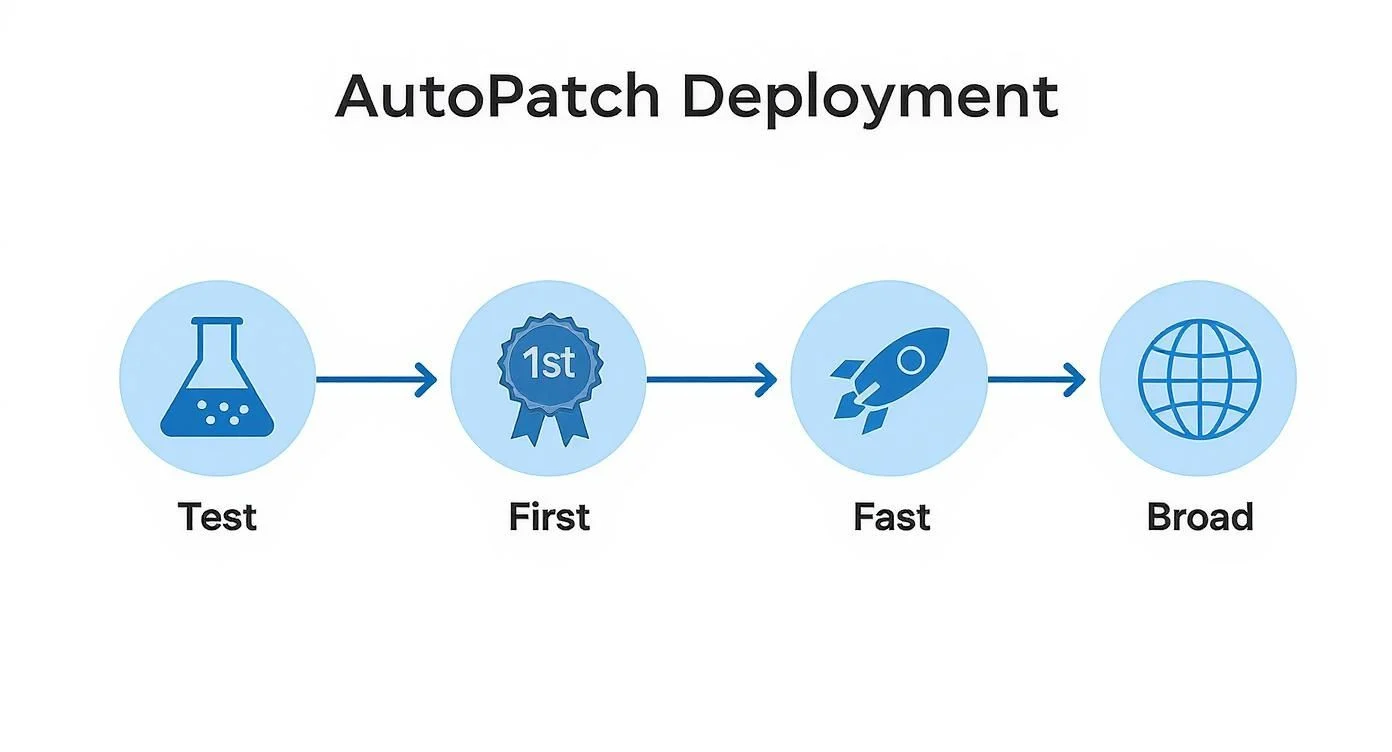
As you can see, it’s a clever system. Updates move from a small, internal test group all the way out to the entire organisation, which seriously minimises the risk of a dodgy patch causing widespread chaos.
Addressing Hardware and Migration Roadblocks
One of the biggest hurdles we see for many organisations is the hardware requirement, especially when it comes to making the full jump to Windows 11. Autopatch relies on modern security features, and that means devices must have TPM 2.0 (Trusted Platform Module) enabled. It’s non-negotiable. This little hardware chip is essential for the advanced encryption and security protocols that keep your data safe.
This is a key reason why Windows 11 adoption has been a slow burn. Despite its benefits, only about 8.35% of Windows users had migrated globally as of May 2023, with countless businesses still happily running Windows 10. But with Microsoft pulling the plug on Windows 10 support in October 2025, Australian organisations are now feeling the pressure to get their hardware and operating systems upgraded to stay secure.
Preparing for Windows Autopatch is more than just ticking boxes on a technical checklist; it’s a strategic shift toward modern endpoint management. Making sure your devices, licenses, and security posture are all aligned is the key to unlocking true automation without risking stability.
This forward-thinking approach also ties into broader IT trends, like getting ready for the future of server infrastructure. You can learn more about what’s on the horizon by checking out our guide on Windows Server 2025. Planning ahead like this ensures your entire IT ecosystem stays current, secure, and ready for whatever comes next.
Westpac’s Success Story: Autopatch in the Real World
It’s one thing to talk about the theory, but seeing Windows Autopatch succeed in a high-stakes, real-world environment shows you what it’s really capable of.
Let’s look at Westpac, one of Australia’s largest banks. For them, managing updates across a massive, highly regulated fleet of devices was a huge operational headache.
https://www.youtube.com/embed/xJ1Y7-akKEg
Before they made the switch, Westpac’s IT teams were trapped in that all-too-familiar cycle of manual patching. It was a slow, labour-intensive grind that delayed critical security updates—a massive risk for any financial institution. They knew they needed a better way to tighten security, improve efficiency, and get their IT staff off the patching treadmill.
Transforming Operations at Scale
Westpac’s move to Windows Autopatch wasn’t just a small tweak; it was a strategic decision to completely modernise how they manage their endpoints. The impact was immediate and impressive.
For a company with over 40,000 employees, the efficiency gains were massive. Westpac slashed its operational overhead for patching to just 10% of what it used to be. Even better, the time it took to deploy an update to a device dropped from a painful 90 minutes to a swift 25 minutes. You can dive into the full details of Westpac’s success story to see exactly how they pulled it off.
This case study proves that even in the most complex and demanding corporate environments, Windows Autopatch can slash manual effort, speed up update rollouts, and seriously strengthen an organisation’s security.
Key Outcomes and Lessons
Westpac’s journey offers a powerful blueprint for other Australian businesses and schools. The takeaways are clear and compelling:
- Huge Efficiency Gains: Automating the update process freed up countless hours for the IT team, letting them focus on bigger, more strategic projects instead of just keeping the lights on.
- A Stronger Security Posture: By getting security patches out faster, Westpac dramatically shrank the window of vulnerability to cyber threats.
- Better Device Stability: The smart, ring-based rollout model meant updates were deployed smoothly and reliably, which minimised disruptions and kept employees productive.
This isn’t just a tool for small businesses. Westpac’s experience proves Windows Autopatch is a scalable, enterprise-grade solution that delivers real, measurable results.
Windows Autopatch: Frequently Asked Questions
Switching to a new service always raises a few questions. We’ve pulled together some of the most common ones we hear about Windows Autopatch to give you clear, practical answers and help you figure out if it’s the right move for your organisation.
Will I lose control over updates with Autopatch?
Not at all. This is probably the biggest myth out there. While Autopatch automates the heavy lifting, you’re still in the driver’s seat. Through the Intune portal, you have a complete bird’s-eye view of the update schedule and exactly what’s happening with each deployment ring. If an update starts causing trouble, you can hit the pause button for any ring with just a couple of clicks. It’s the perfect blend of ‘set it and forget it’ convenience with the power to jump in when you need to.
Does Windows Autopatch cost extra?
Nope, there’s no line item on your Microsoft bill for the Autopatch service itself. It’s an included feature if you’re subscribed to Windows 10/11 Enterprise E3 or E5 (or the A3/A5 equivalents for schools). If you’ve already got the right licences, you can switch on Autopatch without paying Microsoft a cent more. The only real “cost” is making sure your tech environment is ready and meets all the prerequisites first.
What software does Autopatch actually update?
Autopatch is laser-focused on the core Microsoft ecosystem. It’s built to manage the critical updates for:
- Windows 10/11 (both the monthly security patches and the big yearly feature updates)
- Microsoft 365 Apps for enterprise (Word, Excel, Outlook, etc.)
- Microsoft Edge
- Microsoft Teams
What it doesn’t do is patch third-party software like Adobe Reader, Zoom, or Google Chrome. You’ll still need a separate way to handle those, but the good news is you can manage that right alongside Autopatch from within Microsoft Intune.
How Tbourke Solutions Can Help You with Windows Autopatch
Thinking about switching to Autopatch but not sure where to start? It can feel like a big leap, but you don’t have to go it alone. At Tbourke Solutions, we specialise in helping organisations like yours implement and manage Windows Autopatch smoothly and effectively. Our goal is to handle the technical details so you can enjoy the benefits of automated, secure, and stress-free patching.
Readiness Assessment and Strategic Rollout
The first step is always a thorough readiness check. We’ll dive into your licensing, Azure AD setup, and Intune configurations to make sure everything lines up with Autopatch prerequisites. From there, we work with you to create a customised rollout plan that minimises disruption and aligns with your business operations. Our hands-on guidance ensures a seamless transition, from tenant enrolment to configuring your deployment rings.
Ongoing Management for Total Peace of Mind
For businesses that want a completely hands-off solution, our support doesn’t stop at setup. As part of our comprehensive managed IT services offerings, we can monitor and manage the Autopatch service on your behalf. This lets you delegate the entire patching lifecycle with confidence, knowing your devices are consistently updated and protected by a team of experts.
When you work with Tbourke Solutions, you’re not just hiring a contractor; you’re gaining a dedicated IT partner who’s genuinely committed to making your security stronger and your operations simpler.
Ready to take patching off your to-do list for good? Get in touch for a chat. Visit our contact page to submit a query and let’s discuss how we can help.
Share This Story, Choose Your Platform!