
So, you’re thinking about ditching that old, clunky file server and moving everything over to SharePoint? Good call. It’s a move that swaps outdated local drives for a modern, secure way for your team to work together, especially now that hybrid work is the norm. This isn’t just a tech upgrade; it’s a strategic shift in how your business operates.
TL;DR
This guide provides a comprehensive roadmap to successfully move your file server to SharePoint for your business. We cover the key benefits like cost savings and improved collaboration, walk through the critical planning and data cleanup phases, and compare different migration tools. The article also provides a practical cutover checklist and post-migration tips to ensure long-term success, making your transition smooth and effective.
Why Move Your File Server to SharePoint
Let’s be honest, leaving a traditional on-premises file server behind feels like a big step. It’s familiar, it works (mostly), but it also keeps your data locked in a silo. This old way of working often slows down productivity and comes with a heap of hidden costs like maintenance, hardware upgrades, and tedious manual backups.
Moving to SharePoint is about embracing a smarter, more connected, and far more secure way of managing your company’s most important asset: its data.
Your SharePoint Migration Guide at a Glance
This guide is your complete roadmap for getting from that old file server to a fully functioning SharePoint environment. We’ll kick things off by looking at the real business benefits, from saving money to making teamwork actually work.
Then, we’ll dive into the critical planning and discovery phase, helping you clean up your existing data and design a SharePoint structure that makes sense. You’ll learn how to pick the right migration tools for the job, untangle complex permissions, and pull off a smooth cutover with minimal drama. Finally, we’ll cover how to look after your new setup for long-term success.
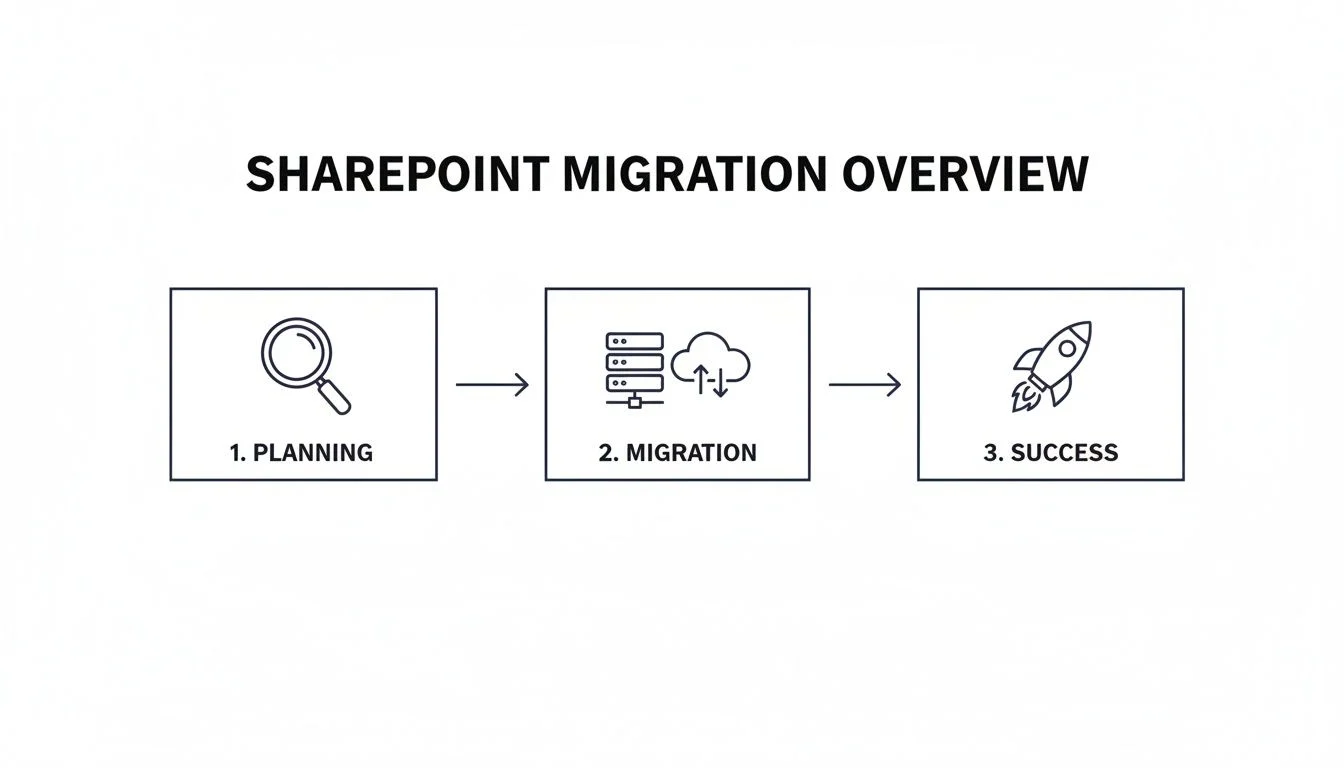
The diagram above really nails it: a successful project is all about the planning you do before you even start moving files. Get that right, and you’re setting yourself up for a smooth transition and a big win for the business.
The Key Drivers for Making the Switch
At its core, this move is about embracing proper cloud-based collaboration. SharePoint Online was built for the way we work today. Instead of emailing different versions of a document back and forth, teams can jump into the same file and co-author in real-time. They can grab what they need from any device and hook their workflows directly into Microsoft Teams. This centralised hub breaks down frustrating information barriers and makes sure everyone is on the same page.
Here in Australia, this shift is well and truly underway. A Forrester study found that Aussie organisations moving to SharePoint Online saw a 15% reduction in time spent on document management. On top of that, a whopping 85% of users said their teamwork improved in a hybrid work model. This isn’t just about trimming IT overheads; it’s about setting your business up for an AI-driven future, making the switch a genuine strategic priority.
But the benefits go way beyond just better teamwork. Here are a few other major wins:
- Reduced Costs: Say goodbye to paying for server hardware, pricey maintenance contracts, and the power to run it all. A simple, predictable subscription makes budgeting a breeze.
- Enhanced Security: SharePoint is backed by Microsoft’s enterprise-grade security. We’re talking advanced threat protection, data loss prevention (DLP), and fine-grained control over who can see and do what.
- Scalability: As your business grows, your storage grows with it, no need to go out and buy another expensive piece of kit.
- Automation Potential: SharePoint connects seamlessly with Power Automate and Power BI. This opens the door to automating all those repetitive tasks and getting real insights from your data. You can learn more about how our team puts these powerful tools to work in our guide to Microsoft SharePoint services.
Laying the Groundwork for a Successful Migration
Let’s be honest: a successful file server migration to SharePoint is all about the prep work. The actual moving of files is the easy part. The real heavy lifting happens before you even think about clicking “migrate,” and it’s this groundwork that separates a smooth transition from a chaotic mess.
Jumping straight in without a solid plan is like building a house with no blueprints. Sure, you might get the walls up, but you’ll end up with a structure that’s unstable and impossible to live in. The first, non-negotiable step is a thorough audit of what you’ve actually got on that old server.

Auditing Your Current File Server
Before you can design a new home for your data, you need a detailed inventory of your current setup. This means getting a crystal-clear picture of your data volume, file types, permissions, and the overall folder structure. Skipping this is the single biggest mistake I see companies make, and it almost always leads to migrating clutter and recreating the exact same problems in a shiny new system.
Think of it as a pre-move declutter. You wouldn’t pay removalists to pack up and move boxes of rubbish to your new house, so why on earth would you do it with your digital files? Your audit needs to ruthlessly identify what we call ROT data, that’s Redundant, Obsolete, and Trivial files.
This is the digital deadwood clogging up your server:
- Redundant: Five different versions of the same quarterly report saved in five different project folders.
- Obsolete: Design files for a client you parted ways with ten years ago.
- Trivial: Old company lunch menus, social event photos, or someone’s personal music collection.
Getting rid of this junk is non-negotiable. It drastically reduces the amount of data you need to move, saving you time, money, and a lot of headaches. More importantly, it ensures your new SharePoint environment starts clean, housing only valuable, relevant information. This cleanup is also a critical security step. Data fragmentation is a huge issue, and Gartner research shows that only 27% of Australian businesses have mature data management practices. This can lead to sensitive data being exposed during a migration. Thoroughly organising data beforehand is a key step that has helped organisations achieve 85% user satisfaction with collaboration after moving. The Australian government is also focused on this, as detailed in their whole-of-government generative AI report.
Designing a Modern SharePoint Architecture
Once your data is clean and organised, the next job is to design its new home. It’s incredibly tempting to just copy and paste your old nested folder structure directly into SharePoint, but doing so is a massive missed opportunity. Traditional file servers naturally lead to deep, confusing folder trees that make finding anything a complete nightmare.
SharePoint just doesn’t work that way. It’s built for a flatter, more intuitive architecture based on sites, not endless folders.
A common mistake is treating SharePoint like a simple network drive in the cloud. To truly get value from it, you must shift your thinking from folders to sites, libraries, and metadata. This modern approach makes information easier to find, manage, and secure.
Instead of one giant, messy drive, you’ll design a logical structure using SharePoint’s building blocks:
- Hub Sites: These act as gateways for related departments or projects. For example, a “Finance Hub” can connect all the different finance-related sites like “Accounts Payable,” “Payroll,” and “Budgeting.”
- Team Sites: These are the dedicated collaborative spaces for specific teams or projects, like the “Marketing Team” site or the “2025 Product Launch” project site.
- Communication Sites: These are designed for broadcasting information to a wide audience, like a company-wide news portal or an HR resources page with policies and forms.
Getting your key stakeholders involved during this design phase is absolutely critical. Sit down with department heads and team leaders to understand their actual, day-to-day workflows. A structure that looks perfectly logical to an IT admin might be completely impractical for the sales team. By designing the architecture around real business processes, you’ll drive user adoption from day one and avoid building a system nobody wants to use. This planning is also essential for compliance; you can learn more in our comprehensive guide to Microsoft Purview about managing your data lifecycle effectively.
Choosing the Right Migration Tools and Strategy
Once your shiny new SharePoint architecture is mapped out, it’s time to get practical. How are you actually going to move all that data? Choosing the right migration tool is the crucial step that connects your plan to a real-world, successful outcome. This decision will directly shape the speed, accuracy, and overall headache-level of your move from an old file server to SharePoint.
The market is full of options, from free, get-the-job-done utilities to seriously powerful third-party platforms. The right choice for your business really boils down to how much data you have, how tangled your permissions are, and how comfortable your team is with the technical side of things.
Microsoft’s Free Migration Tools
For many small and medium businesses, Microsoft offers two excellent, free tools that get the job done surprisingly well: the SharePoint Migration Tool (SPMT) and Mover.io. Knowing what each one is built for is the key.
- SharePoint Migration Tool (SPMT): This is your go-to for the classic on-premises file server-to-SharePoint Online migration. It’s designed to be straightforward. You point it at your source server, map it to a destination SharePoint site or OneDrive account, and let it run. It can handle basic permission mapping and, importantly, supports incremental migrations, which is a lifesaver for cutting down final cutover time.
- Mover.io: Microsoft acquired Mover for a reason: it’s brilliant at cloud-to-cloud migrations. If your files are currently sitting in Dropbox, Box, or Google Drive, Mover is the tool you’ll use to pull them into the Microsoft 365 ecosystem. It’s not for on-premise servers, but it’s essential to have in your back pocket if your data is scattered across different cloud services.
For a lot of organisations, SPMT is a perfectly good starting point. Just be aware that its reporting is a bit basic, and it can sometimes stumble over highly complex, nested NTFS permissions that have been piling up for years.
When to Consider a Third-Party Tool
Free is great, but sometimes paying for a specialised third-party tool is actually the more financially savvy move. These platforms are engineered to handle the messy, time-sucking parts of a migration that the free tools often oversimplify or just can’t handle.
Professional migration tools aren’t just about copying files; they’re about moving intelligence. They can translate complex permissions, run detailed pre-migration health checks, and provide robust logs that can save your team dozens of hours of troubleshooting.
You should seriously look at a third-party solution if you’re facing these scenarios:
- Complex Permissions: Your file server has a decade’s worth of intricate, user-specific NTFS permissions that need to be carefully translated into modern SharePoint security groups, not just clumsily copied over.
- Detailed Reporting Needs: You need rock-solid pre- and post-migration reports to audit every file, verify permissions, and give stakeholders clear proof that everything made it over correctly.
- Large Data Volumes: You’re moving terabytes of data and need advanced features like high-speed transfer engines and smart throttling management to get it done efficiently without constantly hitting Microsoft’s API limits.
These tools can be invaluable. For larger projects, it’s often worth engaging with experts who provide seamless SharePoint migration services to ensure a smooth transition with minimal disruption to the business.
SharePoint Migration Tool Comparison
To help you visualise the options, here’s a quick comparison of the common tools for migrating file servers to SharePoint. This should help you pick the right one for your specific needs.
| Tool | Best For | Key Advantages | Key Limitations |
|---|---|---|---|
| SharePoint Migration Tool (SPMT) | Small to medium migrations from on-premises file shares with straightforward permissions. | Completely free, easy to use for basic jobs, supports incremental syncs. | Basic reporting, can struggle with complex permissions, limited scheduling. |
| Mover.io | Migrating from other cloud storage platforms (Dropbox, Box, Google Drive) into Microsoft 365. | Free, web-based, excellent for cloud-to-cloud transfers. | Not designed for on-premises file server migrations. |
| Third-Party Tools (e.g., ShareGate, Metalogix) | Large, complex migrations with intricate permissions, metadata, and reporting needs. | Advanced permission mapping, detailed pre/post-migration reports, high-speed transfers. | Requires a paid licence, which can be a significant cost. |
Ultimately, the tool is a means to an end. The free options are powerful for simpler jobs, but don’t hesitate to invest in a paid tool if your migration has any complexity. It will almost certainly save you time and money in the long run.
Pilot Migrations and Critical Logistics
Whatever you do, never attempt a full-scale migration without running a pilot test first. Think of a pilot as your dress rehearsal. It’s your chance to find and fix all the weird, unexpected problems on a small, controlled scale.
Pick a single department’s data, ideally one with a mix of different file types and permission structures, and run a complete end-to-end migration. This process will almost certainly uncover issues you never thought of, like problematic file path lengths, permissions that don’t translate cleanly, or bandwidth bottlenecks. It’s also your best chance to get comfortable with your chosen migration tool. The lessons learned here are invaluable and will make the final cutover dramatically smoother.
This structured, test-first approach is essential for any complex cloud project. In fact, we recommend similar strategies in our Azure Migrate guide.
Finally, keep a close eye on your network bandwidth. Pushing hundreds of gigabytes, or even terabytes, of data up to the cloud can easily saturate your internet connection and bring daily operations to a crawl. Plan to run the initial, heavy data syncs during off-hours, like over a weekend. The subsequent incremental syncs will be much smaller and faster, having far less impact on your network.
Right, you’ve done the hard yards with planning, auditing, and testing. Now it’s time for the final push: the cutover. This is the moment you officially switch off the old file server and welcome everyone to your new SharePoint environment.
A smooth cutover isn’t about some last-minute technical wizardry. It all comes down to precise coordination and crystal-clear communication.
The whole process lives and dies by your cutover checklist. Think of it less as an IT to-do list and more as a project management plan. It ensures everyone, from your tech team to your end-users, knows exactly what’s happening, when it’s happening, and why. The goal here is to minimise disruption and make the transition feel like a natural next step, not a jarring change.

Your Practical Cutover Checklist
A successful cutover is all about timing. We almost always run these over a weekend or another off-peak period. It just makes sense. You get a clear window to work without interrupting daily operations.
Your checklist should break down the process into these key moves:
- Communicate the Timeline: Send out a clear, simple email to all staff. Let them know the cutover schedule, when the old server will become read-only, and when they can log into SharePoint. No jargon, just the facts.
- Lock Down the Old Server: This is a non-negotiable step. Before you run that last data sync, you must set the old file server to read-only. This stops anyone from saving a “final_final_v2.docx” and ensures your last sync is truly the last one.
- Run the Final Sync: Fire up your migration tool one last time. Since the heavy lifting is already done, this final incremental sync is usually quick. It just needs to catch any files that changed since your last big run.
- Validate Everything: Once the sync finishes, it’s time for post-migration checks. Spot-check critical folders, verify permissions on a few key sites, and give the migration report a once-over for any errors or skipped files.
- Redirect and Decommission: Confident everything is across? Great. Now, update any desktop shortcuts, bookmarks, or application links to point to the new SharePoint locations. Don’t rush to switch off the old server, though. Keep it as a read-only archive for a few weeks, just in case.
Getting Your Team On Board with Training and Support
Just flipping the switch and making SharePoint available is not enough. The success of any project to move file server to SharePoint business wide hinges entirely on user adoption. If your team doesn’t get it, they’ll find workarounds. Before you know it, you’ll have critical data scattered across personal OneDrive accounts and other unauthorised cloud services.
The biggest challenge in a SharePoint migration isn’t moving the data; it’s changing people’s habits. Frame this as a business improvement that makes their jobs easier, not just a technical update that IT is forcing on them.
To get your team on board, you need a smart change management strategy. Forget dense, boring manuals nobody will read. We’re talking about practical, accessible training that respects their time.
Here are a few strategies that actually work:
- Run Short Workshops: Host brief, role-specific training sessions. Your marketing team will want to know about co-authoring and sharing documents with external clients. Your finance team will care more about version history and locking down sensitive files.
- Create Quick-Reference Guides: One-page PDFs or short screen-recording videos are gold. Cover essential tasks like how to share a file properly, check version history, or use the search bar effectively.
- Appoint SharePoint Champions: Find those tech-savvy, enthusiastic users in different departments and make them your champions. They can act as the first point of contact for their colleagues, which takes a massive load off your IT team.
Remember, good training is also a critical part of your security. For more on building a security-conscious culture, check out our resources on security awareness and training. By investing a little time in empowering your team, you ensure your new SharePoint environment becomes the productivity hub you planned for, not a source of endless support tickets.
Now, Let’s Fine-Tune Your New SharePoint Environment
Right, the heavy lifting of the migration is done. Your files are in their new home, and the team is starting to explore SharePoint. It’s tempting to dust off your hands and call it a day, but this is actually where the real work begins. You’ve moved from a short-term project to the long-term phase of optimisation and governance.
Without a clear set of rules, that clean, organised SharePoint environment you just built can quickly turn into the same digital mess you were trying to escape. This is where governance comes in. It’s not about locking things down; it’s about creating a smart, sustainable framework that keeps things organised, secure, and genuinely useful.
Establish a Clear Governance Plan
Think of a governance plan as the “house rules” for your SharePoint. It tells everyone how to use the platform, what they can (and can’t) do, and who is responsible for what. This isn’t a document you create once and forget about; it needs to grow and adapt with your business.
Your plan should get specific on a few key areas:
- Site Creation: Who gets to create new Team or Communication sites? Should they follow a naming convention or use a specific template? Letting everyone do their own thing is a fast track to duplicate sites and total confusion.
- External Sharing: What are the rules for sharing files outside the business? You might want to lock down sites with sensitive HR or financial data but allow controlled sharing for project collaboration sites.
- Data Retention and Archiving: How long do you need to keep certain documents? Setting up retention policies helps you meet legal obligations and automatically cleans out old, irrelevant files before they pile up.
A well-thought-out governance strategy is the single biggest factor in the long-term success of SharePoint. It’s what turns a simple cloud drive into a powerful, well-managed business hub.
Connect SharePoint to the Rest of Microsoft 365
One of the biggest wins you get from moving to SharePoint is how beautifully it plugs into all the other Microsoft 365 apps. This is where you can unlock some serious productivity boosts. SharePoint stops being just a place to dump files and becomes the content engine for your whole operation.
Start thinking about integrations like:
- Microsoft Teams: Every new team in Teams automatically gets its own connected SharePoint site. This is brilliant because it means all the files shared in a Teams channel are actually stored, secured, and managed in one central place: SharePoint.
- Power Automate: You can build incredibly useful automated workflows that kick off based on what happens in SharePoint. Imagine an approval process that automatically starts when a new contract is uploaded, or a notification that pings a manager when a key policy document is updated.
This deep integration is a major reason why businesses move file server to SharePoint business-wide. It’s not just a tech decision; it’s an economic one. Microsoft’s huge A$5 billion investment in Australian data centres gives a direct performance boost to local users. We’ve seen that after migrating, Australian SMEs are showing 42% AI adoption rates, using SharePoint as the foundation for automation that saves an average of 1.5 hours weekly per user. You can see more on these trends among SharePoint development companies in Australia.
Keep Monitoring and Improving
Finally, remember that your SharePoint environment is never truly “finished.” To make sure it keeps delivering value, you need to actively monitor how it’s being used and look for ways to improve it.
A good place to start is by keeping an eye on your storage usage. Watch which sites are growing the fastest so you can plan for the future and spot any teams that might be hoarding unnecessary data. The built-in audit logs are also your best friend. They let you see who is doing what, which helps you spot security risks (like someone downloading thousands of files) and identify areas where your team might need a bit more training.
But most importantly, talk to your team. They’re the ones in the trenches every day. Regular check-ins or simple surveys can give you priceless feedback on what’s working and what’s causing friction. This is how you make continuous tweaks that ensure SharePoint remains a genuine asset to your business, not just another piece of software.
Frequently Asked Questions
When you’re looking to move a file server to SharePoint for your business, a lot of questions pop up. We get it. To help you feel more confident about the journey, we’ve answered some of the most common queries we hear from businesses making the switch.
How Long Does a File Server to SharePoint Migration Typically Take?
This is the classic “how long is a piece of string?” question. The timeline really depends on how much data you have, how tangled your existing permissions are, and which migration tools you decide to use.
For a small business with a fairly organised server, the whole process from planning to the final cutover might only take a few weeks. But for a larger organisation with terabytes of data and a decade of messy permissions, the project could easily stretch over several months. The discovery and planning phase is where you’ll get the clearest picture of your specific timeline.
Will My Existing Folder Structure Be Replicated in SharePoint?
Technically, yes, you can lift and shift your old nested folder structure directly into SharePoint. But we almost never recommend it. All you’re doing is moving an old problem into a brand-new system, and you’ll miss out on SharePoint’s biggest strengths.
The best practice is to completely rethink your architecture. We help you design a modern, flatter structure of sites and libraries that makes sense for how you work today. This approach dramatically improves search, navigation, and permissions management, making information much easier for everyone to find.
Think of the migration as the perfect opportunity to build a logical, intuitive home for your data, rather than clinging to a folder system that was probably created years ago.
What Happens to File Permissions During the Migration?
Handling file permissions is one of the most critical parts of the project, and a capable migration tool is non-negotiable here. The right tool can map your old NTFS permissions from the file server to either SharePoint permissions or modern Microsoft 365 Groups.
This is also an excellent chance to conduct a much-needed security audit. Over the years, permissions on old file servers tend to become a real mess. The migration gives you a clean slate to simplify this security model, clean up access rights, and ensure only the right people have access to the right information.
Can We Still Access Files During the Migration Process?
Yes, absolutely. A well-planned migration is designed to cause minimal disruption to your daily work. We typically kick things off with a large initial sync of all your data, often run over a weekend or outside of business hours so no one is affected.
After that initial copy, the migration tool performs smaller, incremental syncs to catch any changes. Your team can keep working on the old file server as usual right up until the final cutover. Only at the very end will we set the old server to read-only while the final sync completes.
Need a Hand with Your Migration? Let Tbourke Solutions Help
Moving your entire file server to SharePoint can feel like a massive undertaking, and honestly, it often is. But you absolutely don’t have to go it alone. At Tbourke Solutions, we specialise in helping Australian businesses like yours make the switch to Microsoft 365 smoothly and strategically. Our team is with you every step of the way, from the initial planning sessions right through to execution and ongoing support after you’ve gone live.
We make sure your data is structured properly from the get-go, permissions are locked down tight, and your team is actually ready to embrace all the collaborative features SharePoint has to offer. Getting a project to move file server to SharePoint business-wide over the line is so much more than a technical tick-box exercise; it’s a genuine upgrade to how your business operates.
How We Can Help
Whether you need a partner to manage the entire project or just want expert guidance to support your in-house team, we offer flexible solutions to fit your needs.
- Fully Managed Migration: We handle everything from the initial audit and planning to the final cutover and user training, providing a complete end-to-end service.
- Consultancy and Support: If you prefer to manage the migration internally, we can provide expert IT consultancy services to guide your team, troubleshoot complex issues, and ensure you’re following best practices.
- Post-Migration Optimisation: We don’t just migrate your data; we help you get the most out of your new environment with ongoing support, governance planning, and workflow automation.
Ready to talk about your project and map out a clear plan? Reach out and submit a query through our contact page to reach out and submit a query at http://tbourke-solutions.com.au/contact. Let’s make your move to the cloud a success.
Share This Story, Choose Your Platform!