
Your business data probably sits in Microsoft 365, your staff sign in from home, on the road, and sometimes from personal phones, and your old idea of “the office network” no longer means much. A password by itself doesn’t tell you enough. It doesn’t tell you whether the device is managed, whether the sign-in looks risky, or whether the person is trying to access sensitive data from a context that should raise concern.
That’s where Conditional Access comes in. If you’ve been asking what Conditional Access in Azure is and how it works, the practical answer is simple. It’s the rule engine that decides whether a sign-in should be allowed, blocked, or challenged with extra controls based on the situation, not just the password.
The Modern Security Challenge for SMBs
A common small business scenario looks like this. The owner logs into Microsoft 365 from the office. A bookkeeper works from home. A sales rep checks email on a personal mobile. A manager opens SharePoint from a café Wi-Fi connection. Everyone needs access, but not every sign-in should be treated the same.
The old model assumed that if someone got through the front door of the network, they were probably safe. That model breaks down once your files, email, Teams data, and business apps live in the cloud. Staff can be productive from anywhere, but attackers can also try to log in from anywhere.
For SMBs, the challenge isn’t just stopping obvious attacks. It’s making sensible decisions without creating chaos for staff. If security is too loose, business data is exposed. If security is too strict, people get blocked when they’re trying to do their jobs.
Conditional Access is Microsoft’s answer to that problem inside Microsoft Entra ID. It gives you a way to apply rules based on context. Instead of asking only, “Did they enter the right password?”, it asks better questions.
The questions that matter
- Who is signing in. Is this a staff member, a contractor, or an administrator?
- What are they trying to access. Is it email, SharePoint, or another app connected to Entra ID?
- Where are they signing in from. Is it a trusted location or something unexpected?
- What device are they using. Is it a managed business laptop or an unknown personal device?
That shift matters because a small business doesn’t need enterprise complexity. It needs practical control. Conditional Access can provide that, but only if it’s designed around how your staff work.
Good security for an SMB should reduce blind trust, not create new admin headaches.
TLDR Your Quick Guide to Conditional Access
A staff member signs in with the right password from a personal laptop at a cafe, and Microsoft 365 still should not treat that session the same as a bookkeeper on a managed office device. Conditional Access is the control layer in Microsoft Entra ID that makes that call.
It checks the context around a sign-in, then applies the response you set. That can mean allowing access, prompting for MFA, limiting what the user can do in the session, or blocking the attempt altogether. If you need a quick primer on the identity system behind it, start with this guide to Microsoft Entra ID.
For a small business, the value is practical. You stop relying on the password alone and start setting rules based on who the user is, what they are trying to open, where they are signing in from, and whether the device gives you enough confidence.
That last point gets missed. Conditional Access only works as well as the signals feeding it. If device information is incomplete, staff use unmanaged phones, or locations are poorly defined, a policy can look strong on paper and still leave gaps in day-to-day use.
How Conditional Access Works The Smart Bouncer Analogy
A useful way to explain Conditional Access is to compare it to a smart bouncer at the door of a private venue. A basic bouncer checks one thing. Your ID. A smart bouncer checks the full situation before deciding whether you walk straight in, answer more questions, or get turned away.
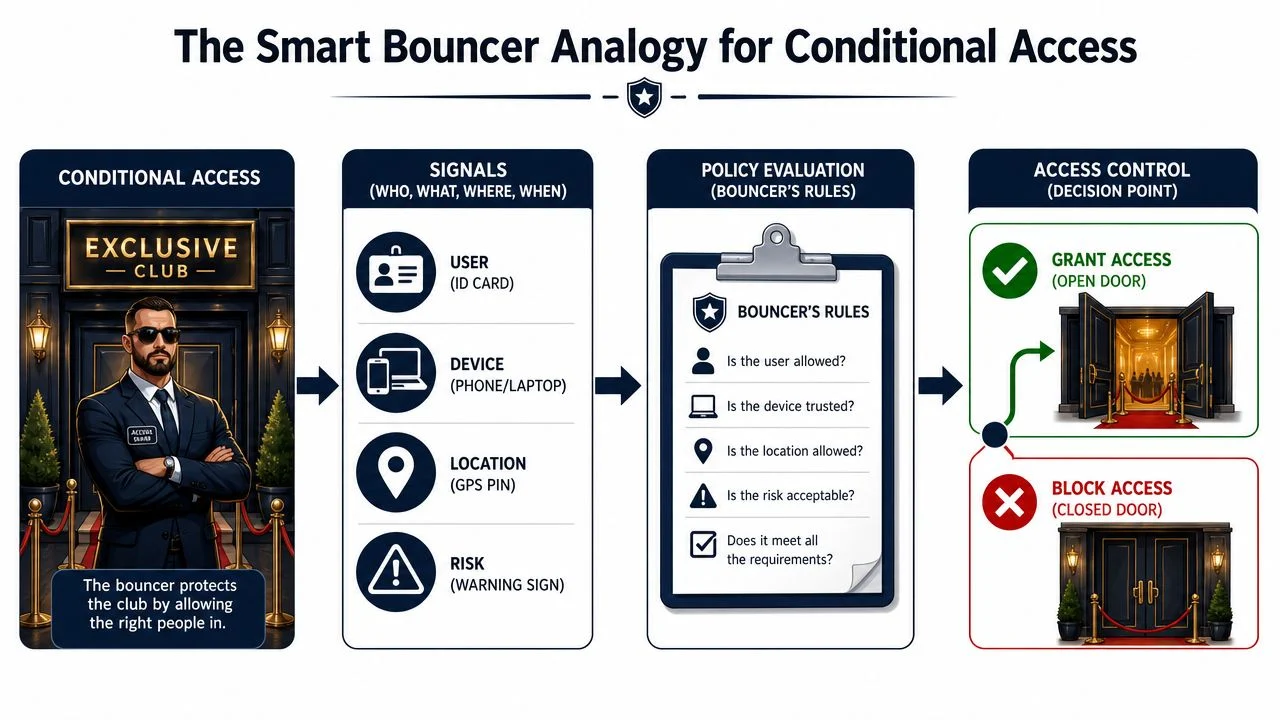
That is close to how Conditional Access behaves in Microsoft 365. The password gets the user to the front door. The policy then checks the surrounding context and decides what happens next. Access can be allowed, blocked, restricted, or approved only after extra checks such as MFA.
For a small business, the important point is that this decision is only as good as the signals behind it. If a device is unmanaged, if location data is too broad, or if staff regularly use personal mobiles for work, the policy can look strict while still letting risky sessions through. That is why device management matters so much. If you want stronger device signals, Microsoft Intune mobile device management is often part of the answer.
What the bouncer checks
A Conditional Access decision usually pulls together several signals at once:
- User identity. Is the person a staff member, a guest, or an admin with higher-risk access?
- Device context. Is the sign-in coming from a managed business laptop, or a personal phone you know very little about?
- Location context. Is the request coming from somewhere that makes sense for the business?
- Risk context. Does the sign-in pattern look normal, or does it raise suspicion?
That matters in real use. A receptionist signing in from the office on a company PC is one situation. The same account signing in at 11 pm from an unmanaged Android phone over public Wi-Fi is a different one, even if the password is correct.
The practical flow
Here is the logic in plain English:
- The user signs in with their first authentication step, usually a password.
- Conditional Access checks the policy conditions tied to that user, app, device, location, and sign-in risk.
- The system applies the rule you configured. It might require MFA, block the attempt, or allow access with limits.
- The session may be controlled after login. For example, staff might be allowed to read email in the browser but blocked from downloading files to an unmanaged device.
This is why Conditional Access does more than MFA by itself. MFA confirms the person can prove who they are. Conditional Access decides whether the circumstances around that sign-in are acceptable.
Why this matters for Australian SMBs
Small businesses often want a simple rule that covers everyone. In practice, that can create two problems. The first is too much friction for normal work. The second is too much trust in weak signals.
I see this often in Australian SMB environments with hybrid work, shared devices, and staff using personal phones for email and Teams. Owners assume a policy is strong because it mentions compliant devices or trusted locations. Then you look closer and find the devices are not properly enrolled, location rules are broad enough to be bypassed, or an unmanaged browser session still gets more access than expected.
Conditional Access works best when you treat it like a decision engine with imperfect inputs. Strong policies account for that. They ask for better proof when the device is unknown, they limit high-risk sessions instead of trusting them, and they avoid giving a false sense of security just because a rule exists on paper.
The Building Blocks of a Strong Policy
A strong Conditional Access policy has two parts. The if and the then. If the conditions match, then the control is enforced. That sounds simple, but most problems come from getting one of those parts wrong.
Microsoft’s Conditional Access engine operates at scale. Microsoft says it ingests over 40 TB of identity-related security signals and analyses them with machine learning, which gives you an idea of how much telemetry sits behind each access decision on the Microsoft Entra Conditional Access product page.
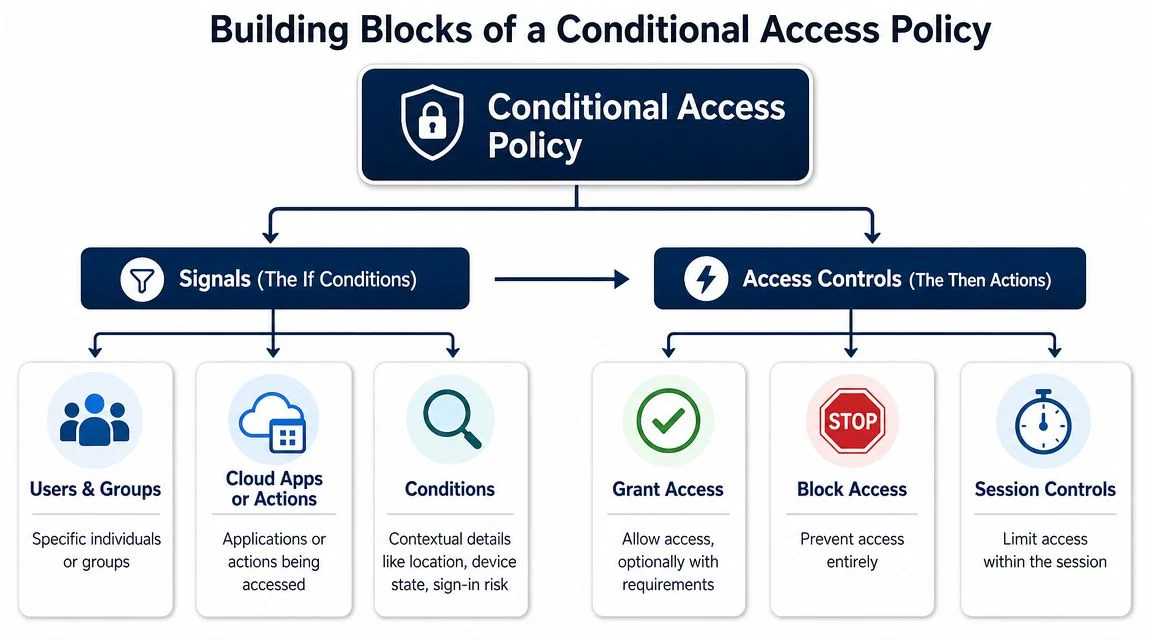
Signals that make up the if
These are the conditions that trigger the rule.
| Signal | What it means in practice |
|---|---|
| Users and groups | You can target everyone, specific departments, guests, or privileged admins |
| Cloud apps or actions | You can apply policies to Microsoft 365 and other apps integrated with Entra ID |
| Device platform | You can distinguish between desktop and mobile platforms, but that signal has limits in some cases |
| Location | You can treat trusted business locations differently from other sign-ins |
| Risk | You can use risk-related context to make stronger access decisions |
One important planning point from Microsoft is to avoid leaving apps uncovered. Microsoft recommends applying at least one policy to every app and using broad coverage such as All resources to avoid gaps, as noted in Microsoft’s Conditional Access planning guidance.
If your business also manages mobile devices, app protection, or laptop compliance, that usually ties directly into access policy quality. That’s where Intune mobile device management often becomes part of the same conversation.
Access controls that make up the then
Once the condition matches, the policy decides what happens next. In practical terms, most SMBs use a short list of outcomes:
- Block access. Best for scenarios that should never be allowed.
- Grant access. Used when the context is acceptable as-is.
- Grant with requirements. Here, Conditional Access effectively earns its keep.
Grant-with-requirements usually means the user must complete one or more controls before access is allowed. Common examples include:
- Require MFA for a second proof of identity
- Require a compliant device for access to business data
- Require a managed or approved access path depending on the app and risk level
- Apply session restrictions to reduce what can happen after sign-in
What works and what usually fails
What works is targeted policy design. Start with high-risk accounts, sensitive apps, and clear exceptions.
What usually fails is trying to encode every possible scenario into one giant policy. That becomes difficult to test, hard to support, and easy to break. A better approach is to create a small number of policies with clear purpose, clear scope, and a clear owner.
The strongest Conditional Access setup usually isn’t the most complicated one. It’s the one your team can understand, test, and maintain.
When to Call in an IT Expert
Conditional Access usually looks straightforward until a real business has to live with it. A policy that seems sensible in testing can block the owner on a Saturday, let a contractor into the wrong app, or trust a personal device because Entra ID has too little context to judge it properly.
That last point matters for small businesses. Many SMBs assume a device signal is strong because it appears in Microsoft 365. Often it is incomplete, unmanaged, or easy to misread. If staff use a mix of company laptops, personal phones, tablets, and shared home PCs, policy design needs more than basic if-then logic. It needs clear decisions about what the business will trust, what it will verify, and what it will block.
The point where outside help makes sense is usually not complexity alone. It is uncertainty.
The warning signs
Bring in an expert if any of these apply:
- Admin accounts still follow the same sign-in rules as everyone else
- Remote staff use a mix of managed and personal devices
- You want tighter controls but cannot risk locking out payroll, email, or line-of-business apps
- You inherited Microsoft 365 from a previous provider and do not have confidence in the current policies
- You are relying on location or device status without being sure those signals are trustworthy
I see one planning mistake repeatedly in SMBs. The business owner understands how people work, but not the quirks of Entra ID. The technical person knows the portal, but not who needs after-hours access, which shared devices exist, or where exceptions will be abused. Conditional Access works best when both sides are in the room before anything is enforced.
A provider with experience securing Microsoft 365 can spot the gaps that are easy to miss in-house. That includes break-glass account design, safe exclusions, staged rollout, testing with real user groups, and checking whether device compliance is genuine or just assumed. For a broader view of ongoing management, this article on how MSPs manage Microsoft 365 securely shows what good operational security looks like beyond the policy screen.
If you are unsure whether your current setup would hold up under a real incident, get it reviewed before turning on broad enforcement. That is usually cheaper than recovering from a lockout or cleaning up a compromised account.
Essential Policies for Australian Businesses
Most Australian SMBs don’t need dozens of Conditional Access policies to get value. They need a small set that protects the accounts and apps that matter most, with enough flexibility for remote work, BYOD, and contractors.
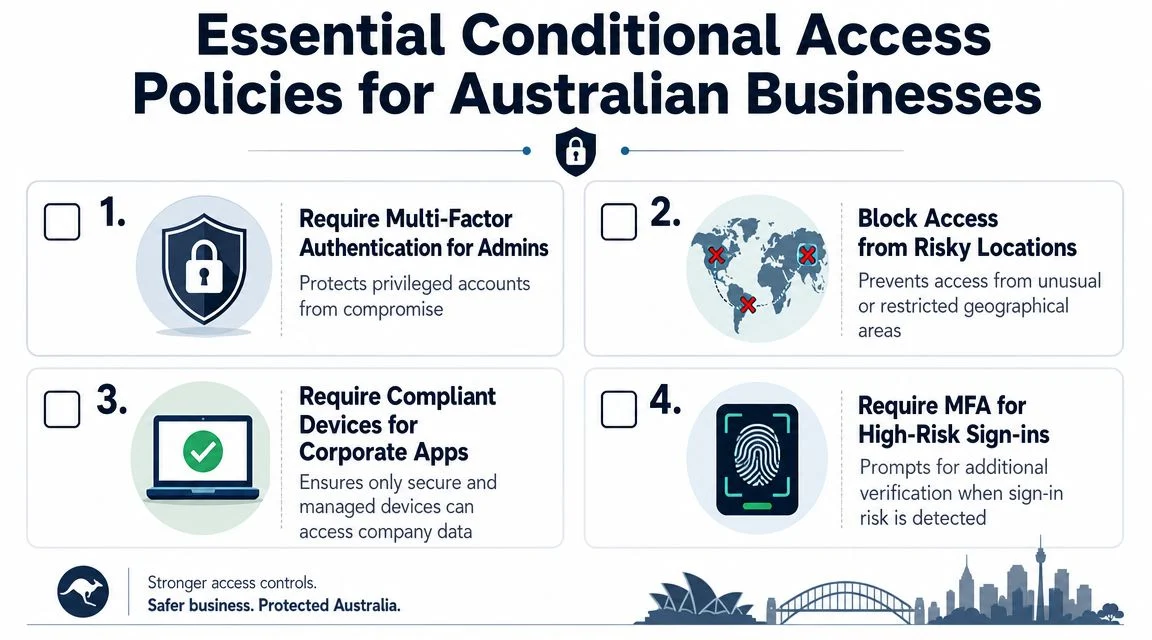
Require MFA for all admin roles
If an attacker gets control of an admin account, the damage multiplies quickly. Admins should never rely on a password alone.
This is usually the first Conditional Access policy worth enforcing. It’s narrow, high value, and easier to justify than a broad all-user rollout. Admin access should also be reviewed separately from ordinary staff access because the consequences are different.
Require stronger access controls for critical apps
Not every app carries the same risk. Email, SharePoint, OneDrive, Teams, finance platforms, and business systems tied into Entra ID deserve tighter controls than low-risk apps.
A practical SMB policy might require MFA or a compliant device before staff can open sensitive business data. That’s especially useful when teams work from mixed locations and on different devices.
Use location carefully, not blindly
Many businesses want a simple rule such as blocking sign-ins from places they don’t do business with. That can be useful, but location should be treated as one signal, not the whole answer.
Mobile connections, travel, cloud routing, and hybrid work can all make location-based logic less tidy than it looks. If you rely on location alone, you can end up blocking legitimate staff or trusting a sign-in too easily.
Require managed devices for sensitive data
This is often where Conditional Access becomes useful for SMBs. If a device is managed, healthy, and known to the business, access can be smoother. If it isn’t, the policy can demand more or limit access.
That matters for businesses with a mix of company laptops, personal phones, contractor devices, and school or shared environments. Access should reflect that reality.
The gap most guides skip
A lot of introductory content makes Conditional Access sound more certain than it is. Microsoft explicitly notes that some signals, including device platform detection, rely on user-agent strings and that this information is not verified in the Conditional Access conditions documentation.
That has a direct practical consequence. Device platform is useful as a signal, but it isn’t a hard security boundary. If you build an important policy around one weak signal, you may create false confidence.
A policy that looks precise in the admin centre can still rest on inputs that are less reliable than they appear.
A better policy pattern for SMBs
Instead of trusting one condition by itself, combine several.
- User plus app. Protect sensitive apps differently for high-value groups.
- Device plus MFA. Don’t trust device context alone when the data matters.
- Location plus risk-aware controls. Useful, but stronger when paired with other conditions.
- Admin role plus strict requirements. Privileged access should face the highest bar.
This layered approach also lines up well with broader security frameworks such as the ACSC Essential 8, where the goal isn’t one magical control. It’s reducing risk through multiple sensible protections.
For a typical Australian SMB, that’s the key lesson. Conditional Access works best when it reflects messy real life, not an idealised diagram.
Getting Started With Conditional Access
The best way to start is cautiously. Conditional Access sits close to the front door of your business systems. You want confidence before enforcement.
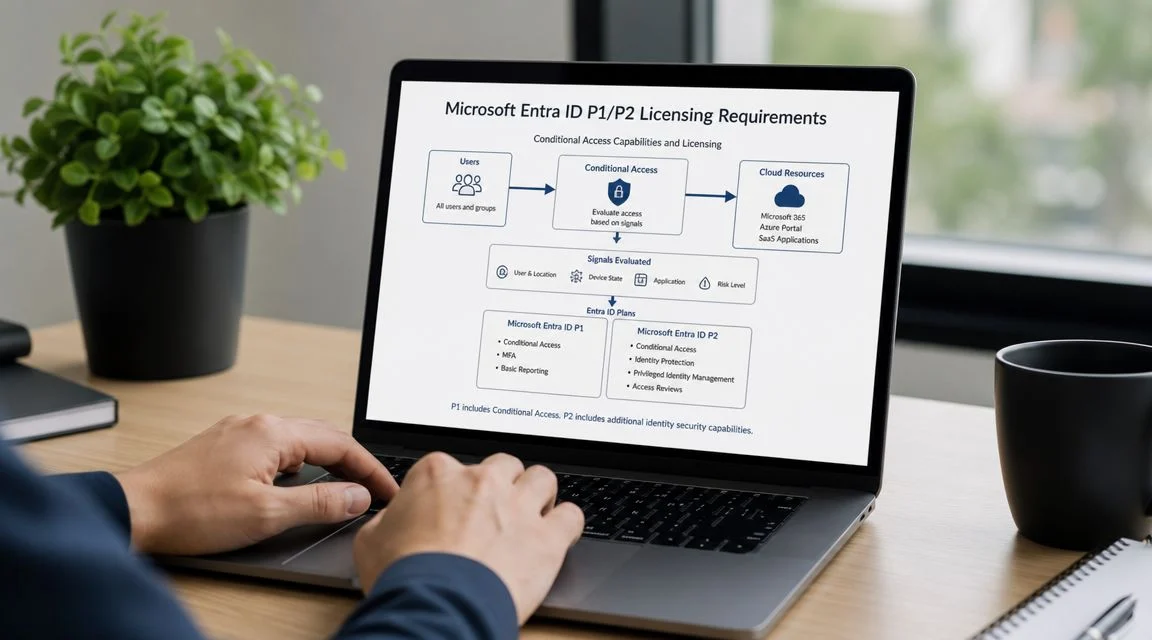
Start with prerequisites
Conditional Access is tied to Microsoft Entra licensing, typically P1 or P2 depending on the features you plan to use. Before you design policies, confirm what licences your tenant has and what features you intend to rely on.
Then identify three things:
- Break-glass planning. Make sure you won’t accidentally lock out all meaningful access.
- Priority apps. Decide which apps and accounts matter most.
- User groups. Sort staff, admins, contractors, and guests into manageable groups.
If you’re preparing for a broader rollout, this guide to an MFA rollout for business is a practical companion because MFA and Conditional Access usually need to be planned together.
Use report-only thinking before enforcement
The safest mindset is to test before you force. Review likely user impact, check sign-in behaviour, and make sure the policy does what you think it does before switching it on widely.
That matters because Conditional Access decisions can be technically correct and still operationally painful. A policy may protect a system well but block a workflow nobody remembered to account for.
Troubleshooting the common headaches
If a user says, “I’m suddenly blocked,” don’t guess. Check the sign-in details and look at which policy applied. In most cases, the answer is in the policy match and the conditions surrounding that sign-in.
A few patterns show up often:
| Problem | Likely cause |
|---|---|
| User challenged unexpectedly | MFA or a stronger control matched the sign-in context |
| User blocked from an app | The targeted app or group scope is broader than intended |
| Personal device access changed | Device-related requirements are now affecting unmanaged access |
Build in stages
A sensible rollout path for most SMBs looks like this:
- Protect admin accounts first
- Apply controls to critical apps
- Review staff experience and edge cases
- Expand coverage gradually
- Tune policies as work patterns change
What Is Conditional Access in Azure and How Does It Work is ultimately a design question, not just a feature question. The tool matters, but the policy logic matters more.
Secure Your Business with Tbourke Solutions and FAQs
A Conditional Access setup can look solid on paper and still leave a small business exposed.
I see this often with Microsoft 365 tenants that rely on one or two basic rules and assume the job is done. The gaps usually sit in the weak signals. An unmanaged personal phone that still gets email. A device marked as trusted even though nobody is checking its health properly. A location rule that looks sensible until staff travel, work from home, or use mobile data. For an Australian SMB, the goal is not just tighter security. It is policy design that still works on a busy Monday morning.
That is where practical support matters. Tbourke Solutions works with Australian businesses that need Conditional Access configured around real staff behaviour, business apps, device mix, and support capacity. Good policy work includes regular reviews, exception handling, sign-in log checks, and cleanup when old rules start conflicting with new ones.
Common questions about Conditional Access
What licence do I need for Conditional Access
Conditional Access usually requires Microsoft Entra ID P1 or P2, depending on the controls you want to use. If your plan includes risk-based features, the licence choice matters early, because it affects what signals you can trust in a policy.
Is Conditional Access the same as MFA
No. MFA is one control you can require. Conditional Access is the rule engine that decides when to allow access, when to block it, and when to ask for extra proof.
Can it protect apps outside Microsoft 365
Yes. It can apply to apps that use Entra ID for sign-in, which makes it useful for more than Exchange, Teams, and SharePoint.
Is location blocking enough on its own
Usually not. Location is a weak signal for many SMBs, especially when staff work remotely, use cloud services, or sign in from mobile networks. It helps as one condition among several, but it should not carry the whole policy.
Should every app have some policy coverage
Broad app coverage is the safer approach. In practice, small businesses often protect email first and leave line-of-business apps, admin portals, or third-party integrations with lighter controls than they realise.
Tbourke Solutions helps Australian businesses tighten Conditional Access without creating avoidable lockouts or support headaches. If your current setup feels unclear, inconsistent, or too dependent on assumptions about trusted devices, ask the team to review it and map out a safer policy set.
Share This Story, Choose Your Platform!