
Your staff are working from the office, from home, on school grounds, and from mobile phones between meetings. The pressure point isn’t access. It’s safe access without breaking the workday. That’s where most organisations get stuck. They know passwords alone aren’t enough, but they also know that heavy-handed controls can lock out the people who need to get their jobs done.
That tension is exactly why our approach to configuring Conditional Access starts with business reality, not checkbox security. For a Melbourne business owner or school leader, the right setup isn’t the strictest policy you can build. It’s the one that protects Microsoft 365, school records, financial systems, and shared files while still matching how your team operates.
Securing Your Modern Workplace with Conditional Access
Conditional Access is easiest to understand as a smart security guard at your digital front door. It doesn’t just ask for a username and password and wave everyone through. It checks who the person is, what device they’re using, where they’re signing in from, and what they’re trying to access. Then it applies the rule that fits the situation.
For small businesses and schools, that matters because the modern workplace no longer has one clean perimeter. A staff member might sign in from a company laptop in the office in the morning, then open email on a personal phone after hours. A teacher may need access to cloud resources from campus and home. A finance manager may need stronger protections than a casual user who only checks email. One rule for everyone usually creates either risk or friction.
If you’re still getting familiar with the identity platform behind these controls, it helps to understand Microsoft Entra ID in practical terms. For broader reading, the Entra ID security guidelines offer useful context on the surrounding identity hardening work that should sit alongside Conditional Access.
TLDR: Our approach to configuring Conditional Access starts with discovery, not policy creation. We assess users, devices, apps, and sensitive data first, then build layered rules that protect high-risk access without disrupting normal work. We roll changes out in phases, watch the sign-in results closely, and tune policies over time so security stays aligned with how the business or school actually operates. For most organisations, the answer is not “turn everything on”. It’s “apply the right control to the right scenario”.
What Is Conditional Access and Why It Is Essential
A Melbourne business owner calls after a staff mailbox is accessed from an overseas sign-in. The password was correct, so the basic login check passed. The core question is whether that sign-in should have been trusted at all.
Conditional Access answers that question. It applies if-then rules to each sign-in attempt based on context, not just the password entered.
If a user opens a sensitive app, require extra verification.
If the device is unmanaged, limit what it can reach.
If the sign-in pattern looks unusual, block access or require a stronger check.
That approach matters because passwords only prove one thing. Someone knows the secret. They do not prove the device is safe, the location makes sense, or the level of access matches the risk.
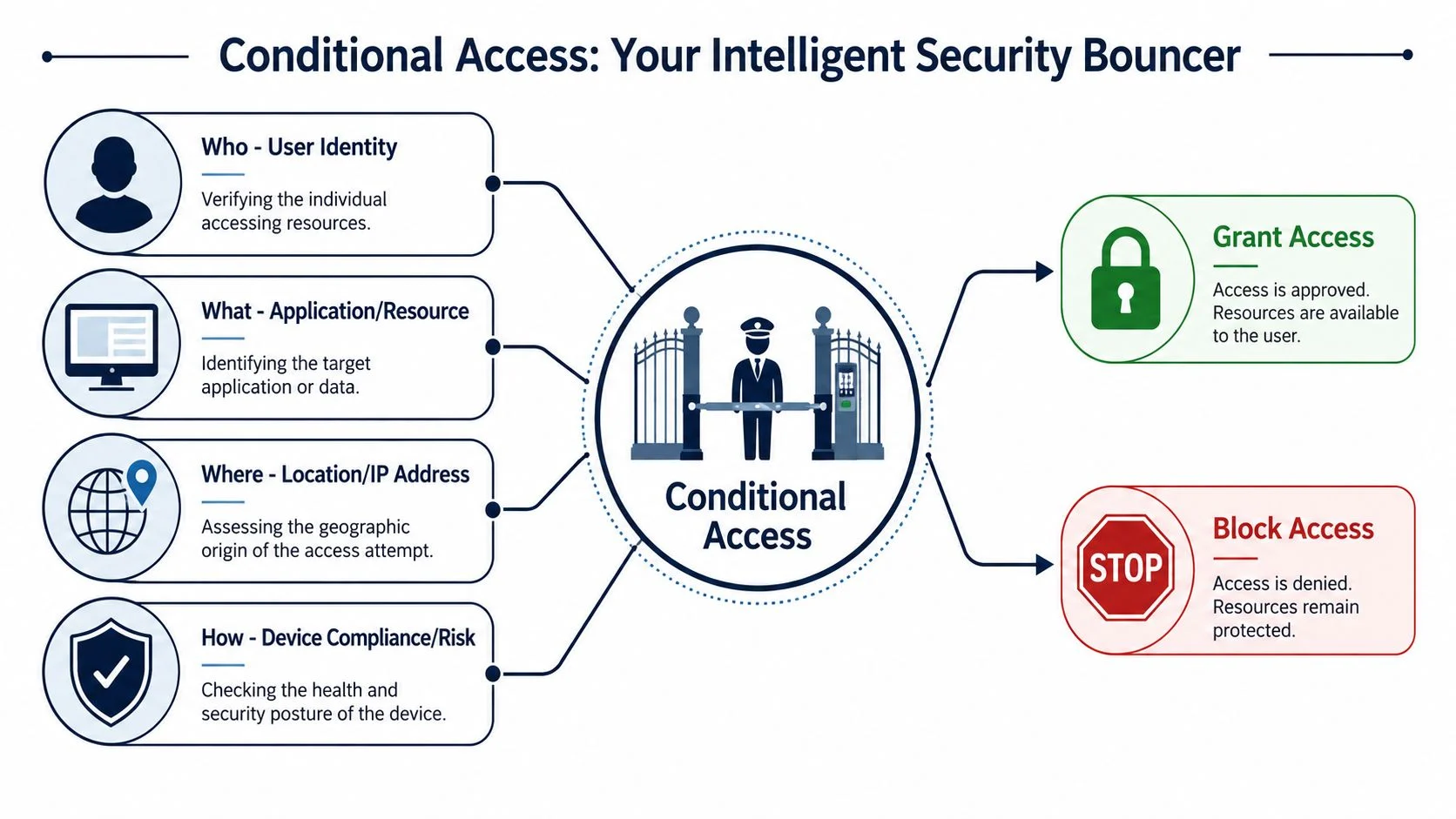
The building security analogy
A commercial building with a capable front desk guard is a useful comparison for Conditional Access. Visitors are screened differently based on who they are, where they need to go, and whether their request makes sense. Access to the lobby is one decision. Access to payroll records or the server room is another.
Microsoft 365 works the same way when it is configured properly. Instead of treating every successful login as fully trusted, Conditional Access checks the surrounding signals before granting, limiting, or denying access.
Those signals usually include:
- User identity. Is this a staff member, administrator, student, contractor, or shared account?
- Application target. Are they opening email, SharePoint, a finance system, or an admin portal?
- Device state. Is the device managed, compliant, and protected, or is it a personal device with no oversight?
- Sign-in context. Does the attempt fit the organisation’s normal access patterns and risk settings?
For SMBs and schools, this is often the difference between useful control and constant compromise. A school may need teachers to work from home without giving every personal device the same access as a managed staff laptop. A professional services firm may need partners and finance staff held to tighter sign-in rules than general users. In our projects at Tbourke Solutions, these practical distinctions matter far more than ticking every available Microsoft setting.
Good Conditional Access does not make every login harder. It applies more friction where the risk is higher.
This if-then logic is a core component of the broader Zero Trust model, where access is checked continuously and trust is earned through context, not assumed after a single successful login. If you want a plain-English overview of that approach, this zero trust architecture guide is a useful companion read. For Australian organisations reviewing baseline cyber controls, Conditional Access also fits naturally alongside the ACSC Essential Eight maturity guidance, especially around identity protection, device control, and administrative access.
Our Foundation Phase Risk Assessment and Discovery
The most common mistake in Conditional Access projects is starting with the policy screen. That’s like installing locks before you’ve worked out how many doors the building has, who uses them, and which rooms matter.
We start with discovery. Always.
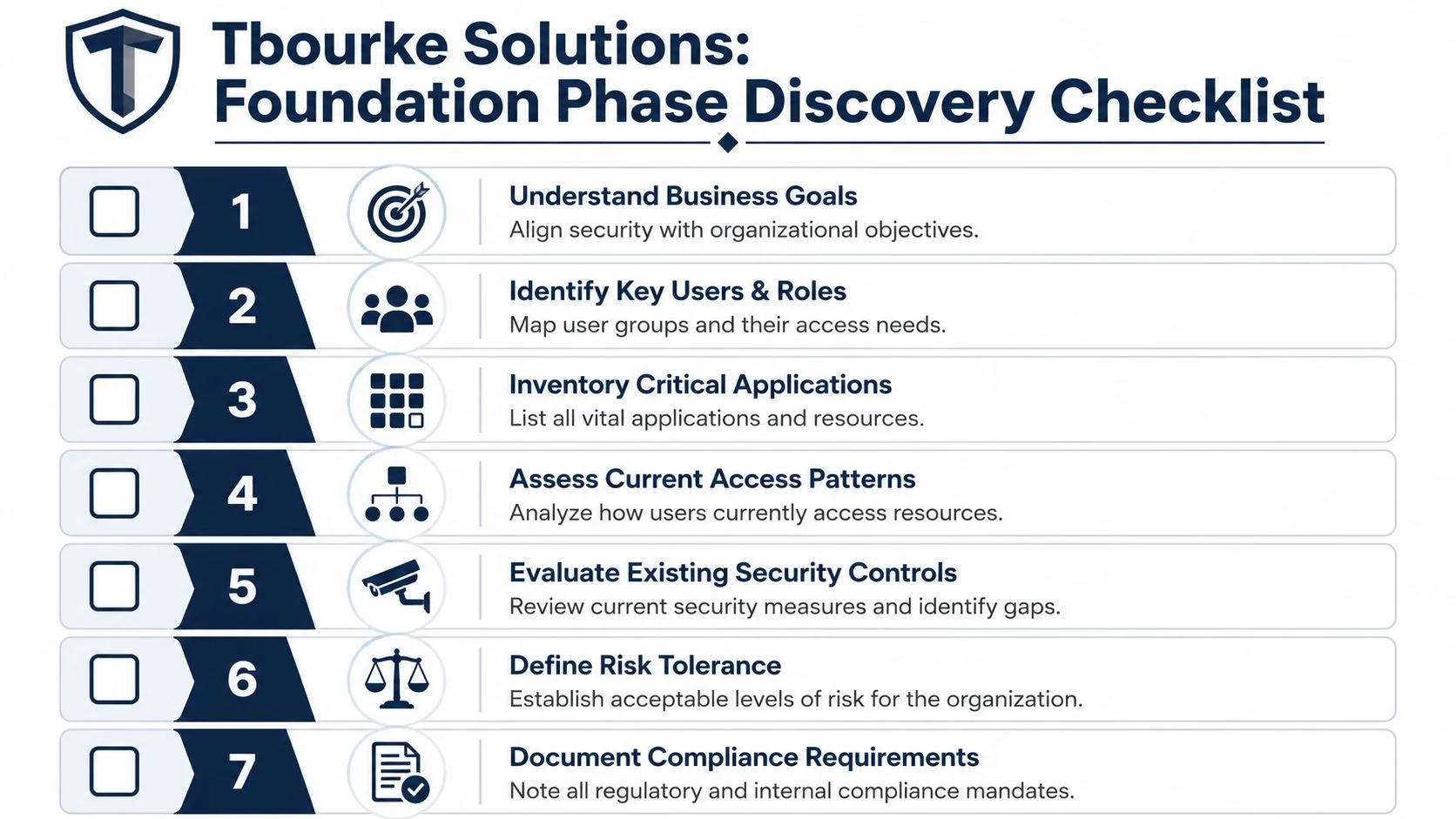
What we look at first
A sound discovery phase maps four things clearly:
| Area | What we examine | Why it matters |
|---|---|---|
| Users | Staff roles, admin accounts, contractors, casual users, shared access patterns | Different people need different controls |
| Data | Financial records, student information, client files, email, shared documents | Not every system carries the same risk |
| Devices | Company-owned laptops, personally owned mobiles, unmanaged home PCs, shared devices | Device trust often determines whether full access is appropriate |
| Applications | Microsoft 365, line-of-business apps, admin portals, third-party SaaS tools | Policies must reflect where the actual risk sits |
This sounds straightforward, but practical issues often arise. Many businesses have old service accounts nobody wants to touch. Schools often have shared devices and role-based access that changes during the year. Some organisations have a clean Microsoft environment. Others have a patchwork of SaaS tools, old workflows, and exceptions that have gradually become normal.
The questions that change the design
Discovery isn’t just asset collection. It’s decision support. We ask questions that expose where security controls will work and where they’ll cause problems.
- Who really needs remote access? Some teams do. Some only think they do.
- Which roles create the highest blast radius? Admins, finance users, and anyone with delegated permissions usually need a tighter rule set.
- What’s already unmanaged? Personal devices and ad hoc access methods need to be identified before policy enforcement starts.
- Which apps can tolerate tighter access checks? Some systems work well with stronger controls. Others may need staged handling.
Practical rule: Measure twice, cut once. The effort spent understanding real-world access patterns saves far more effort than cleaning up a rushed rollout.
What works and what doesn’t
What works is an honest inventory, even if it reveals mess. What doesn’t work is designing policies around an idealised environment that doesn’t exist. If the business owner says everyone uses company devices, but directors still approve invoices from personal phones, that needs to be reflected in the policy plan.
This is also the point where many organisations realise they need broader support around identity, endpoint management, and ongoing governance rather than a once-off technical change. That’s often where a managed security services model for small businesses starts to make sense, because Conditional Access performs best when it sits inside a maintained security framework rather than as a standalone fix.
Designing Your Conditional Access Policy Blueprint
A good Conditional Access design answers a business question before it touches a technical setting. Can the school principal approve urgent documents from home without exposing student records on a personal tablet? Can the finance manager work after hours without giving attackers an easy path into payroll? Those are the decisions the blueprint needs to settle.

At Tbourke Solutions, we design these policies in layers because SMBs and schools rarely have one uniform access pattern. A receptionist on a front-desk PC, a director on a personal phone, and an IT administrator using privileged accounts should not be handled the same way. Treating them as if they are creates either security gaps or user frustration, and often both.
The layered model we use
The first layer is baseline protection. That usually includes MFA, blocking weak or outdated sign-in methods, and setting minimum conditions for access across the tenant. Baseline rules are the front door locks. They should cover broad risk without constantly interrupting ordinary work.
The second layer is role-based control. Admins, finance staff, executive leadership, and users with delegated access carry more risk if their account is compromised. We tighten those paths with stronger sign-in requirements, narrower exclusions, and more scrutiny around where and how access is granted.
The third layer is resource-based control. Email, Teams, finance platforms, student management systems, and file repositories do not all need the same gate. Sensitive systems should require stronger proof of trust, especially where the data involved would create legal, financial, or reputational consequences for the organisation.
Security has to survive real work
The policy has to hold up on a Tuesday morning, not just in a planning workshop.
One of the biggest design mistakes is forcing the same rule onto every app, device, and user group. That looks tidy in a diagram, but it breaks down quickly in practice. We often see Melbourne businesses where office staff use managed laptops, directors approve items on mobile devices, and a legacy accounting add-on still depends on older authentication behaviour. Good policy design accounts for those exceptions without letting exceptions become the rule.
These are the decisions that matter most:
- Which actions deserve the strongest checks? Administrative changes, payroll access, student records, and sensitive file repositories usually sit at the top of the list.
- What should happen on unmanaged devices? In some cases, browser-only access is reasonable. In others, access should stop completely.
- Which users need separate treatment? Shared accounts, service accounts, and privileged roles need careful scoping to avoid both gaps and lockouts.
- Where does device compliance matter? If access depends on healthy, enrolled endpoints, the underlying Microsoft Intune mobile device management setup needs to be accurate and consistently maintained.
What we commonly include
The final blueprint varies by organisation, but several patterns consistently prove their value:
- Context-aware MFA for broad protection without prompting staff more often than necessary
- Privileged account policies that are stricter than standard user access
- Legacy authentication blocking to close off older sign-in paths that bypass modern protections
- Managed device requirements for high-risk apps and sensitive data
- Location and sign-in risk conditions used carefully, as supporting signals rather than the only control
A smaller set of clearly scoped policies usually performs better than a large set with overlapping logic and unclear exclusions. If two policies appear to do the same job, they often create confusion during support and troubleshooting later.
The trade-offs we plan for
Every Conditional Access blueprint involves compromise. Stronger controls reduce exposure, but they also increase the chance of friction if they are applied too broadly. Looser controls reduce complaints in the short term, but they leave more room for account misuse, especially on personal devices and poorly managed endpoints.
The practical goal is controlled access, not maximum restriction.
For a small business, that might mean requiring compliant devices for finance systems while allowing lower-risk email access through a browser on personal devices. For a school, it might mean tighter rules for leadership, administration, and student record systems, while teachers get a more workable policy set for day-to-day classroom tools. The right answer depends on the organisation’s risk tolerance, device maturity, and support capacity.
A good blueprint reflects those realities before rollout starts.
Phased Implementation From Pilot to Full Rollout
Even a well-designed policy can fail if it’s introduced badly. The biggest rollout mistake is the “big bang” method. Everything gets turned on at once, users get hit with unexpected prompts, a critical workflow stops, and the security project gets blamed instead of the rollout plan.
We prefer controlled implementation with visible checkpoints.
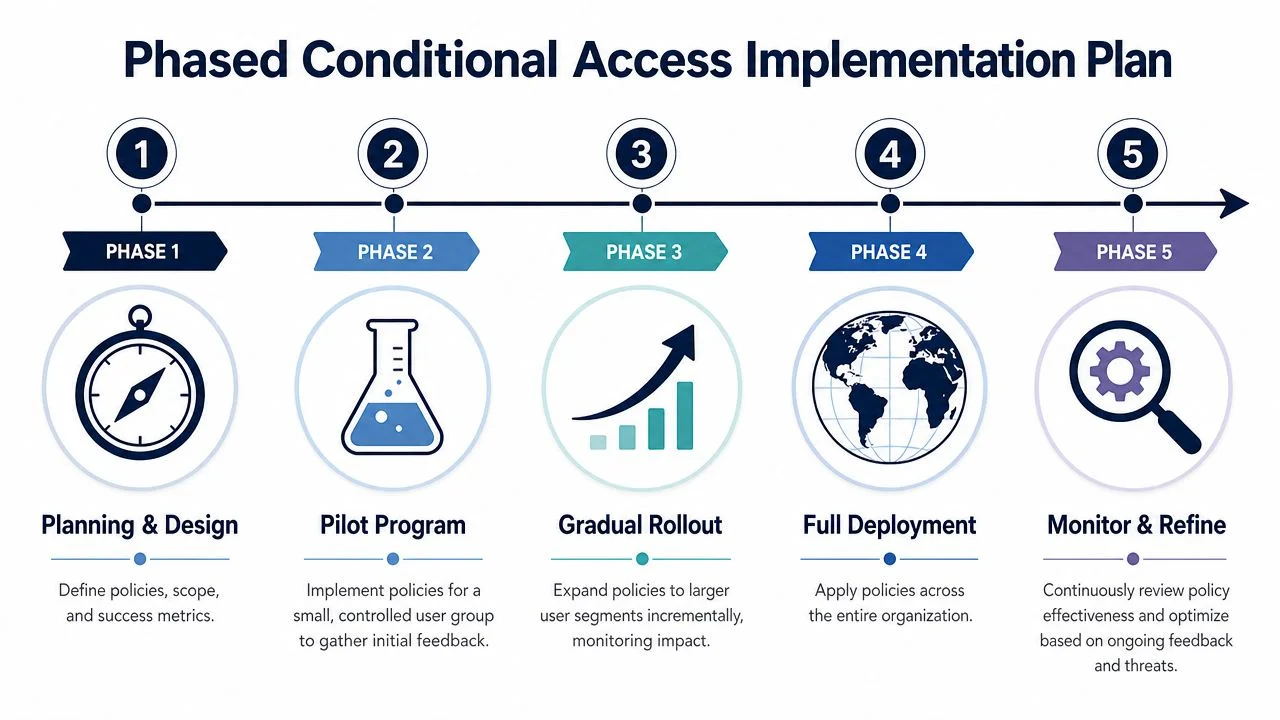
Start with a pilot group
The pilot should be small enough to manage and broad enough to reveal issues. We usually favour IT staff, technically confident users, and people whose access patterns reflect normal business use.
A good pilot helps answer practical questions:
- Are users being prompted where expected?
- Do mobile devices behave differently from laptops?
- Do any line-of-business apps break under the new conditions?
- Are there user experience issues that need clearer communication rather than policy changes?
The pilot isn’t a formality. It’s where edge cases reveal themselves. Shared mailboxes, old devices, cached sign-ins, odd third-party integrations, and forgotten accounts often show up here.
Move in waves, not all at once
After pilot validation, we roll out by logical groups. That may be by department, role, campus, office location, or access sensitivity.
A managed rollout usually includes:
- Clear communication so users know what will change and what action they need to take.
- Support readiness so login questions don’t pile up without an answer.
- Staggered enablement so one problem doesn’t affect the whole organisation.
- Review points after each wave to decide whether the next group is ready.
For organisations introducing stronger sign-in requirements at the same time, it often makes sense to align Conditional Access with a structured business MFA rollout plan rather than treating them as separate projects.
Handle exceptions without creating holes
Every organisation has exceptions. The problem isn’t that they exist. The problem is when they’re undocumented, permanent by default, and based on convenience rather than need.
We treat exceptions as controlled deviations, not informal favours.
| Exception type | Better practice | Poor practice |
|---|---|---|
| Temporary access issue | Time-bound exclusion with review | Open-ended bypass |
| App compatibility problem | Narrowly scoped workaround while remediation occurs | Broad exclusion for all users |
| Executive travel or unusual access need | Specific documented accommodation | Global weakening of sign-in requirements |
If an exception doesn’t have an owner, a reason, and a review date, it usually becomes a hidden security gap.
What rollout success actually looks like
Success isn’t silence. A healthy rollout produces some questions, some support requests, and a few policy adjustments. That’s normal. What matters is whether the changes are predictable, documented, and improving control without stopping real work.
In Melbourne businesses, a common pattern is that leadership expects the technical change to be the hard part. It usually isn’t. The harder part is sequencing the rollout around people, devices, and communication. Schools see this clearly because term timing, staff onboarding, and shared access all affect when changes can be introduced safely.
Integrating Monitoring and Tuning for Long-Term Security
Conditional Access is not a set-and-forget control. If you leave it untouched after rollout, it slowly drifts away from the business it was designed to protect. New apps get added. Staff roles change. Devices age out. Workflows move. Threats shift.
That’s why the actual work starts after implementation.
What we monitor
We pay close attention to sign-in behaviour, policy impact, and administrative changes. The point isn’t to drown in logs. The point is to answer a few recurring questions clearly:
- Are policies being triggered where expected?
- Are users being blocked for the right reasons or for avoidable ones?
- Have new applications appeared outside the original design?
- Are privileged accounts behaving differently from standard accounts?
For organisations using device compliance as part of their access rules, identity monitoring also needs to line up with endpoint monitoring. If a device falls out of compliance, Conditional Access may do exactly what it was told to do. A key question becomes whether the compliance signal itself is accurate and being maintained.
Tuning without weakening security
Tuning doesn’t mean loosening everything after complaints arrive. It means adjusting the controls based on evidence.
Sometimes that means tightening access around a newly important app. Sometimes it means refining a policy scope because a user group was included too broadly. Sometimes it means reducing unnecessary prompt fatigue so users don’t start treating security prompts as background noise.
A noisy policy is often as dangerous as a weak one, because users stop paying attention to the moments that matter.
There’s also value in watching for identity exposure outside the sign-in event itself. For example, compromised credentials often show up in wider threat monitoring workflows. A service such as dark web monitoring and protection can complement identity security by alerting organisations to credential exposure risks that may justify stronger review of access controls.
The long-term operating rhythm
A sensible review rhythm usually includes:
- Routine policy review when applications, staffing, or device standards change
- Incident-driven review after suspicious sign-ins, lockout issues, or unusual authentication activity
- Access recertification for privileged roles and sensitive groups
- Documentation updates so exclusions, assumptions, and policy intent stay clear
The organisations that get the most value from Conditional Access are the ones that treat it like a living control. Not a one-time project.
How We Can Help and Your Questions Answered
A good Conditional Access rollout should fit the way your organisation works on a normal Tuesday, not just look tidy in a security diagram. A Melbourne accounting firm usually needs tighter control over email, client files, and administrator accounts without slowing down partners who travel and work from multiple devices. A school has a different problem set. Shared devices, casual staff, term dates, and broad user groups can turn a simple policy into a support issue if the rollout timing is wrong.
That is why our method stays consistent even when the policies do not. We assess the risk, map the actual access patterns, design the policy set, roll it out in stages, and then tune it based on what users and sign-in data show in the first few weeks.
Tbourke Solutions usually helps in one of two ways. Some organisations need a one-off assessment, policy design, implementation, and handover so their internal team can maintain it. Others want Conditional Access looked after as part of managed IT services, alongside Microsoft 365 security, device compliance, and routine review. The right option depends on your in-house capability, how often staff roles change, and how much exception handling your environment needs.
Common questions
Will this block my staff from working
It should block unsafe sign-ins, not normal work. The difference comes down to design. If policies are scoped properly, staff can keep using approved devices, approved apps, and expected sign-in methods with less risk and fewer surprises.
What’s the difference between Conditional Access and MFA
MFA is one control in the stack. Conditional Access is the rules engine that decides when MFA is required, which users must meet extra checks, which apps are protected more tightly, and when access should be denied altogether.
Do small businesses really need this
Yes, if staff use Microsoft 365, work remotely, use phones for email, or access cloud applications. Small businesses and schools are often more exposed because accounts are widely used but security settings have grown piecemeal over time. In many reviews, the issue is not a total lack of control. It is inconsistent control.
How much does this cost for a small business
Cost depends on licensing, device management maturity, the number of applications in scope, and how many exceptions need to be handled. The hidden cost is poor configuration. A rushed setup can create lockouts, support tickets, and policy gaps that take longer to fix than doing the design properly in the first place.
If you want a practical review of your current Microsoft 365 sign-in controls, Tbourke Solutions can assess your environment, identify risky gaps, and configure Conditional Access to suit how your business or school operates.
Share This Story, Choose Your Platform!