Weak passwords were responsible for over 80% of data breaches affecting Australian businesses in 2023, according to the Australian SMB password guidance cited here. That should get every small business owner’s attention, because most password problems aren’t advanced. They’re boring, repeatable mistakes. Shared logins, reused passwords, no MFA, old reset policies, and no plan for what happens when a staff member clicks the wrong link.
That’s why good password security best practices need to be practical, enforced, and suited to how Australian SMBs operate. If you run a business in Melbourne, a school, a medical practice, or a trades office with a handful of cloud apps, you don’t need a theory lesson. You need a checklist that works in Microsoft 365, on staff phones, on shared devices, and during the usual day-to-day chaos.
Strong password security also sits inside a bigger security picture. If you’re tightening account controls, it’s worth thinking about staff behaviour and internal misuse as well. A useful companion read is Logical Commander’s ethical prevention.
TLDR
The most effective password security strategy combines strong, unique passphrases managed by a password manager, mandatory MFA on all accounts, and regular user training. For businesses, those steps need to be written into clear policies and enforced, not left as suggestions. The most common weak spots I see are password reuse, poorly protected admin accounts, and outdated forced-reset rules. This guide gives you a direct checklist to fix those issues and build a password policy that holds up in practice.
1. Establish Strong Password and Passphrase Policies
Password policy is where most SMBs either reduce risk or create more of it. In Melbourne businesses, I still see staff forced into short, fiddly passwords that meet an old rule but fail in practice. The result is predictable. Reused patterns, passwords in notebooks, and shared logins that nobody owns.
A good policy starts with length. Set 16 characters as the default minimum wherever your systems support it. If an older platform caps length or blocks spaces, document that exception, tighten access around it, and put it on the shortlist for replacement. Small business security always involves trade-offs, but legacy limits should be treated as a risk to manage, not a reason to lower the standard everywhere.
Passphrases work better than complexity theatre. Four or more unrelated words are easier for staff to remember and harder for attackers to guess than the usual business favourites like Winter2026! or CompanyName123.
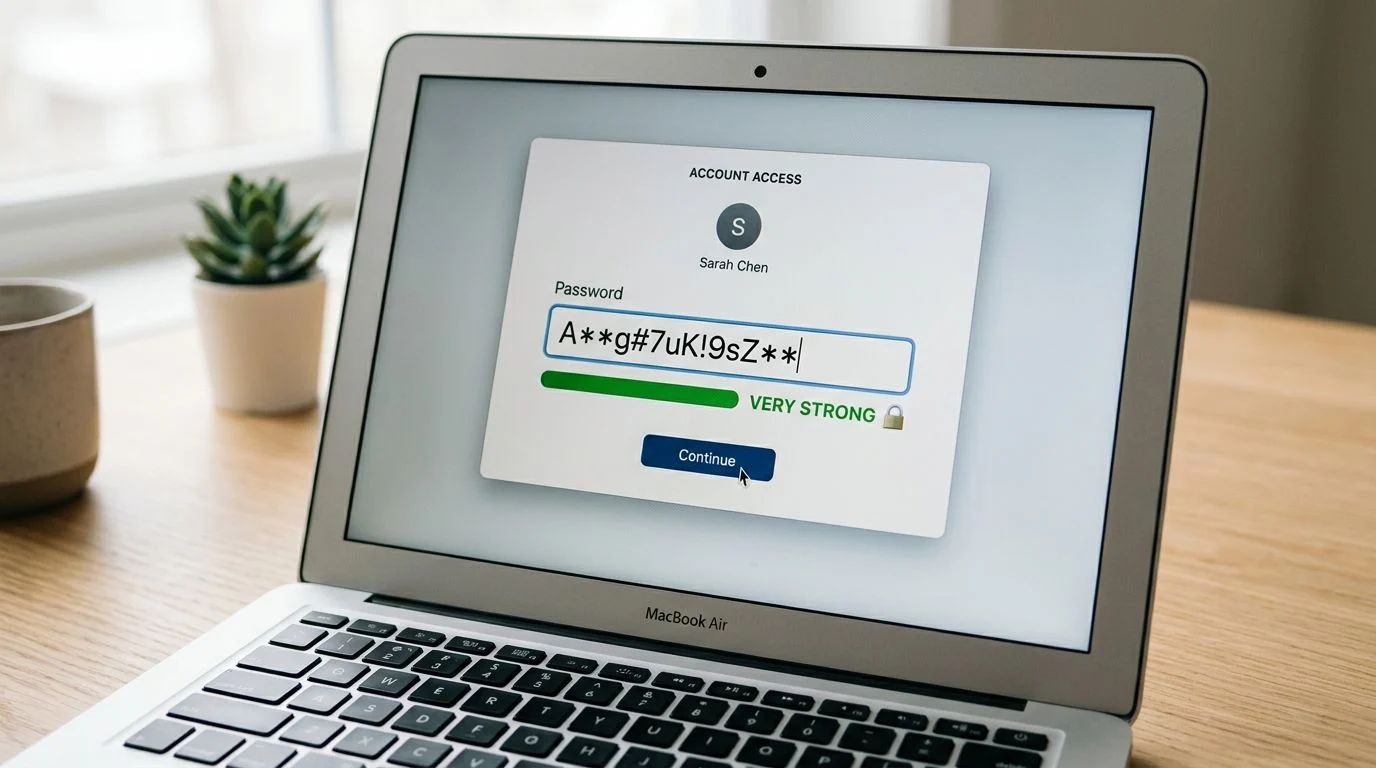
What a usable policy looks like
For Australian SMBs, the policy should be plain English and enforceable in Microsoft 365, Google Workspace, Xero, MYOB, remote access tools, and line-of-business apps. If staff cannot follow it during a busy day, they will work around it.
Include rules like these:
- Minimum length: 16 characters for standard user accounts where possible.
- Passphrase format: Use a phrase made from unrelated words or a long randomly generated password stored in the company password manager.
- Unique credentials: Every account gets its own password. Shared passwords are only permitted for approved shared systems, and those must be stored in a managed vault with named access.
- Blocked content: No business name, office location, staff names, pet names, season-year patterns, keyboard runs, or simple substitutions like
P@ssw0rd. - Change triggers: Change passwords after confirmed compromise, phishing exposure, malware on the device, or unauthorised access. Do not force routine resets without a reason.
- System exceptions: Any platform that cannot support the policy must be recorded, reviewed, and protected with compensating controls.
That last point matters. Forced password changes every 30 or 60 days often make behaviour worse. Staff stop choosing memorable passphrases and start cycling through tiny variations. Current guidance has shifted away from blanket resets and towards stronger passwords, breach monitoring, and MFA. If you need a plain-language refresher on what is multi-factor authentication, read that first, then map it into your password policy instead of treating it as a separate project.
Here is policy wording I would be comfortable putting in front of a small business client:
Password and Passphrase Standard: All user accounts must use a unique password or passphrase with a minimum length of 16 characters where the system permits. Passwords must not include the company name, user name, common words with predictable substitutions, or reused credentials from any other service. Password changes are required after suspected compromise, not on a fixed schedule unless the platform or compliance requirement demands it.
Examples help staff understand the difference. Weak: Password123! Weak: Melbourne2026! Better: harbour-lantern-coffee-window Best for most business users: a long random password generated and saved in the company vault.
If you are standardising this across Microsoft 365 and cloud apps, pair the written policy with an MFA rollout plan for business systems. Policy without enforcement gets ignored.
One more practical point from the MSP side. Do not write a perfect password policy and leave service accounts, copier logins, Wi-Fi admin panels, and old NAS devices outside it. In Australian SMBs, those forgotten accounts are often the weak hinge on an otherwise solid door.
2. Implement Multi-Factor Authentication Everywhere
A password on its own is no longer enough for business systems. If an attacker steals a password through phishing, malware, or a reused credential from another site, MFA is what stops that password from becoming a breach.
For Australian organisations, the urgency is obvious. The ACSC MFA adoption figures cited in this 2025 guide say 82% of Australian small businesses and 65% of regional schools still rely on SMS or email codes for MFA, while ACSC also reported a 47% rise in SIM-swap attacks targeting Australian SMEs in 2025. SMS is better than nothing, but it’s not where you want to stay.
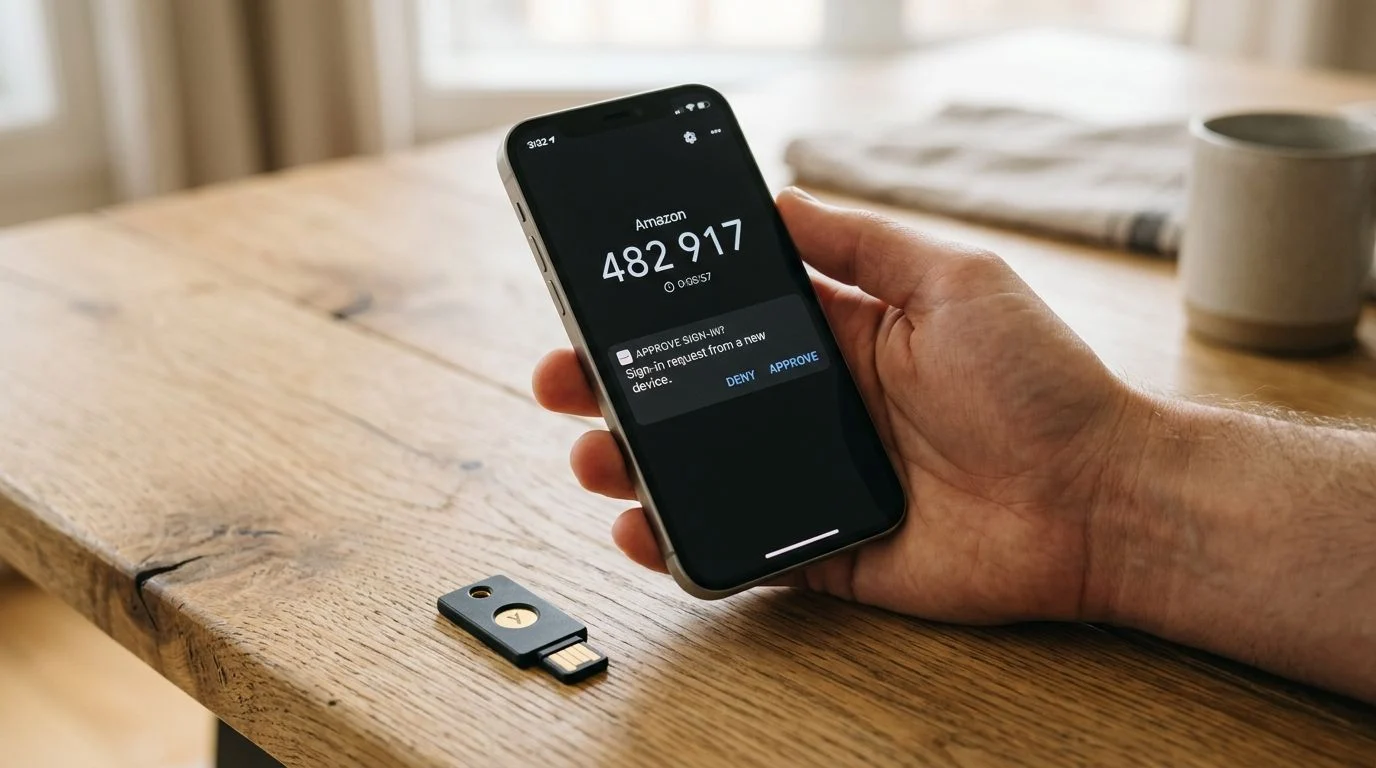
What to turn on first
Start with the accounts that can do the most damage:
- Admin accounts: Microsoft 365 global admins, finance systems, backup portals, and domain admin roles.
- Executive accounts: Directors and managers are common phishing targets because they can approve payments and access sensitive mail.
- Core business apps: Email, Xero, MYOB, SharePoint, remote access tools, and any app that stores client data.
For most SMBs, authenticator apps are the practical baseline. Where supported, move high-risk accounts to passkeys or hardware keys. If you need help planning the rollout in a way staff will follow, Tbourke Solutions has a guide on MFA rollout for business.
A plain-English refresher on the basics is also useful if you’re explaining this to staff. This overview of what is multi-factor authentication is a decent primer.
The trade-off nobody likes but needs to accept
MFA adds a step. That’s true. But the extra tap on a phone is a lot cheaper than recovering a hijacked mailbox, chasing fraudulent invoices, or explaining to clients why their files were exposed.
Lost phones also happen, so document your backup process. Give staff a clear path for replacing a factor without bypassing identity checks.
3. Deploy and Mandate a Business Password Manager
You can’t tell staff to use unique, long passwords for every account and then expect them to remember all of them. That’s not a policy. That’s wishful thinking.
A business password manager fixes the human problem. It stores credentials in an encrypted vault, fills them into the right site, and generates strong random passwords that nobody needs to memorise. For teams, it also gives you controlled sharing, ownership over business accounts, and a way to remove access when someone leaves.
Good business options for SMBs
Three products regularly come up for small and medium businesses:
- 1Password for Business: Strong user experience and clean shared vault controls.
- Bitwarden: Open-source and usually a strong fit for cost-conscious businesses.
- Dashlane: Straightforward deployment for teams that want less setup friction.
The product matters less than the rollout. Staff need a vault for work, separate from their personal accounts where possible, and they need browser integration turned on so they stop typing passwords into fake websites. That matters because browser-based autofill in a proper manager helps users avoid handing credentials to lookalike login pages.
The wider case for managers is strong as well. A password statistics roundup citing Australian expert views notes that 70% of security experts in Australia identify password managers as the safest choice for managing unique credentials, alongside the broader risk from password reuse and weak passwords.
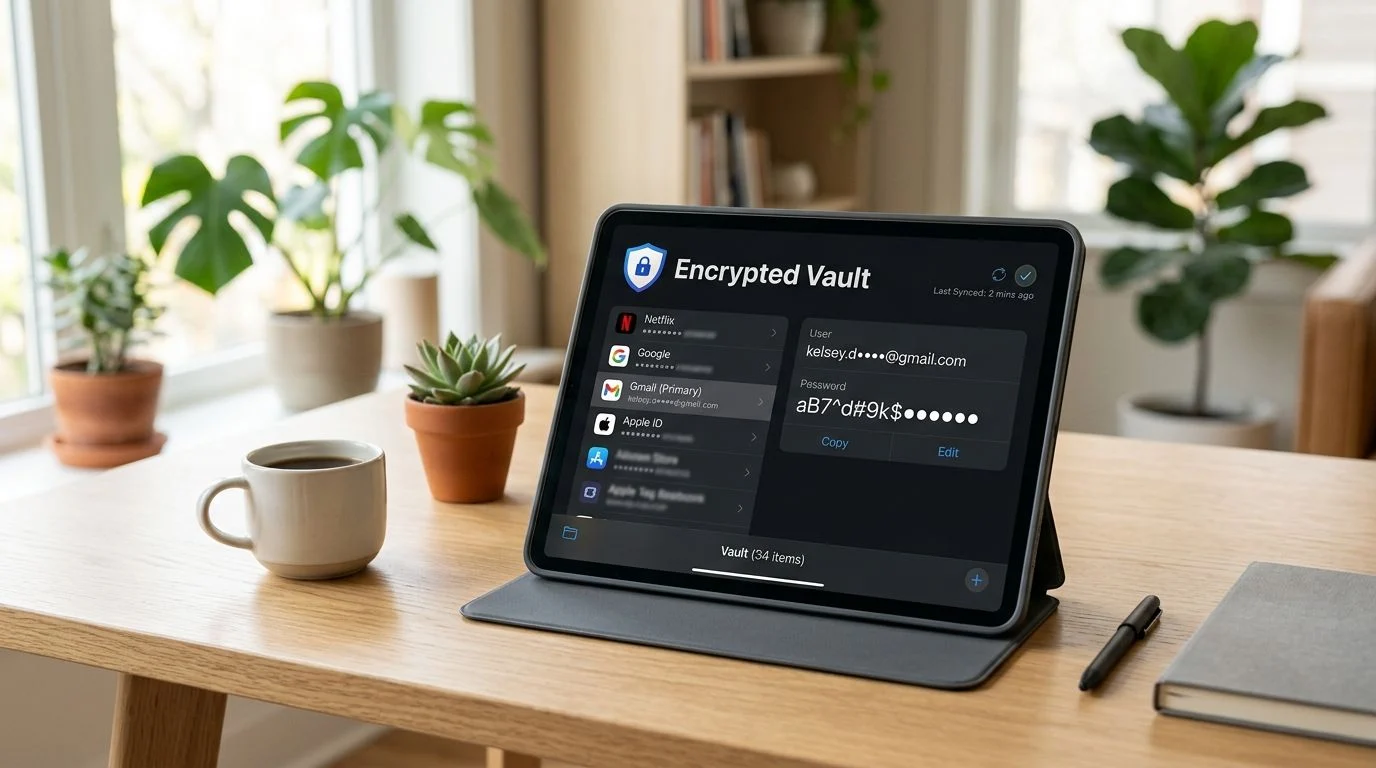
Non-negotiables for rollout
Use the password manager for every business account, or staff will keep a second, messier system on the side.
- Master password: Make it long, memorable, and unlike anything else.
- MFA on the vault: The password manager account itself needs MFA.
- Shared access: Store shared business logins in controlled team vaults, not in chat threads or spreadsheets.
- Offboarding: When someone leaves, remove vault access immediately and rotate any credentials they touched.
If you’re still keeping passwords in Excel, Notes, or a WhatsApp message, that needs to stop first.
For a broader operational view, this article on implementing business password managers is a useful comparison point.
4. Enforce Zero Password Reuse
Credential stuffing remains one of the most common ways attackers get into small business systems. The method is simple. A password is exposed in one breach, then tried against Microsoft 365, Xero, MYOB, SharePoint, supplier portals, and remote access until something opens.
For Melbourne SMBs, this is the point where a minor third-party incident turns into an internal one. Staff often use the same work email across vendor trials, event registrations, and online services. If the password is reused, an attacker does not need to crack anything. They just sign in.
The rule needs to be blunt. One account, one unique password, with no exceptions for “temporary” logins, shared tools, or low-risk services.
What zero reuse looks like in practice
Start with policy language your team can understand and your manager can enforce:
Employees must not reuse any business password across company systems, external websites, personal accounts, or shared accounts. Each business account must have its own unique password stored in the approved password manager.
That wording matters because reuse usually slips in through edge cases. A Canva login shared by marketing. A supplier portal set up by the office manager. A Shopify plugin account created during a rush job. Those side doors are still doors.
Use these checks:
- Set a written no-reuse rule: Include business apps, admin accounts, shared logins, and third-party vendor portals.
- Review breach exposure by domain: If staff credentials appear in known breach data, reset the affected accounts and check where else that password may have been used.
- Audit shared accounts: Replace them with named access where possible. If a shared account must stay, store it in the team vault and rotate it on staff or contractor changes.
- Block shadow sign-ups: Require approval before staff use work email addresses on low-trust or non-business services.
- Use identity controls to reduce sprawl: Microsoft Entra ID for business identity and access control helps centralise account management so fewer passwords end up scattered across unmanaged services.
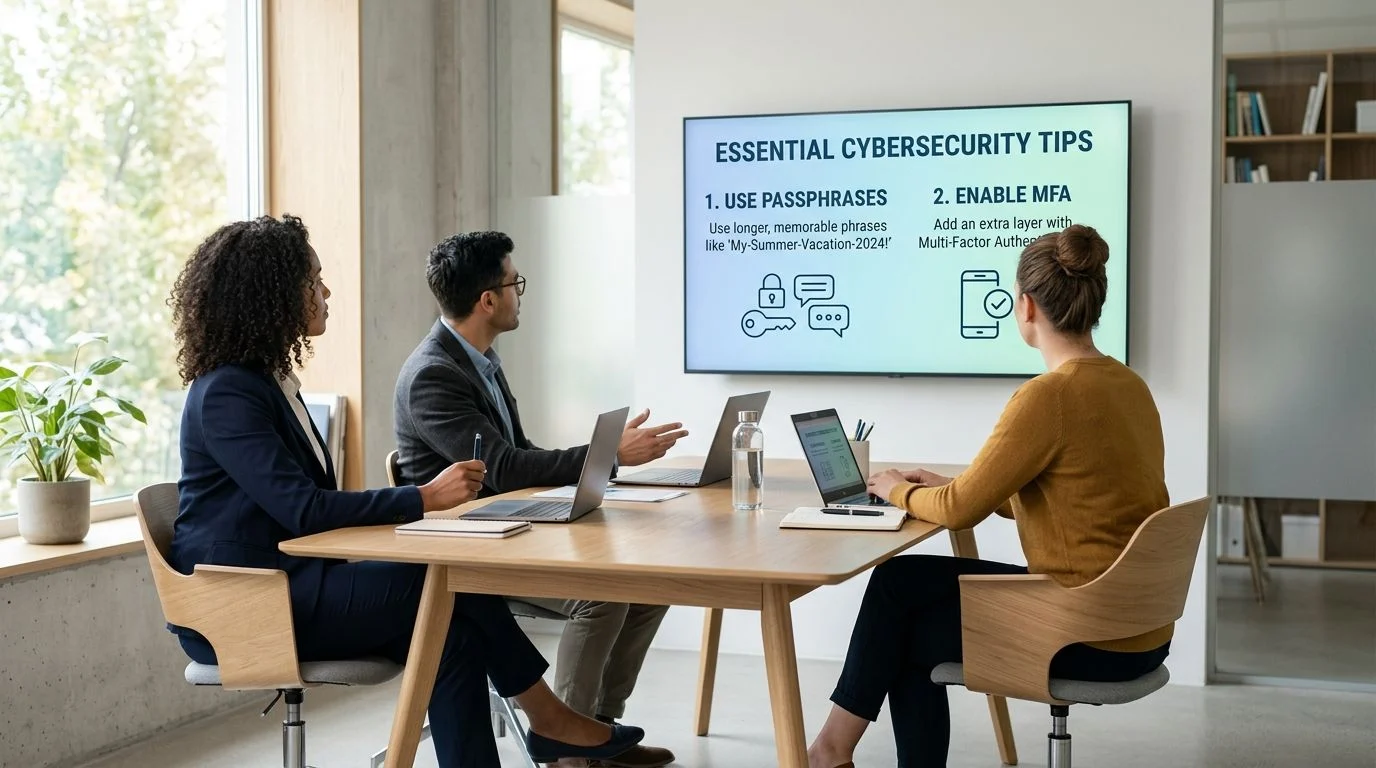
A common failure pattern is easy to spot once you know what to look for. A business shares one marketing platform login between two employees and an outside contractor. The password is reused on another service, pasted into email for convenience, then left unchanged for months. That is how a single exposed credential spreads risk across your business.
The trade-off is admin overhead. Unique passwords for every service are harder to manage by memory alone, which is exactly why this rule only works if the business already requires a password manager. Without that support, staff will create their own shortcuts, and shortcuts are where reuse comes back in.
5. Control and Monitor Privileged Admin Accounts
Privileged accounts deserve a stricter standard than ordinary user logins. They can reset passwords, change security settings, access sensitive data, and create new accounts. If an attacker gets one, they do not need to break in twice.
For Australian SMBs, this is often where inherited risk sits. We see old Microsoft 365 global admin accounts, shared local administrator logins on office PCs, and third-party support access that was never reviewed after a project ended. Those are the keys to the business. Treat them that way.
Lock down admin access properly
Start with account separation. A staff member who manages systems should have one everyday account for email and office work, and a second named account for admin tasks. That creates accountability and reduces the chance that a phishing email turns into a full tenant compromise.
Then tighten control around how those accounts are used:
- Use named admin accounts only: Remove generic logins such as “admin” or “administrator” wherever possible.
- Limit standing access: Give admin rights only to staff who need them, and remove privileged access when the task is finished.
- Use phishing-resistant MFA: Hardware security keys or passkeys are a better fit for privileged roles than SMS codes.
- Monitor the right events: Review privileged sign-ins, failed MFA attempts, role changes, password resets, and after-hours access.
- Review external access: Check any vendor, contractor, or former staff admin access still attached to cloud platforms, firewalls, backup systems, and line-of-business apps.
In Microsoft environments, Microsoft Entra ID gives you the identity layer to manage roles properly and reduce standing access.
A simple internal policy line does a lot of work here:
Privileged accounts must never be used for email, web browsing, collaboration apps, or day-to-day office work.
That one rule cuts off a common failure path. If an admin account is used like a normal user account, one malicious link or fake login page can hand over control of the business.
Monitoring matters as much as prevention. Logging is only useful if someone checks it and knows what “odd” looks like for your environment. For many Melbourne small businesses, that means setting alerts for new admin role assignments, impossible travel events, repeated failed logins, and emergency access account use. It also means training the people who review those alerts. Regular cybersecurity awareness training for staff and managers helps your team spot suspicious behaviour before it turns into an outage or data breach.
When to get help
If you’re not sure which accounts are privileged, whether MFA is enforced properly, or whether staff are still reusing passwords, it’s time to get outside help. These problems usually hide in old tenants, shared devices, inherited systems, and staff workarounds.
Reach out through the contact page and submit a query if you want someone to review your current setup, document the gaps, and help you fix them without overcomplicating the business.
6. Conduct Regular User Security Training
Even the best password policy fails if staff keep handing credentials to phishing pages. Training matters because password security isn’t just about what people create. It’s about what they recognise, report, and refuse to click.
This doesn’t need to look like a painful yearly slideshow. In small businesses, short and practical usually works better. A quick lesson on fake Microsoft 365 prompts, QR code scams, fake invoice portals, and MFA fatigue requests will do more than a broad lecture nobody remembers.
Training that changes behaviour
Good training is repetitive in the right way. You want the same instincts reinforced until they become automatic.
- Quarterly refreshers: Keep them short and based on current attack patterns.
- Phishing simulations: Use them to coach, not embarrass.
- Role-based examples: Finance staff need different examples from front desk or teaching staff.
- Easy reporting: Give staff a simple way to forward suspicious emails or ask “is this legit?”
The big mistake is making security training punitive. If users are scared to admit they clicked something, you’ll hear about incidents too late.
For businesses that want a structured option, Tbourke Solutions offers cybersecurity awareness training designed for staff who aren’t technical.
What I’d tell every staff member
If a login page appears after you click a link in an email, stop and check the address before you type anything.
That one habit prevents a lot of account takeovers. Password security best practices only work when users slow down long enough to apply them.
7. Secure Device and Access Controls
A strong password is wasted if it’s entered on an unmanaged laptop, a stolen phone, or a family tablet with no screen lock. Account security and device security are tied together whether people like it or not.
This is especially important for remote and hybrid teams. Staff log in from home, from phones, from personal devices, and from networks you don’t control. If you don’t set access conditions, you’re trusting every endpoint equally. That’s a bad bet.
Lock down the device path
Your access policy should cover both company-owned devices and BYOD where permitted.
- Auto-lock: Set devices to lock quickly when idle.
- Disk encryption: If a laptop is lost, local data shouldn’t be readable.
- Screen lock on mobiles: No PIN, no access to work email.
- Remote wipe capability: Lost or stolen devices need to be removable from your environment fast.
Conditional access is where this gets practical in Microsoft 365. You can require a compliant device, block risky sign-ins, and stop certain apps from being reached unless the device meets your standards. Tbourke Solutions explains the basics in this guide to Conditional Access.
A common example is simple and effective. A staff member wants work email on a personal iPhone. That’s fine only if the phone has a passcode, current OS updates, and company data can be removed if the device is lost.
8. Plan for Breach Detection and Response
At some point, you’ll face a suspicious sign-in, a phishing success, or a report that a user’s credentials appeared in a breach. The question isn’t whether that can happen. It’s whether your business knows what to do in the first hour.
That response should be written down. Not kept in someone’s head. Not improvised in a panic.
Your first response playbook
A practical breach response for a compromised account usually includes:
- Isolate the account: Block sign-in or disable the account immediately.
- Revoke sessions: Sign the user out everywhere.
- Reset credentials: Change the password and review MFA methods.
- Review logs: Check sign-in history, mailbox rules, file access, and forwarding changes.
- Contain impact: Identify whether clients, suppliers, or internal systems were affected.
If the compromised account belongs to a finance manager, add invoice and payment review straight away. If it belongs to an admin, treat it as a wider incident until proven otherwise.
Australia’s Notifiable Data Breaches obligations can also come into play depending on what was accessed. Your response plan should account for that, along with who makes the call and who documents the investigation.
Tbourke Solutions has a useful starting point in these disaster recovery plan examples, which can be adapted into an incident response workflow for account compromise.
Don’t wait for the incident to write the process
Run a tabletop exercise. Pick one scenario such as a compromised Microsoft 365 account or a fake invoice email sent from a real mailbox. Then walk through who notices it, who responds, what gets checked, and who needs to be informed.
9. Implement Secure Password Recovery Procedures
Password recovery is one of the easiest places to accidentally build a back door. If your help desk will reset an account because somebody sounds urgent on the phone, an attacker only needs confidence and a few details from LinkedIn.
Recovery has to be secure and usable at the same time. If it’s too difficult, staff pressure support to bypass it. If it’s too loose, attackers exploit it.
Build a reset process that resists social engineering
For self-service password reset, pre-register users with approved recovery methods such as an authenticator app. For support-assisted resets, staff need a script and they need to follow it.
A sound process includes:
- Identity verification: Confirm the user through more than one trusted factor.
- No plain-text passwords: Never send temporary passwords in email or chat.
- Alerting: Notify the user whenever a reset is requested or completed.
- Escalation rules: High-risk accounts need a higher verification standard.
A real-world example is a staff member who loses their phone on a Friday afternoon and wants urgent access restored before payroll. That’s exactly when shortcuts happen. Build the process so urgency doesn’t weaken identity checks.
Recovery is part of the attack surface. Treat it like a front door, not a favour.
10. Conduct Regular Audits and Reviews
A password policy that is never checked turns into shelfware. In Melbourne SMB environments, I see the same pattern repeatedly. Good rules on paper, old accounts still active, MFA missing on one line-of-business app, and admin access that nobody has reviewed since the last staff change.
Audits work best when they are routine and assigned to a named owner. Quarterly is realistic for most small businesses. Monthly makes sense for higher-risk items such as admin roles, Microsoft 365 global admins, shared mailboxes, and remote access platforms.
What a practical password audit should cover
The Australian Digital Health Agency password advice sets a clear baseline around strong, unique passwords. Your review should test whether your systems and your staff practices match your written policy, not whether the policy’s presence is enough.
Check these items on a schedule:
- Dormant accounts: Disable accounts for former staff, contractors, and unused service logins.
- Password policy enforcement: Confirm minimum length, blocked weak passwords, and lockout settings still match your standard.
- MFA coverage: Verify MFA is enabled everywhere your policy requires it, especially email, VPN, cloud admin portals, and finance systems.
- Shared and generic accounts: Confirm there is a documented owner, a valid business reason, and controlled storage in your password manager.
- Privileged access: Review who has admin rights, why they still need them, and whether that access is separate from day-to-day user accounts.
- Exceptions register: Check any approved policy exceptions, who signed them off, and whether they should now be removed.
One weak point deserves special attention. Old password expiry rules.
Many Australian SMBs still force password changes every 30, 60, or 90 days because that setting has been there for years. As noted earlier, current guidance has shifted away from arbitrary resets unless there is evidence of compromise, password reuse, or a high-risk event. If your policy still mandates frequent expiry by default, review the rule itself, the systems enforcing it, and the support load it creates.
Review the policy wording, not just the settings
A useful audit asks two separate questions. Are the controls configured correctly? Do the written rules still make sense for the business you run today?
For example, a policy written five years ago may say staff can share credentials for a front desk account, or that SMS MFA is acceptable for every role, or that monthly password changes are required for all users. Those rules create support overhead and security gaps. Replace vague wording with clear language a manager can enforce.
A practical policy statement for an Australian SMB could read like this:
- Users must use a unique password or passphrase for every business system.
- MFA is required for email, remote access, cloud platforms, and all admin accounts.
- Shared accounts are only allowed where a system cannot support named users, and each shared account must have an assigned owner.
- Password resets are triggered by suspected compromise, confirmed credential exposure, or administrator action, not by arbitrary calendar dates.
That is the kind of wording an MSP can audit against.
If you outsource IT, ask for an audit report you can use. It should list failed checks, business risk, recommended action, and who owns the fix. If you handle IT in-house, keep the same discipline. A short recurring checklist, completed every quarter, is far better than a once-a-year review nobody finishes.
Top 10 Password Security Practices Comparison
| Item | 🔄 Implementation Complexity | ⚡ Resource Requirements | ⭐ Effectiveness | 📊 Expected Outcomes | 💡 Ideal Use Cases & Tips |
|---|---|---|---|---|---|
| Establish Strong Password and Passphrase Policies | Medium, policy drafting and enforcement | Low, documentation, strength meter tools | ⭐⭐⭐ | Better baseline password strength; fewer trivial breaches | Use 16+ char passphrases; integrate strength meters and SSO |
| Implement Multi-Factor Authentication (MFA) Everywhere | Medium, rollout and exceptions handling | Medium, authenticator apps, hardware keys, admin time | ⭐⭐⭐⭐⭐ | Blocks most account takeovers; raises attack cost | Start with admins; prefer apps/hardware keys over SMS |
| Deploy and Mandate a Business Password Manager | Low–Medium, deploy, configure, train users | Medium, licenses, admin setup, training time | ⭐⭐⭐⭐ | Unique strong credentials, secure sharing, audit trails | Use enterprise manager + MFA; enforce strong master passwords |
| Enforce Zero Password Reuse | Medium, policy + technical support | Low–Medium, relies on password manager and monitoring | ⭐⭐⭐⭐ | Limits damage from third‑party breaches (credential stuffing) | Make rule mandatory with manager; monitor breaches (HIBP) |
| Control and Monitor Privileged Admin Accounts | High, JIT, separation, continuous monitoring | High, PIM, logging, skilled operations staff | ⭐⭐⭐⭐⭐ | Reduces blast radius; faster detection of high‑risk actions | Separate daily/admin accounts, require MFA and JIT access |
| Conduct Regular User Security Training | Low–Medium, develop curriculum and simulations | Medium, LMS, phishing tools, staff time | ⭐⭐⭐ | Fewer successful phishing attacks; improved reporting | Keep training short, role‑specific; run phishing simulations |
| Secure Device and Access Controls | Medium–High, MDM, encryption, BYOD policies | Medium–High, MDM licenses, endpoint tools, admin effort | ⭐⭐⭐⭐ | Fewer device-based compromises; enforce encryption/locks | Enforce MDM, auto‑lock, remote wipe; cover BYOD devices |
| Plan for Breach Detection and Response | High, monitoring, playbooks, practiced drills | High, SIEM/IDS, forensics, incident response team | ⭐⭐⭐⭐ | Faster containment and recovery; legal/compliance readiness | Maintain playbooks, log retention; run tabletop exercises |
| Implement Secure Password Recovery Procedures | Medium, SSPR and helpdesk verification workflows | Medium, SSPR tooling, trained support, multi-proof methods | ⭐⭐⭐⭐ | Reduces social‑engineering resets; safer self‑service | Use multi‑proof SSPR, avoid weak security questions; notify users |
| Conduct Regular Audits and Reviews | Medium, scheduled audits, remediation processes | Medium, auditing tools, occasional third‑party tests | ⭐⭐⭐⭐ | Detects stale accounts, policy drift; improves compliance | Automate reports, document findings, schedule quarterly reviews |
FAQ
What are the best password security best practices for a small business?
Use long unique passphrases, store them in a business password manager, turn on MFA everywhere you can, protect admin accounts more heavily than standard users, and train staff to spot phishing. Then write those rules into policy and enforce them.
How long should a business password be?
Use at least the current accepted baseline where your systems support it, and prefer longer passphrases for day-to-day business use. For privileged accounts, use stronger standards again and pair them with stronger MFA.
Should staff change passwords every month or every few months?
Not automatically as a blanket rule. Modern guidance has moved away from arbitrary reset cycles for standard user passwords unless there’s evidence of compromise, a breach event, or another specific reason to reset.
Are passphrases better than complex passwords?
Usually, yes. A longer passphrase built from unrelated words is easier for staff to remember and harder to brute-force than a short password made “complex” with predictable substitutions.
Is SMS MFA good enough?
It’s better than password-only access, but it’s weaker than authenticator apps, passkeys, or hardware keys. If your business still relies on SMS for important accounts, plan a staged move to stronger phishing-resistant options.
Do we really need a business password manager if we already use Microsoft 365?
Yes, in many cases. Microsoft 365 secures identity, but staff still need a reliable way to create, store, and share unique passwords for vendor portals, finance tools, websites, admin consoles, and services outside Microsoft.
What should we do if we think a password has been compromised?
Block or isolate the account, sign out active sessions, reset the password, review MFA methods, check sign-in logs, and look for downstream impact such as mailbox rules or file access changes. If sensitive data may have been exposed, escalate quickly and assess your reporting obligations.
Your Next Step Towards a More Secure Business
Password security is a journey, not a destination. The businesses that do this well aren’t necessarily the ones with the biggest IT budget. They’re the ones that remove weak defaults, document their standards, and make the secure option the easiest option for staff to follow.
That starts with a few core decisions. Require long passphrases. Stop password reuse. Put every business account behind MFA. Roll out a proper password manager. Lock down admin accounts as if they matter most, because they do. Then support all of that with user training, device controls, and a response process for the day something goes wrong.
The trade-offs are real. Stronger controls add friction. Password managers require rollout effort. MFA creates support tickets when phones change. Secure recovery needs discipline when someone is in a rush. But every one of those inconveniences is smaller than the cost of an account takeover, a payroll diversion, a hijacked mailbox, or a client data exposure event.
For Australian SMBs, schools, and sole traders, the bigger issue usually isn’t lack of tools. It’s lack of alignment. One app enforces MFA, another doesn’t. One director uses a password manager, another stores credentials in notes. One old policy still demands forced resets while another team ignores it. Security falls apart in those gaps.
That’s where a local MSP can make this manageable. Tbourke Solutions works with small to medium businesses, schools, families, and startups across Melbourne to put practical controls in place without burying owners in jargon. That includes account security, Microsoft 365 hardening, cloud and device controls, policy guidance, and support that fits the way smaller organisations operate.
If you’re unsure where your current risks are, start with a review of your real-world setup. Check who has admin rights, where passwords are stored, which apps still lack MFA, how shared accounts are handled, and whether your recovery and offboarding processes would stand up under pressure. Those answers usually tell you very quickly where the weak spots are.
Do not wait for a breach to force the cleanup. Start with the basics, enforce them consistently, and improve from there. If you want help assessing your current environment or building a practical rollout plan, reach out to Tbourke Solutions through the contact page to submit a query and schedule a security consultation.
If you want practical help from a local Melbourne MSP, Tbourke Solutions can review your password policy, roll out MFA, secure Microsoft 365, tighten admin access, and help staff adopt better habits without making day-to-day work harder than it needs to be.
Share This Story, Choose Your Platform!