
Your server is still humming away in a cupboard in Melbourne, but staff keep complaining. Remote access is clunky, the VPN drops at the worst time, backups feel like a nightly gamble, and nobody wants to touch the old box because it’s doing too many jobs at once. That’s usually the point where a file server migration to Azure stops being a “someday” project and becomes an operational priority.
For most Melbourne businesses, the right way to do this isn’t a rushed lift-and-shift. It’s a staged move that protects file paths, preserves permissions, and lets staff keep working while data syncs in the background.
Introduction and Assessing Your Current File Server
TLDR: If you want to know how to migrate a file server to Azure in Melbourne, the safest path for most SMBs is to assess your existing file shares, permissions, applications, and bandwidth first, then use a staged migration into Azure Files rather than a hard cutover. In practice, that usually means preparing Azure properly, syncing data in the background, validating access, and only then switching users across. If your environment is messy, heavily permission-based, or tied to legacy apps, get help before you start. If SharePoint may suit some of your files better than a straight file-server replacement, compare the options in this move file server to SharePoint guide.

A file server migration goes well when the assessment is honest. It goes badly when someone says “it’s just shared files” and skips the detail. In Melbourne SMBs, the surprises are almost always the same. Old mapped drives, inherited NTFS permissions nobody understands, strange line-of-business apps pointing at UNC paths, and a lot of stale data that shouldn’t be moved at all.
What to check before touching Azure
Start with an inventory. You need to know what’s on the server, who uses it, and what would break if the path changed.
- Folder structure: Identify the main shares, nested folders, and any buried team folders that staff still rely on.
- Permissions: Review NTFS and share permissions carefully. If access is already inconsistent on-prem, Azure won’t magically fix it.
- Application dependencies: Check whether accounting systems, document management tools, CAD software, school administration systems, or scripts point directly to file paths.
- User behaviour: Find out which teams work mostly from the office, which are hybrid, and which need reliable access from home.
- Data quality: Remove obsolete, duplicated, or abandoned content before migration. Don’t pay to move rubbish.
Practical rule: If nobody has reviewed your file permissions in years, assume they’re more complex than they look.
Melbourne-specific reality checks
The local factor that gets ignored most often is connectivity. Plenty of Melbourne businesses have decent NBN links on paper but inconsistent real-world upload performance during business hours. That matters because the initial sync has to get to Azure somehow.
Think of migration like moving offices. You don’t start by loading boxes into the truck at random. You label what matters, throw out what’s obsolete, and work out which cabinets need to stay accessible until the very last day.
A few checks make a big difference:
- Measure upload stability, not just headline speed.
- Identify peak business hours so initial sync activity doesn’t compete with production traffic.
- Confirm backup expectations because your old backup method may not apply once data moves.
- List critical shares that need priority validation during cutover.
The assessment output you actually need
By the end of the assessment, you should have a practical shortlist:
| Assessment area | What you need to document | Why it matters |
|---|---|---|
| Shares | Share names and owner departments | Helps plan migration order |
| Permissions | Groups, exceptions, inherited access | Prevents access failures |
| Apps | Systems tied to file paths | Avoids breaking workflows |
| Connectivity | Office internet behaviour | Guides sync timing |
| Cleanup | Data to archive or exclude | Reduces migration noise |
If you can’t answer those basics clearly, you’re not ready to migrate yet. You’re still discovering the environment.
Choosing Your Azure File Migration Strategy
For Melbourne SMBs, there isn’t one Azure file strategy. There are several, and picking the wrong one creates pain later. The temptation is to choose whatever sounds most “cloud”, but the decision should come down to user experience, path compatibility, operational risk, and how much dependence you still have on a local server.
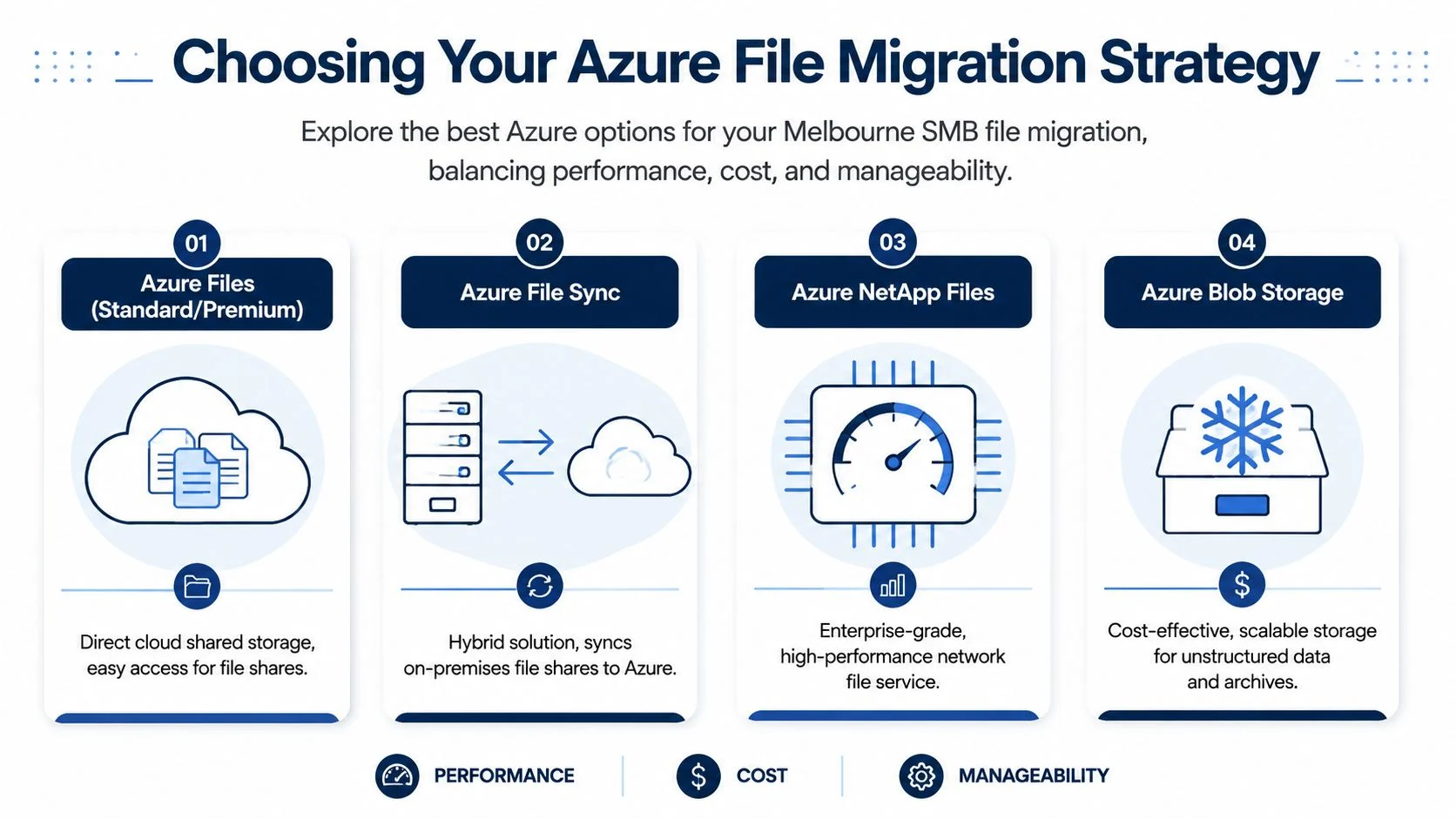
Microsoft’s supported path for Windows file services is Azure Files plus Azure File Sync. Microsoft notes that Azure File Sync lets organisations keep existing Windows Server file paths while synchronising data in the background, so users can keep working during migration and can even continue using the same DFS Namespace paths after cutover. Microsoft also describes common cloud-only and hybrid models, with optional cloud tiering to keep frequently used files local in the hybrid approach, which is especially relevant where organisations have distributed sites and want to reduce local server dependency without disrupting access, as outlined in Microsoft’s guidance on migrating Windows Server file shares to Azure Files.
The four common options
Most businesses evaluating how to migrate a file server to Azure in Melbourne end up comparing four broad methods.
| Method | Best For | Key Benefit | Consideration |
|---|---|---|---|
| Azure Files | Businesses ready for direct cloud file shares | Simple shared storage model | Internet dependency is higher |
| Azure File Sync | Offices that still need local access during transition | Hybrid access with staged migration | Requires a Windows Server sync endpoint |
| Azure NetApp Files | High-performance enterprise workloads | Advanced performance profile | Usually more than an SMB needs |
| Azure Blob Storage | Archive and unstructured data | Good fit for lower-touch storage | Not a direct replacement for a traditional Windows file share |
What usually works in Melbourne
For a typical Melbourne office, Azure File Sync is usually the most practical middle ground. It lets staff keep using the local server while Azure becomes the cloud copy behind the scenes. That matters if your NBN link is stable but not something you’d trust for an all-or-nothing switch on day one.
Cloud-only Azure Files can work well, but it suits cleaner environments. If users already work flexibly, your office internet is reliable, and you don’t need a local cache, it can be a tidy option. If those conditions aren’t there, cloud-only often gets chosen too early.
The right architecture is the one your staff won’t notice. If users feel the migration every minute of the day, the design was probably too aggressive.
A simple decision filter
Use this if you’re narrowing the options:
- Choose Azure File Sync if you need a staged move, local performance for active files, or minimal disruption.
- Choose Azure Files directly if you’re comfortable going cloud-first and your dependencies are limited.
- Choose Azure NetApp Files only when you have a clear workload requirement that justifies it.
- Choose Blob Storage for archive content, old project data, or data that doesn’t need Windows-style file share behaviour.
If you’re still in the planning phase, Tbourke’s Azure Migrate guide is a useful reference point for assessing how workloads move into Azure more broadly.
Preparing Your Network and Identity for Azure
This is the groundwork that decides whether the migration feels controlled or chaotic. Most technical problems during file server migrations don’t come from copying files. They come from identity mismatches, poor connectivity planning, and resources provisioned in the wrong place.

Identity first, not last
If your users authenticate one way on-prem and another way in Azure, file access gets messy fast. Before migrating, make sure your directory and user identity model are aligned so permissions remain coherent.
For many businesses, that means confirming the relationship between on-prem Active Directory and Microsoft cloud identity. If your team needs a refresher, this guide on what Microsoft Entra ID is explains the role it plays in modern identity management.
Permission problems often don’t show up in broad testing. They show up when one staff member in payroll, leadership, or student services suddenly can’t open a critical folder Monday morning. That’s why identity prep needs to happen before data movement ramps up.
Put the storage in the right region
For a Melbourne SMB, the safe methodology is usually to provision the Azure storage account and SMB file share in the same Azure region used for the workload, then use Azure File Sync for a hybrid cutover and only decommission the on-prem endpoint later. Microsoft’s migration overview explicitly recommends aligning storage account regions and choosing Azure File Sync for hybrid deployments on Windows Server 2012 R2 and later in its Azure Files migration overview.
In practice, Melbourne organisations usually want an Australia-based Azure region for latency and data residency reasons. If you place storage in the wrong region early, you create unnecessary friction that follows the whole project.
VPN or ExpressRoute
The network path matters. Most SMBs use a site-to-site VPN because it’s practical and cost-conscious. Larger organisations, schools with heavier connectivity needs, or sites with stricter performance expectations may look at ExpressRoute.
Use this rule of thumb:
- VPN suits offices with straightforward connectivity requirements and a normal SMB budget.
- ExpressRoute suits environments where private connectivity and tighter network performance matter more.
- Neither option fixes poor local network design. If your LAN, firewall, or routing is already under strain, Azure will expose it.
Don’t treat network prep as a preflight checklist item. It’s part of the migration itself.
When to Get Help with Your Azure Migration
A file server migration looks manageable until one hidden dependency turns it into an outage. I usually see this happen a few days before cutover, when someone remembers the MYOB export folder, the CAD archive with custom permissions, or the scanner that saves to an old UNC path nobody documented.
That is the point to bring in help.
For Melbourne businesses, the trigger is often not Azure itself. It is the mix of older on-prem decisions, inconsistent NBN performance between sites, and limited room for error during business hours. A suburban office with patchy upload speed can turn a straightforward sync job into a drawn-out project. A city site with better connectivity can still run into trouble if identity, permissions, and application access were never cleaned up properly.
Get an Azure migration specialist involved if any of these apply:
- NTFS permissions are messy. You have inherited access, one-off exceptions, disabled groups, or folders that only one long-term staff member understands.
- Line-of-business apps still rely on fixed file paths. Finance systems, design tools, school admin platforms, and older operational software often fail without warning until users start opening live files.
- Your internet service is unreliable or heavily contended. That matters in Melbourne offices where NBN performance varies by building, provider, and time of day.
- There is no tested rollback plan. If the cutover fails, the team needs a clear method to return users to the existing server without guessing.
- Your internal team knows Microsoft 365 but not Azure file services. File migrations cut across storage, Entra ID, DNS, networking, backup, and monitoring.
The primary risk is not just a failed copy job. It is ending up with two active file platforms, confused staff, stale permissions, and support calls for weeks after the move. I have seen businesses spend more time cleaning up an uncertain half-migration than they would have spent doing the project properly from the start.
External help also makes sense when the business cannot tolerate trial and error. Medical clinics, schools, professional services firms, and manufacturers usually need a migration plan that accounts for after-hours cutover, user access testing, printer or scanner workflows, and local support on the day. In those cases, a Melbourne-based IT partner can assess whether Australia Southeast is the right fit for performance, check the actual network path from the office, and pressure-test the cutover plan before staff are affected.
If several of these warning signs apply, stop before the execution phase and review the design. Fixing the plan early is cheaper than repairing permissions, access issues, and user trust after go-live.
Executing the Migration and Cutover
Execution should feel boring. That’s the goal. The migration works best when users barely notice the background sync, the validation is methodical, and the cutover happens inside a small planned window rather than a drama-filled weekend.

The staged execution model
For most SMBs, the practical path is hybrid cutover. You establish the Azure side first, connect the on-prem server, let data replicate in the background, validate, and only then switch production usage.
A published migration workflow example built around standard Microsoft tooling uses a storage account in Azure, an SMB file share, a file share quota of 2,048 GB, and a Robocopy transfer configured with /MIR, /COPY:DATSOU, /MT:16, /R:3, and /W:5 to preserve file data and permissions during transfer, as shown in this practical guide on migrating on-premises file servers to Azure Files.
That matters because preserving folder structure and NTFS-style permissions is often the difference between a smooth migration and a helpdesk flood.
The sequence that tends to work
Create the Azure storage components
Build the storage account and file share in the intended Azure region. Name things cleanly. Avoid rushed naming that causes confusion later.Deploy Azure File Sync
Install the sync agent on the file server or designated Windows Server endpoint. Register the server, create the sync group, and map the server endpoint to the correct folder path.Run the initial sync
This is the heavy lift. Data starts moving in the background while staff continue working on the local server. Depending on the data set and link quality, this may take time, so don’t promise unrealistic speed.Perform incremental sync and validation
Changes made during business hours continue to replicate. Validate permissions, spot-check important folders, and test with real users from different departments.Schedule the final cutover
Choose an after-hours window. Freeze changes if needed, run the final sync pass, update mappings or namespace targets, and confirm the new access path works as intended.
Practical cutover advice
A file migration is like moving a library while people are still reading the books. The trick isn’t carrying every shelf in one go. The trick is moving most of the collection in the background, then changing the front desk sign only when the new room is ready.
Use a small cutover checklist:
- Notify staff clearly: Tell them what changes, when, and what to do if something looks wrong.
- Validate critical teams first: Finance, admin, leadership, and operations usually expose issues fastest.
- Keep rollback simple: Don’t dismantle the old path until you’re satisfied access is stable.
- Document changes live: Track what was switched, what was tested, and any exceptions found.
A good cutover window is short because the hard work was already done before it started.
Post-Migration Validation Security and Management
Once users are live in Azure, the project shifts from migration to operations. Many teams relax too early at this juncture. Don’t. The first few days after cutover are when you confirm whether permissions, backups, monitoring, and cost controls are suitable for business use.
Validate what matters, not just what’s easy
Start with the folders that would hurt most if access is wrong. Test department shares, restricted folders, and locations with unique permissions. Don’t limit testing to IT staff. Include actual users because they know which folders, files, and workflows matter.
A sensible validation pass should include:
- Access checks: Can the right users open, edit, and save where expected?
- Permission checks: Are confidential folders still limited to the intended groups?
- Path checks: Do shortcuts, mappings, and application references still behave properly?
- File integrity checks: Open representative files from different teams and confirm they’re usable.
Backups and recovery
Once data sits in Azure, your old file server backup routine may no longer cover what matters. You need a cloud-appropriate backup and recovery plan that addresses accidental deletion, corruption, and broader recovery scenarios.
For businesses reviewing broader resilience planning after migration, these practical disaster recovery plan examples are a useful reference.
Monitoring and ongoing management
After cutover, watch the environment closely. Staff will usually tell you about obvious failures. Monitoring helps you catch the less obvious ones, such as sync issues, unusual access behaviour, or resource problems that develop gradually.
Use post-migration management to keep control of:
| Area | What to watch |
|---|---|
| Access | Unexpected permission errors or failed access |
| Performance | User complaints about lag or inconsistent file access |
| Synchronisation | Endpoint health and replication issues |
| Cost | Storage growth and avoidable sprawl |
| Security | Unusual activity patterns and policy gaps |
Cost discipline matters
Azure can be tidy or messy depending on how you run it. If nobody owns storage growth, old project data and duplicate content start accumulating again. That’s why governance matters after migration just as much as before it.
Keep one person or team accountable for storage reviews, archive decisions, and access cleanup. Otherwise, you’ve moved the old clutter into a newer platform.
Your Melbourne Azure Partner and Migration FAQs
A Melbourne file server migration often looks straightforward until the cutover weekend arrives. Friday afternoon, staff leave expecting the same mapped drives on Monday. Meanwhile, the office in Derrimut has a decent fibre service, the warehouse in Thomastown is still dealing with inconsistent NBN performance, and a line-of-business app is pointing to an old UNC path nobody documented. That is the point where local experience matters.
A migration partner needs to do more than copy data. The job usually spans discovery, permission review, identity alignment, sync planning, cutover timing, user communication, and support once people start opening files again. For Melbourne businesses, the design also needs to account for low-latency access through the Australia Southeast region and the fact that some sites have better connectivity than others.
Tbourke Solutions is a Melbourne MSP based in Hillside. It works with small to medium businesses across IT support, cloud platforms, infrastructure, cybersecurity, and ongoing operations. In an Azure file migration, that typically means assessing the current server, choosing the right target, planning staged migration waves, validating access before cutover, and staying involved after the move when actual user issues appear.
If you are still deciding whether Azure is the right fit, this guide to private vs public cloud for business infrastructure decisions gives useful context.
Common questions from Melbourne businesses
Do I need to move everything at once
Usually not. A staged migration is safer and easier to test. Start by removing stale data, syncing active shares in the background, validating permissions with a small user group, then cut over during a planned window.
Is Azure Files or a full Azure VM file server better
Azure Files is often the better choice for SMBs that want managed file services without carrying an old server design into Azure. A full Azure VM file server still suits some cases, especially where applications depend on traditional server behaviour or specific Windows features.
Will staff still be able to use the same file paths
Often yes, especially in hybrid environments using Azure File Sync. The answer depends on how the current shares are mapped, whether applications use hard-coded paths, and whether the business is prepared to tidy up old naming conventions during the move.
What if our NBN link is inconsistent
That changes the migration plan, not whether the migration can happen. In practice, it often means pre-seeding data, scheduling syncs outside business hours, keeping a local cache in place longer, or using a hybrid model so staff are not relying on a weak link for every file open.
How long does the migration take
It depends on the amount of data, folder sprawl, permission quality, application dependencies, and the connection at each site. Clean environments move faster. Older environments with years of inherited permissions and duplicate shares take longer because validation matters more than raw copy speed.
What usually causes the biggest problems
Permissions that no longer reflect how staff work. Old applications that still point to the original server name. Bandwidth assumptions that do not hold up under business-hour load. Cutovers pushed through before testing is complete.
Should we consider SharePoint instead of Azure Files
Sometimes. SharePoint suits document collaboration and browser-based access better than a traditional file share. Azure Files suits workloads that still need mapped drives, existing folder structures, or application compatibility. Many Melbourne businesses end up using both, but each should have a clear purpose.
If you want a practical migration plan, Tbourke Solutions can assess your current environment, recommend the right Azure approach, and map out a low-disruption path for your Melbourne business. If you are ready to discuss the project, get in touch through the main Tbourke Solutions website.
Share This Story, Choose Your Platform!