Trying to remember another complex password isn’t just a pain—it’s a massive security risk. Traditional passwords have become the weakest link in our digital lives, with a staggering 81% of data breaches traced back to weak or stolen credentials. This is where Windows Hello comes in, Microsoft’s answer to this mess, letting you ditch the password for your face, fingerprint, or a simple PIN.
TLDR
This guide explores Windows Hello, Microsoft’s passwordless security feature that uses your face, fingerprint, or a PIN to log you in. We break down how this biometric technology provides superior security compared to traditional passwords by keeping your data encrypted on your device. You’ll learn how to set it up, troubleshoot common issues, and understand why it’s a smart move for both personal use and Australian businesses.
Your Password Is a Liability
For years, we’ve been told that passwords are the keys to our digital kingdom. We use them for everything, from our work emails to online banking, creating a huge, tangled web of secret phrases we can barely keep straight. The irony is that this system often pushes us into bad habits, like jotting passwords down on sticky notes or, even worse, using the same one for everything.
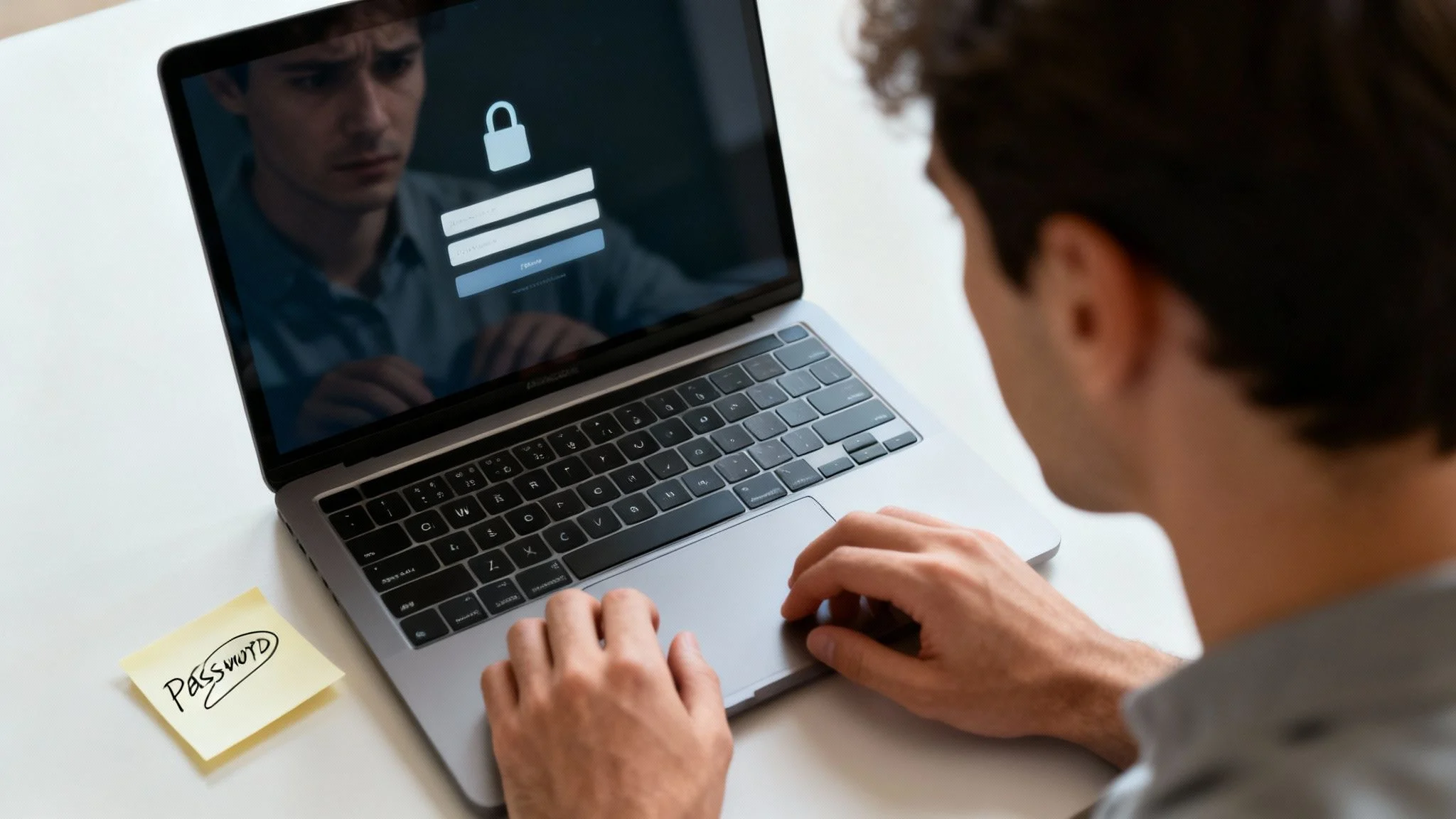
This kind of behaviour is an open invitation for cybercriminals. If one of your accounts is compromised in a data breach, attackers will immediately try those same credentials on your other accounts—a simple trick known as credential stuffing. Even if you use a password manager, which is an excellent security tool, that one master password can still be a single point of failure.
The Problem with Traditional Logins
The fundamental flaw with passwords is that they are just a piece of information. And like any information, they can be stolen, guessed, or tricked out of you. The main vulnerabilities are all too common:
- Phishing Attacks: Crafty emails and fake websites designed to fool you into handing over your login details.
- Brute-Force Attacks: Automated software that tirelessly guesses millions of password combinations until it finds the right one.
- Data Breaches: When a company you trust gets hacked, your password can be exposed and sold on the dark web.
This constant threat means we need a better, smarter way to prove who we are—one that doesn’t depend on something so easily lost or stolen.
How Windows Hello Actually Secures Your Identity
To really get why Windows Hello is such a big deal, you need to look under the bonnet. It’s not just a fancy alternative to your password; it’s a seriously clever security system built to protect you in ways that passwords simply can’t. Think of it as your own unique, complex digital key that you never have to remember.

Each of these methods—your face, your fingerprint, or your PIN—is a distinct and equally secure way to prove it’s really you, right there on your device.
Beyond a Simple Picture
When you set up facial recognition, Windows Hello isn’t just taking a selfie. A standard webcam can be easily tricked by something as simple as holding up a photo. Windows Hello is much smarter than that because it uses specialised hardware.
Most compatible devices use an infrared (IR) camera. This camera projects thousands of tiny, invisible IR dots across your face to build a detailed 3D map of its unique structure. It measures the precise distances between your eyes, nose, and jawline, creating a data template that’s incredibly hard for anyone else to fake.
This approach gives it two massive advantages:
- It stops spoofing: A flat photograph has no depth, so the IR camera immediately knows it’s not a real person.
- It works in any light: Because it relies on infrared instead of visible light, it can recognise you perfectly in a bright office or a completely dark room.
Your Data Never Leaves Your Device
This is probably the most important security feature to understand about Windows Hello. Your biometric data—that 3D map of your face or the scan of your fingerprint—is never sent over the internet. It’s not uploaded to Microsoft’s servers or stored in the cloud where it could become a target for hackers.
Instead, all that sensitive data is encrypted and stored locally on your device, usually inside a secure chip called the Trusted Platform Module (TPM).
When you go to log in, Windows Hello simply compares the live scan of your face or fingerprint to the encrypted template already stored on your machine. If they match, you’re in. Your biometric data acts as the key, but the key never leaves the lock.
This “local-only” verification is what makes Windows Hello fundamentally safer than a traditional password, which has to be sent across a network every single time you log in.
Why a PIN Isn’t Just a Short Password
You might be wondering why you have to set up a PIN when you first enable Windows Hello. It feels a bit like taking a step backward, doesn’t it? But a Windows Hello PIN is a completely different beast from a regular password.
The crucial difference is that a PIN is tied to a single, specific device. If a criminal steals your Microsoft account password, they can try to use it from any computer in the world. But if they somehow find out your Windows Hello PIN, it’s completely useless to them unless they’ve also physically stolen your laptop.
This table breaks down the main ways you can use Windows Hello.
Comparing Windows Hello Authentication Methods
| Method | How It Works | Security Level | Hardware Needed |
|---|---|---|---|
| Facial Recognition | An infrared (IR) camera creates a 3D map of your face. | Very High | IR-enabled camera |
| Fingerprint Scan | A sensor reads the unique ridges and valleys of your fingerprint. | Very High | Fingerprint reader |
| PIN | A numeric code tied only to the specific device. | High | None (standard on all devices) |
This device-specific nature turns the PIN into a powerful security tool. It acts as a reliable backup if your camera or fingerprint reader is on the fritz, without ever putting your main account password at risk.
In many ways, it adds another layer of security, much like how two-factor authentication strengthens security by requiring something you know and something you have. As of 2025, Microsoft reported that over 1.5 billion Microsoft accounts worldwide are eligible for passwordless login using Windows Hello, with a significant portion of these users located right here in Australia.
Setting Up Windows Hello in a Few Simple Steps
Ditching your password for Windows Hello is a simple process that swaps the daily chore of typing for a quick, personal, and much more secure touch. Getting started is easier than you might think, and once it’s done, you’ll wonder how you ever put up with passwords.
Let’s walk through the handful of steps to get this powerful feature running on your device.
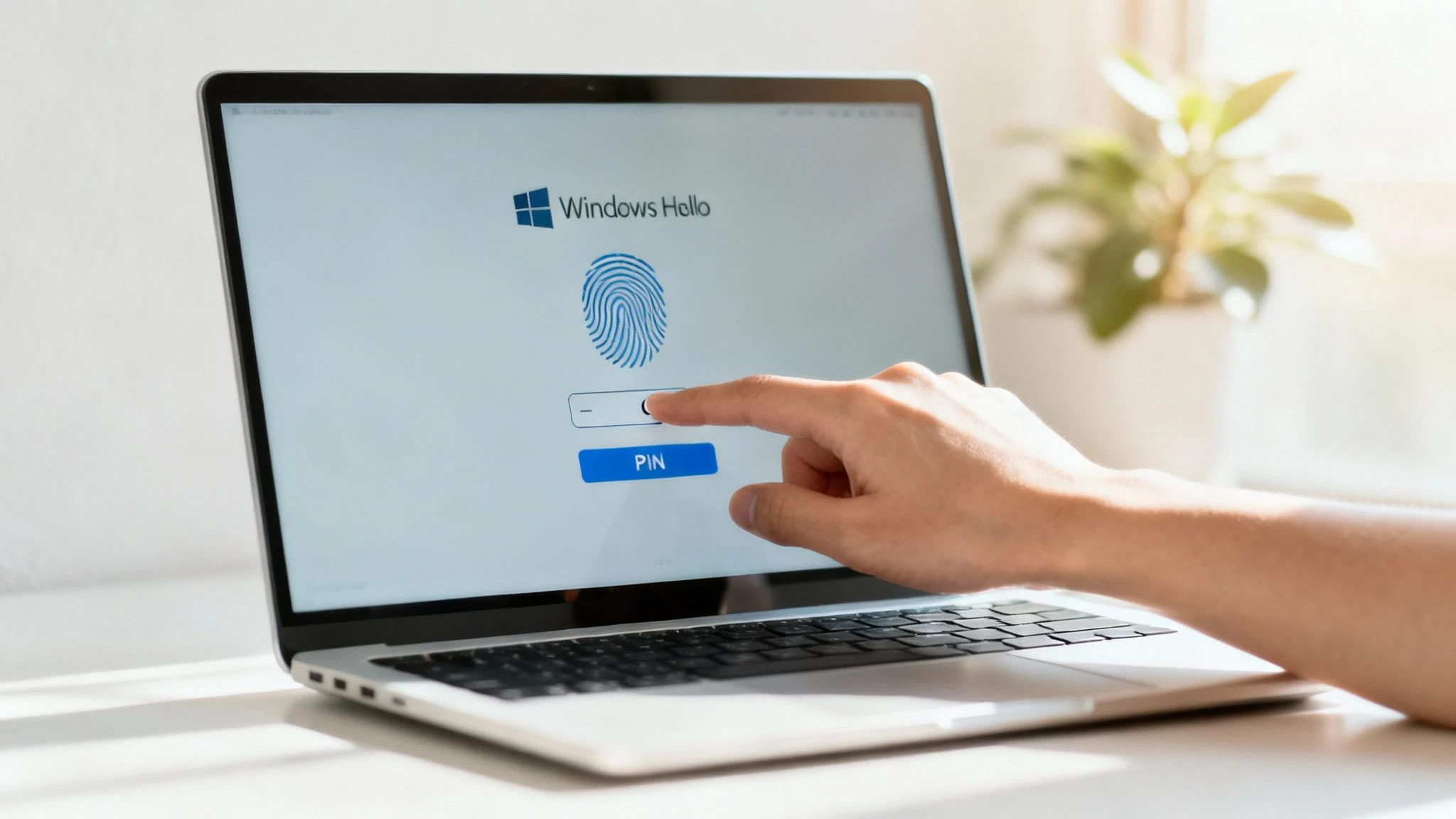
The good news is that the whole setup is handled in one spot within your Windows settings, so it’s easy to add or tweak your sign-in methods whenever you need to.
Navigating to Your Sign-in Options
First up, you need to head to the right place. The journey to a password-free life begins in the Windows Settings menu.
Here’s how to get there:
- Click the Start Menu and select the Settings icon (it looks like a little gear).
- In the Settings window, click on Accounts.
- From the menu on the left, choose Sign-in options.
This screen is your command centre for everything related to Windows Hello. You’ll see options for facial recognition, fingerprint scanning, and setting up a PIN, depending on what hardware your computer has.
Configuring Your First Method
Before you can use biometrics like your face or fingerprint, Windows makes you set up a PIN. This isn’t just an annoying extra step; it’s a critical security fallback. Your PIN is tied directly to your physical device, which means it’s completely useless to a hacker unless they’ve also stolen your computer.
Once your PIN is locked in, you can move on to the really convenient biometric options.
To set up your face or fingerprint:
- For Facial Recognition: Select “Windows Hello Face” and click “Set up”. The system kicks off a quick process where you just look at the camera, letting it map the unique features of your face.
- For Fingerprint Recognition: Choose “Windows Hello Fingerprint” and click “Set up”. You’ll be asked to place your finger on the scanner a few times at different angles to create a complete and accurate digital map.
Pro Tip: Don’t just register one fingerprint. Do yourself a favour and register a finger from each hand. This small step adds a massive amount of convenience when one hand is busy or you’re using your laptop at an awkward angle.
The Seamless Daily Experience
With Windows Hello active, logging in becomes something you don’t even think about. Wake your computer, and the infrared camera is already looking for you. Or just touch the fingerprint sensor. It’s instant and secure. This simple change removes a surprising amount of friction from your workday, letting you get straight to what matters.
This level of simplicity is a game-changer in a business environment. For organisations managing dozens of devices, deploying these sign-in policies consistently is essential for maintaining a strong security posture. Tools like Intune mobile device management allow administrators to roll out Windows Hello settings across an entire fleet of computers, ensuring every user gets the benefit of this enhanced protection without any fuss.
The real beauty of Windows Hello is that it weaves security so smoothly into your daily routine that you barely notice it’s there. It’s security that works with you, not against you, saving you a little bit of time and frustration every single day.
Why Australian Businesses Are Adopting Windows Hello
For Australian businesses, especially small to medium-sized ones, the daily hassle of managing passwords is more than just an annoyance—it’s a direct threat to their security and productivity. Cybercriminals are getting smarter, targeting companies with sophisticated phishing attacks and credential theft that make the traditional password a massive liability. This is exactly why a growing number of Aussie businesses are strategically making Windows Hello a core part of their security framework.
Moving away from passwords isn’t just a trend; it’s a necessary evolution in workplace security. Windows Hello provides a powerful, modern solution that tackles the most common ways attackers get in. By swapping out vulnerable, guessable passwords for secure biometrics and device-specific PINs, it builds a much stronger wall against unauthorised access.
Mitigating Critical Security Risks
Phishing is still one of the most common and damaging threats businesses face today. An employee who gets tricked into entering their password on a fake login page can unknowingly hand over the keys to your entire network. Windows Hello stops this kind of attack in its tracks.
Because your biometric data never actually leaves your device, there’s no password for an attacker to steal. It’s that simple. Even if an employee clicks a dodgy link, the criminal can’t capture a fingerprint or a facial scan. This shifts security from something an employee knows (and can accidentally give away) to something they physically are. Our guide on how to prevent data breaches dives deeper into other strategies that work hand-in-hand with this approach.
Meeting Compliance and Data Protection Standards
If you’re in a field like healthcare, finance, or legal services, protecting sensitive client data isn’t just good practice—it’s the law. Australian data protection laws and industry regulations demand strong security measures to keep personal information safe.
Bringing in Windows Hello helps businesses meet these tough compliance standards. It gives you a clear, auditable record of who is accessing sensitive systems, using authentication methods that are far more robust than old-school passwords. This shows a real, proactive commitment to data security, which is vital for keeping client trust and avoiding hefty regulatory fines.
Windows Hello isn’t just a login feature; it’s a business tool. It strengthens your security posture, streamlines employee access, and directly addresses the high costs associated with password-related IT support.
This isn’t just a niche trend. As of 2024, over 150,000 Australian businesses use Microsoft 365, which has Windows Hello built-in as a core feature for passwordless sign-ins. You can find out more about these stats and the adoption of Microsoft 365 in Australia.
Boosting Productivity and Reducing IT Costs
Beyond the huge security upgrade, Windows Hello brings real, tangible benefits to a company’s bottom line. The operational drag from password management is easy to underestimate, but the costs quickly stack up.
Think about these direct wins:
- Faster Employee Sign-ins: A quick glance at the camera or touch of a sensor gets staff logged in and working in seconds. All that wasted time spent typing and re-typing complex passwords every single day? Gone.
- Reduced IT Helpdesk Tickets: One of the most common calls to IT support is for password resets. Every forgotten password is a small disruption that pulls both the employee and an IT technician away from more valuable work.
- Improved User Experience: A smooth, frictionless login process cuts down on daily frustration for your team. A happier, more efficient workforce is a more productive one, and getting rid of small but constant annoyances like password entry really helps.
By switching to a passwordless model with Windows Hello, Australian businesses aren’t just building a stronger defence against cyber threats. They’re also investing in a smarter, more efficient way to work. It’s a strategic move that pays off in both security and productivity.
Tackling Common Windows Hello Problems
While Windows Hello is usually a smooth operator, technology will always find a way to throw a curveball. A sudden glitch with your face recognition or fingerprint sensor can be seriously frustrating, especially when it’s the only thing stopping you from getting on with your day.
The good news? Most of these hiccups have pretty straightforward fixes. This section is your go-to guide for those moments, walking you through the most common errors and giving you clear steps to get back to seamless, secure access.
Fixing the “Unavailable Option” Error
One of the most frequent issues, especially after a system update, is that dreaded message: “This option is currently unavailable.” This almost always points to a problem with your drivers or a temporary glitch in the biometric service. It’s a known issue that can pop up, and we’ve seen it linked to updates like the Windows 11 Update KB5062660.
Before you start diving into complex fixes, try these simple steps first:
- Restart Your Computer: A classic for a reason. A simple reboot can often sort out temporary software conflicts that are stopping Windows Hello from working properly.
- Run Windows Update: Make sure your system is completely up to date. Microsoft often pushes out patches that fix known bugs with both hardware and software.
- Check Your Drivers: Head over to Device Manager, find your biometric devices (like cameras or fingerprint readers), and check for any driver updates.
If those first steps don’t do the trick, you might need to give your Windows Hello settings a fresh start. Just navigate back to Settings > Accounts > Sign-in options, remove your existing face or fingerprint data, and then set it up again from scratch.
When Your Camera or Fingerprint Reader Gives Up
Another common complaint is the “Couldn’t turn on the camera” error or a fingerprint reader that just won’t respond. This is almost always a hardware or driver-related problem—the line of communication between your operating system and the physical sensor has been cut.
The root of the problem is usually the device driver, the tiny piece of software that lets Windows talk to your hardware. If this driver is out of date, corrupted, or incompatible after an update, Windows Hello simply can’t do its job.
To fix this, your best bet is to reinstall the driver. Go directly to your computer manufacturer’s official support website (like Dell, HP, or Lenovo), find the latest drivers for your specific model, and install them.
Steer clear of third-party driver update tools, as they can sometimes install the wrong software or, even worse, something malicious. By making sure the correct, official driver is installed, you re-establish that crucial link and bring your Windows Hello functionality back to life.
Frequently Asked Questions about Windows Hello
Here are some common questions people ask about Windows Hello.
Is Windows Hello more secure than a password?
Yes, absolutely. A traditional password is a piece of information that can be stolen, guessed, or phished from anywhere. Windows Hello relies on something you are (your face or fingerprint) or something you have (your device with its specific PIN). Your biometric data is encrypted and never leaves your device, and the PIN is useless without physical access to your computer, making it fundamentally more secure.
Can someone use a photo to trick facial recognition?
No. Windows Hello facial recognition requires a special infrared (IR) camera, not a standard webcam. This camera creates a 3D map of your face’s structure. A flat photograph lacks the necessary depth and will be rejected, preventing this kind of spoofing attack.
What happens if my biometric data is stolen?
This is highly unlikely due to Windows Hello’s design. Your biometric data is encrypted and stored locally in a secure hardware chip called the Trusted Platform Module (TPM). It is never sent over the internet or stored on Microsoft’s servers, so there is no central database for criminals to target.
Does Windows Hello work with apps and websites?
Yes, it works with a growing number of applications and websites that support the FIDO2/WebAuthn authentication standards. This allows you to log into many services, including your Microsoft account and other third-party platforms, without needing a password.
How Tbourke Solutions Can Help
Setting up Windows Hello on a single computer is straightforward, but deploying it across an entire business requires careful planning and expertise. Managing different hardware, user roles, and security policies can quickly become complex. This is where professional IT support is essential.
At Tbourke Solutions, we specialise in implementing modern security solutions like Windows Hello for Business. We handle the entire process, from assessing hardware compatibility to deploying consistent security policies using tools like Intune. Our ongoing managed IT support ensures your passwordless environment remains secure and efficient, allowing you to focus on running your business.
Ready to boost your security and simplify workflows for your team? Reach out to our experts by submitting a query on our contact page.
Share This Story, Choose Your Platform!