
The whole OneDrive vs SharePoint debate often trips people up, but the core difference is actually pretty simple. Think of it this way: OneDrive is your personal cloud storage, and SharePoint is your team’s shared digital office.
- OneDrive is for “me” files. These are your drafts, personal work notes, and anything you’re not quite ready to share with the whole team.
- SharePoint is for “we” files. This is where official documents, project resources, and company-wide information belong, anything that needs collaborative input and proper control.
TL;DR: The Short Version
This guide explains the key differences between OneDrive and SharePoint to help you choose the right tool. OneDrive is your personal cloud drive for individual work and drafts, like a digital “My Documents” folder. SharePoint is the shared hub for team collaboration, designed for official company files that require version control, advanced permissions, and group ownership. For most businesses, the answer isn’t choosing one over the other, but using both together to create an efficient and secure file management workflow.

Understanding The Core Difference
The confusion usually comes from the fact that both tools store files in the cloud. But their purpose is what sets them apart. OneDrive is the modern-day replacement for the old “My Documents” folder on your desktop. It’s built for your individual work, private storage, and maybe sharing something simple with one or two colleagues.
SharePoint, on the other hand, is the central hub for team collaboration. It’s designed from the ground up to manage documents and content for entire departments or organisations. It provides a structured, controlled environment where multiple people can access, edit, and contribute to files at the same time. While both let you store files, how they’re used is worlds apart.
If you’re looking to build out these powerful team sites, you can get a deeper understanding by exploring our guide to Microsoft SharePoint development.
A Quick Summary
In short, use OneDrive for your personal drafts and work-in-progress files.
When a document is ready for team review, becomes an official company resource, or needs proper version control and collaboration, it belongs in SharePoint. Think of it as a natural workflow: create and refine in OneDrive, then publish and collaborate in SharePoint.
Your Quick Guide to Choosing the Right Tool
If you’re short on time, here’s the bottom line on the OneDrive vs SharePoint decision.
Use OneDrive for your personal work files, think draft documents, rough notes, and preliminary ideas that aren’t quite ready for team input. It’s the perfect digital locker for your individual storage and for simple, informal sharing with one or two people.
Move files over to SharePoint the moment they need to become official team resources. This is for anything that requires structured collaboration, shared ownership, or more serious security and version control. SharePoint is built from the ground up to centralise your organisation’s knowledge.
Think of it as a natural workflow: A file is born in your personal OneDrive, but it lives its collaborative life in SharePoint. Adopting this mindset is the easiest way to prevent version control nightmares and keep team data properly secured.
Of course, file storage is just one piece of the puzzle. The broader Microsoft 365 world offers other tools for specific jobs. For example, when it comes to managing tasks and deadlines within your team’s projects, you’ll want to look at tools like Planner, which is covered in resources like Mastering Microsoft 365 Planner for Team Productivity.
Digging Into the Core Differences
To really get to the bottom of the OneDrive vs SharePoint debate, you need to look past a simple feature list. It’s about understanding how each one works day-to-day. Let’s break down the four critical areas that will make or break your team’s workflow.
This image gives you a quick visual summary: think of OneDrive as your personal filing cabinet and SharePoint as the shared office library.
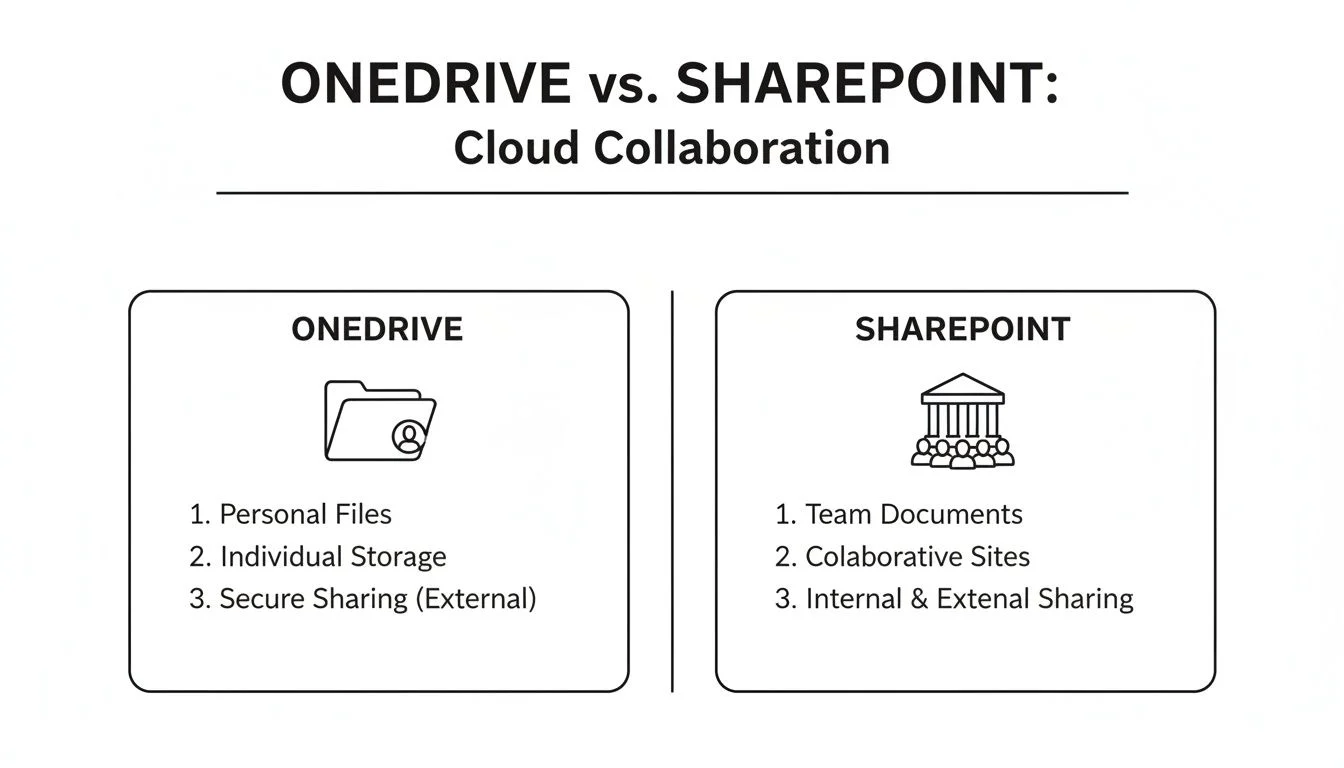
The main takeaway here is the shift in thinking, from “my files” in OneDrive to “our files” in SharePoint.
To make this even clearer, here’s a quick reference table summarising their fundamental differences across key areas.
OneDrive vs SharePoint At a Glance
| Feature | OneDrive | SharePoint |
|---|---|---|
| Primary Use | Personal file storage and draft work | Team and company file storage |
| File Ownership | Belongs to the individual user | Belongs to the team or organisation |
| Storage Structure | Individual account-based storage | Centralised, pooled team storage |
| Permissions | Simple sharing (view/edit links) | Granular, role-based permissions |
| Collaboration | Ad-hoc, informal sharing | Structured, process-driven teamwork |
| Integration | Basic integration with Office apps | Deep integration with Teams, Power Automate |
This table shows the high-level distinctions, but the real impact is felt in how these differences play out in your business. Let’s dive deeper.
Personal Library vs. Team Site: What’s the Real Purpose?
The biggest difference comes down to what they were built for. OneDrive is your personal cloud drive. It’s the modern-day ‘My Documents’ folder, a private space for you to work on drafts, store your own work-related files, and keep things you’re not quite ready to share with the whole team.
SharePoint, on the other hand, is built as a team site or a company-wide intranet. It’s designed for the group, a central hub for official documents, project files, and department resources. It’s structured to support entire teams and organisations, not just one person.
A simple way to think about it: a file is born in OneDrive while you’re working on it alone. When it’s ready for teamwork and needs to become a shared resource, it graduates to SharePoint.
This single idea drives all the other differences between the two.
Who Owns the Files? (And Why It Matters)
File ownership is a huge deal, especially when it comes to business continuity. In OneDrive, files are tied directly to an individual’s account. If an employee leaves the company, their OneDrive and all its files essentially walk out the door with them unless an admin steps in to transfer ownership.
This is a massive risk. Imagine a project manager keeps all the critical project plans in their personal OneDrive. Their departure could grind everything to a halt until those files are tracked down and redistributed. It’s a bottleneck waiting to happen.
SharePoint avoids this problem completely by centralising ownership. Files stored in a SharePoint document library belong to the team or the organisation, not an individual. Storage is pooled, and access is managed from a central point.
This model ensures that when someone leaves:
- All team files stay put, accessible to everyone else without a single interruption.
- Crucial business knowledge is kept right where it belongs, in the company’s central repository.
- Continuity is guaranteed, because project and departmental data aren’t tied to one person’s account.
This structure is precisely why SharePoint is the go-to for managing official business documents and long-term projects.
Permissions: Simple Sharing vs. Granular Control
The way you control file access also shows their different philosophies. OneDrive offers a really simple, user-friendly sharing model that’s perfect for quick, informal collaboration. You can generate a link in seconds to share a file or folder with specific people, whether they’re inside or outside your organisation.
This simplicity is one of OneDrive’s best features for personal productivity. A marketing specialist can quickly fire off a draft blog post to a colleague for a quick look without getting bogged down in complex settings.
But that same simplicity becomes a weakness when you’re trying to manage sensitive team or company data.
SharePoint gives you a much more powerful and granular permission model. It’s not just about who can view or edit a file; it’s about creating a structured hierarchy of control. You can set permissions at multiple levels:
- Site Level: Giving access to an entire project or department site.
- Library Level: Setting specific rules for a whole document library, like ‘Finance Reports’.
- Folder Level: Controlling access to a specific folder inside a library.
- Item Level: Defining unique permissions for a single document.
This layered approach is absolutely essential for proper data governance. For example, you could give the whole company ‘read-only’ access to a ‘Company Policies’ library but grant ‘edit’ rights only to the HR team. Trying to manage that level of control in OneDrive would be a nightmare. The importance of such robust security is highlighted by the constant need for vigilance against threats; security vulnerabilities on on-premises versions of SharePoint show why a well-managed cloud environment with strong permissions is critical.
These advanced controls in SharePoint are also vital for compliance. Our guide on Microsoft Purview can help you understand more about data governance across the entire Microsoft 365 ecosystem.
How Collaboration Actually Works
Finally, the way you collaborate is fundamentally different on each platform. Both support real-time co-authoring in Office documents, but the context and workflow couldn’t be more distinct.
Collaboration in OneDrive is typically informal and direct. It’s ideal for two or three people hammering out a document before it becomes an official company resource. The workflow is straightforward: share, co-author, finalise.
SharePoint is built for structured, process-driven collaboration. It weaves itself into other Microsoft 365 tools to create a complete work hub.
Picture this scenario:
- A new project kicks off, and a Microsoft Teams channel is created for all communication.
- This automatically creates a connected SharePoint site behind the scenes.
- All files shared in that Teams channel are stored in the SharePoint document library, which becomes the single source of truth for the project.
- Team members can use metadata tags in SharePoint to categorise documents (e.g., ‘Proposal’, ‘Invoice’, ‘Meeting Notes’).
- Workflows can be set up using Power Automate to automatically send a document for approval once its status is changed to ‘Ready for Review’.
This integrated workflow, linking communication, file storage, and business processes, is something OneDrive simply wasn’t designed for. Its enterprise focus explains why it’s so embedded in the business world. This robust framework makes SharePoint the clear winner for any team effort that needs structure, automation, and long-term management.
When to Use OneDrive for Maximum Productivity
Figuring out OneDrive’s proper role is the first step to avoiding collaboration chaos and getting the most from your Microsoft 365 subscription. At its heart, OneDrive is your personal, secure workspace in the cloud. Think of it as the digital version of your private desk drawer, perfect for files that are just for you or are still in the early stages of being created.
It’s the starting point for your work. Before a document is ready to become an official team resource, it needs a safe space to be drafted, tweaked, and polished. OneDrive is that secure sandbox.
This distinction is crucial in any OneDrive vs SharePoint discussion; one is built for individual productivity, the other for collective teamwork.
Ideal Scenarios for OneDrive
OneDrive really shines in specific, everyday business situations where personal ownership and simplicity are the priority. It’s not designed for complex team workflows but to empower individual users to manage their own files efficiently and securely.
Here are a few clear examples of when OneDrive is the perfect tool for the job:
- Drafting Confidential Documents: A manager preparing a sensitive performance review needs a private space. Storing it in OneDrive ensures it stays confidential until it’s ready to be shared directly with the employee.
- Initial Creative Work: A graphic designer working on several early concepts for a new logo can keep all their drafts in OneDrive. This keeps the main team folder clean and free of clutter until the final options are ready to be presented.
- Personal Research and Notes: A consultant gathering competitor analysis and personal notes for a client project can use OneDrive as their digital notebook. It keeps all preliminary findings organised and separate from the final, client-facing reports that will eventually live in a shared SharePoint site.
- Storing Personal Work-Related Files: Every employee has files like personal expense reports, professional development plans, or informal to-do lists. These don’t belong in a team repository, and OneDrive is the designated home for them.
OneDrive’s guiding principle is simple: if the file primarily belongs to you and isn’t an official team asset, it starts in OneDrive. This keeps SharePoint sites uncluttered and focused on collaborative, finalised content.
The Power of Files On-Demand
One of OneDrive’s most powerful features, especially for remote and mobile workers, is Files On-Demand. This clever function lets you see and access your entire cloud library directly from your computer’s File Explorer or Finder without actually downloading every single file.
You see placeholders for all your files, but they only consume local disk space when you open them. For professionals with laptops that have limited storage, this is an absolute game-changer. It means you can have terabytes of data at your fingertips without bogging down your computer’s performance. This feature alone makes OneDrive an indispensable tool for individual productivity on the go.
The efficiency gains from features like this are also being amplified by AI. To see how artificial intelligence is changing personal productivity, explore our insights on Microsoft Copilot and its capabilities.
When SharePoint Is the Unbeatable Choice
While OneDrive is fantastic for personal files and drafts, SharePoint is where team productivity truly comes alive. Think of it as the central nervous system for your business, a structured, controlled environment for collaborative work that a personal cloud drive simply can’t replicate.
If your goal is to create a single source of truth for your team or the entire organisation, SharePoint isn’t just an option; it’s the definitive choice.
Imagine building a central knowledge base for all company policies, spinning up a dedicated project site for a cross-functional team, or managing client documents that demand strict version histories and permissions. These are the moments where SharePoint’s features become non-negotiable. Its entire architecture is designed for shared ownership from the ground up.

This focus on structured, team-based work is precisely why SharePoint adoption continues to climb, especially among Australian SMEs and schools.
Creating a Central Hub for Teamwork
SharePoint moves beyond just storing files to become a proper digital workplace. It lets you build sophisticated solutions tailored to specific business needs, something completely outside the scope of OneDrive’s personal storage model.
Here are a few key scenarios where SharePoint is unbeatable:
- Project Management Sites: Create a dedicated site for a new project. This space can house all related documents, task lists, calendars, and team communications in one spot, ensuring everyone is working from the same page.
- Departmental Intranets: Build a portal for the marketing team to share campaign assets, brand guidelines, and performance reports. You can set permissions so only marketing staff can edit content, while the rest of the company has view-only access.
- Client Document Management: Manage all documents for a specific client in a secure library with version control. This ensures you always have a complete history of changes and can roll back to previous versions if needed, providing a clear and defensible audit trail.
SharePoint’s real strength is its ability to centralise information. Instead of crucial files being scattered across individual OneDrive accounts, they live in a shared, controlled environment. This drastically reduces the risk of data loss or version confusion when employees change roles or leave the company.
Advanced Features for Governance and Automation
Two of SharePoint’s most powerful features are metadata tagging and workflow automation. Metadata lets you add custom tags to documents (like ‘Client Name’, ‘Project ID’, or ‘Document Status’), making files infinitely easier to find and organise than a simple folder structure ever could.
On top of that, SharePoint integrates deeply with Power Automate to build powerful workflows. For example, you could set up a process where uploading a document tagged ‘Invoice for Approval’ automatically pings the finance manager. These advanced capabilities are what truly separate SharePoint in the OneDrive vs SharePoint debate for business use. For businesses ready to move away from older systems, our guide on how to move a file server to SharePoint offers practical steps for a smooth migration.
Its dominance in the enterprise space is clear. For Australian SMEs and schools, SharePoint Online now represents 60% of all SharePoint installations, driving a 50% year-over-year growth in adoption. With 85% of organisations reporting better collaboration, it’s the go-to choice for businesses focused on security and structured teamwork.
Frequently Asked Questions (FAQ)
Here are answers to some of the most common practical questions businesses ask when deciding between OneDrive and SharePoint.
Can I sync SharePoint files just like OneDrive?
Yes, absolutely. You can sync any SharePoint document library directly to your computer using the same OneDrive sync client. This creates a folder in your File Explorer or Finder that lets you work on team files offline. Any changes you make will automatically sync back to the SharePoint site once you’re online, preserving all version history and permissions.
Which is better for sharing files outside the company?
For business use, SharePoint is the clear winner for external sharing. While OneDrive is fine for quick, informal sharing, SharePoint provides robust security controls that are essential for protecting company data. You can set link expiration dates, require passwords, and manage guest permissions with granular detail, ensuring sensitive documents are shared securely.
Do we really need to use both?
For most businesses, yes. They are designed to work together as a complete system. Think of it as a workflow: an employee drafts a document in their personal OneDrive. Once it’s ready for team collaboration and becomes an official resource, it moves to a shared SharePoint library. Using both correctly prevents version control issues and keeps your company’s data organised and secure.
How does Microsoft Teams fit in?
Microsoft Teams uses SharePoint for file storage behind the scenes. When you create a new Team and share files in a channel, those files are automatically stored in a dedicated SharePoint document library. This powerful integration makes SharePoint the central content hub for all your team’s collaborative work, connecting conversations directly to the files being discussed.
How Tbourke Solutions Can Help
Choosing the right technology is just the first step. The real challenge is turning that choice into a practical, secure, and efficient system that your team will actually use. At Tbourke Solutions, we specialise in bridging that gap by aligning powerful tools like OneDrive and SharePoint with your specific business needs.
Our services include:
- Strategic IT Consulting: We analyse your current workflows and develop a clear strategy for using OneDrive and SharePoint to boost productivity and security.
- Seamless Migration: We handle the entire process of moving your files from old servers or other cloud platforms to Microsoft 365 with minimal disruption to your business.
- Custom Configuration & Security: We set up your SharePoint sites, document libraries, and permission structures according to best practices, ensuring your data is protected from day one.
- Ongoing Managed Support: We provide proactive monitoring and expert support to keep your cloud environment running smoothly, so you can focus on your business.
Ready to build a smarter, more secure cloud environment for your team? Get in touch with our experts to discuss your needs. You can reach out by visiting our contact page and submitting a query.
Share This Story, Choose Your Platform!