Ever found yourself wishing for a private, smart hub for all your digital files—something that lives right in your own office or home? That’s the easiest way to think of a Synology NAS device. It’s a powerful way to bring all your data together and keep it safe, without paying monthly subscription fees. Essentially, it’s your own personal cloud, accessible whenever and wherever you need it.
TLDR: A Quick Summary
This guide explains what a Synology NAS (Network Attached Storage) device is and how it can act as your personal cloud for storing, sharing, and backing up files. We cover how to choose the right model based on your needs, from home media streaming to business file serving, and walk through essential security and backup strategies. You’ll also find answers to common questions about remote access, RAID, and using a NAS for media, plus learn how Tbourke Solutions can provide expert assistance.
What Exactly Is a Synology NAS Device?
A Synology NAS (Network Attached Storage) is a smart storage server that plugs into your home or office network. It lets you create your own private cloud—a central spot to store, share, and back up files from every device you own. What makes it special is its user-friendly operating system, DiskStation Manager (DSM). This software turns it from a simple storage box into something much more, offering apps for media streaming, video surveillance, and file sharing, all completely under your control.
Your Personal Data Vault
Think of a Synology NAS as your own digital bank vault. Instead of scattering precious photos, important documents, and home videos across external hard drives and multiple computers, you keep them all in one secure, central place.
This “vault” connects directly to your router, so any authorised device on your network—from PCs and Macs to smartphones and smart TVs—can access its contents. This approach gets rid of the common headache of hunting for a specific file. Everything is organised in one spot, like a digital library where every book is neatly shelved and easy to find. This kind of organised system is a core part of well-managed infrastructure and cloud services, giving you total command over your digital life.
The Brains Behind the Box: DSM
What truly sets a Synology NAS apart is its operating system, DiskStation Manager (DSM). This is the software that transforms the physical box from a basic storage container into a seriously versatile server. DSM has a clean, web-based interface that looks and feels like a familiar computer desktop, complete with icons and a package centre for adding new apps and features.
Through DSM, you can do things like:
- Automate Backups: Set up automatic, scheduled backups for all your office computers. No more forgetting!
- Stream Media: Organise your movie, music, and photo collections and stream them directly to any screen in the house.
- Share Files Securely: Create private, password-protected links to share large files with clients or family, without needing to use a third-party service like Dropbox or WeTransfer.
- Host a Surveillance System: Connect a few IP cameras and turn your NAS into a proper security monitoring station with video recording.
The power and reliability of Synology are clear from its massive global footprint. The company helps manage approximately 520 exabytes of data worldwide—a staggering capacity that rivals major cloud providers and shows just how crucial these devices have become for both homes and businesses.
So, you’re thinking about getting a Synology NAS. Smart move. Whether you’re running a small business, managing a school network, or just trying to tame the chaos of your family’s digital life, you’ve come to the right place.
This guide cuts through the technical jargon to give you everything you need to know. We’ll start with the basics—what a NAS actually is—before diving into the real-world stuff: how it can be a central hub for your files, a rock-solid backup system, or even your own private media server.
We’ll walk you through picking the right model for your needs, setting it up without the headaches, and locking it down with essential security measures. We’ve also covered the common questions we hear from clients every day.
And if you’d rather have an expert handle it all, we’ll explain how Tbourke Solutions can get you set up and keep your system running smoothly. For advice tailored to your needs, just head over to our contact page and let’s get you started.
Unlock the Power of Your Private Cloud
A Synology NAS is so much more than just an external hard drive you plug into your network. Think of it as the central command centre for your entire digital life—a powerful, multi-talented server that brings all your scattered files, photos, and videos under one secure roof.
It’s the perfect fix for that all-too-common headache: important work documents are on your office desktop, and your favourite videos are stuck on your phone. A Synology NAS device cuts through that chaos by creating a single, unified library for everything. It becomes the one place everyone in your family or team can go to find what they need, anytime.
The Central File Server, Reimagined
At its heart, a Synology NAS is a central file server. Picture a shared folder that’s always online and ready for any authorised device on your network to access. No more emailing files to yourself or fumbling with USB sticks just to move a document from one computer to another.
This is a game-changer for collaboration. Instead of juggling multiple versions of a document across different cloud services, your team can work from a single, up-to-the-minute file stored safely on the NAS. It offers a similar workflow to cloud platforms, but with one massive difference: you own the hardware and have complete control over your data. For businesses weighing up collaboration tools, it’s worth seeing how a Synology can complement, or even replace, services like Microsoft SharePoint.
An Automated Backup Hub for Total Peace of Mind
One of the most critical roles a Synology NAS plays is as a rock-solid backup solution. We all know how devastating data loss can be, whether it’s from a hard drive failure, an accidental deletion, or a ransomware attack. A NAS is your safety net.
Using Synology’s Active Backup for Business suite, you can set up automated, scheduled backups for every PC and Mac in your office or home. It’s a genuine “set it and forget it” process—the NAS just works quietly in the background, making sure you always have a recent copy of your critical data. This protection even extends to mobile devices, automatically backing up photos and videos from your family’s phones.
A Synology NAS lets you build a robust data protection strategy right out of the box. It gives you the power to centralise backups, protect all your endpoints, and get data back quickly, all without the sting of ongoing subscription fees.
Your Personal Media Powerhouse
For media lovers, a Synology NAS really comes alive as a private entertainment hub. You can finally gather all your photos, home videos, music, and movie collections in one place and stream them to any screen you own, subscription-free.
- Photo Management: Use Synology Photos to organise your pictures with clever AI-powered facial recognition and create beautiful shared albums for family events.
- Music Streaming: With Audio Station, you can basically create your own personal Spotify, streaming your entire music library to your phone or smart speakers.
- Video Streaming: Video Station turns your movie and TV show collection into a Netflix-style library, complete with cover art and info, ready to stream in stunning 4K to smart TVs, laptops, and tablets.
Across the APAC region, including here in Australia, the demand for fast and easy media sharing is a huge driver for NAS adoption. This is exactly why the 1–8 bay NAS models are so popular with families and small businesses—they offer a cost-effective way to manage ever-growing media libraries.
A Private Surveillance System
Beyond files and media, your Synology NAS can also be the brain of your security system. With the Surveillance Station app, you can connect IP cameras and turn the NAS into a professional-grade Network Video Recorder (NVR).
This lets you monitor live feeds, record footage based on motion, and review clips from anywhere using a mobile app—all without paying a cent in monthly fees. It’s a fantastic way to add an extra layer of security and peace of mind to your home or business premises.
How to Choose the Right Synology NAS
Walking into the world of Synology NAS devices can feel a bit overwhelming at first, with a sea of model numbers staring back at you. The trick is to ignore the jargon initially and ask three simple questions: how much storage do I need, what will I use it for, and who is going to be using it? Nailing these basics is the key to finding a device that’s a perfect fit, not just a box with blinking lights.
A great place to start is with the number of drive bays. Think of each bay as a slot that holds a hard drive. More bays give you more room to grow and open up better options for protecting your data if a drive fails.
- 1-2 Bays: Perfect for individuals or families. These are great for backing up a few home computers and setting up a personal media library. They’re compact, quiet, and friendly on the wallet.
- 4 Bays: This is the sweet spot for many. It’s ideal for home power users, photographers, video editors, and small businesses. A 4-bay unit strikes a fantastic balance between storage capacity, performance, and serious data protection using RAID.
- 5+ Bays: These are built for businesses with serious data appetites. If you’re dealing with lots of users, demanding tasks like 4K video editing workflows, or running virtual machines, this is where you need to be.
Here in Australia, the demand for flexible storage is booming. As we all create and consume more data—think high-resolution photos and 4K video—both homes and businesses are looking for smarter solutions. It’s no surprise that 4-bay NAS devices are the most popular segment; they just hit that perfect blend of performance and future-proofing. You can dig deeper into these market trends and check out the full research on network storage growth if you’re interested.
Decoding the Engine: Processor and RAM
Once you’ve settled on the number of bays, it’s time to look under the hood at the processor (CPU) and memory (RAM). These specs are the engine of your NAS, dictating how fast it runs and how many things it can do at once without breaking a sweat.
Think of the CPU as the brain and the RAM as its short-term memory. A beefier CPU crunches through data faster, which is critical if you’re streaming a 4K movie to your TV or serving files to a busy office. More RAM lets the NAS juggle multiple apps smoothly. For example, if you want to run a Plex media server, host a small website, and manage backups all at the same time, you’ll definitely want a model with a stronger processor and more RAM.
Finding Your Fit: Matching Synology Series to Your Needs
Synology handily groups its models into different series, each tailored for a specific crowd. This makes narrowing down the options much easier once you know what you’re looking for. Getting the right device is a cornerstone of any solid IT setup, and it’s the first step toward building reliable network infrastructure services.
Choosing the right NAS isn’t about buying the most powerful one on the shelf. It’s about getting the right tool for the job. A family’s media hub has completely different needs from a small business’s central file server.
Here’s a simple breakdown to help you find your match:
- J Series (e.g., DS223j): This is the entry-level range. It’s perfect for anyone new to NAS, ideal for families wanting to centralise photos, back up their computers, and share files easily.
- Value Series (e.g., DS423): A step up in performance, this series is aimed at home offices and small teams. It handles file syncing and media streaming with more confidence.
- Plus Series (e.g., DS923+): This is the high-performance lineup for small businesses, creative professionals, and tech enthusiasts who want more power. With faster CPUs, expandable memory, and better networking, these models can chew through demanding tasks like video transcoding, virtualisation, and serving files to dozens of users simultaneously.
- XS/XS+ and SA/UC Series: These are the big guns. Built for enterprise and mission-critical work, they deliver maximum performance, scalability, and reliability for businesses that can’t afford any downtime.
Matching Synology NAS Models to Your Needs
Use this comparison to find the right Synology series for your primary goals, from personal media collections to critical business operations.
| User Type | Recommended Series | Primary Use Case | Key Features to Look For |
|---|---|---|---|
| Sole Traders | J Series | Centralised file storage, PC backups, personal photo/media library. | User-friendly interface, low power consumption, affordability. |
| Home Office / Power Users | Value Series | Media streaming (like Plex), reliable file syncing across devices. | Better CPU performance, more RAM than J Series. |
| Small Businesses | Plus Series | Central file server, multi-user collaboration, virtualisation, 4K video editing. | Powerful CPU, expandable RAM, 10GbE networking options, M.2 NVMe slots. |
| Medium to Large Businesses | XS/XS+ / SA Series | Mission-critical file serving, high-performance virtualisation, large-scale surveillance. | High-availability features, extreme scalability, enterprise-grade processors. |
Ultimately, taking a moment to map out your needs will point you directly to the series—and model—that will serve you best today and give you room to grow tomorrow.
Essential Setup Security and Backup Strategies
Got your new Synology NAS unboxed? Great. That initial setup is your first, and most critical, line of defence for your data. Think of it like laying the foundations for a house—if you get it right from the start, everything you build on top will be secure and stable. This isn’t just about plugging it in; it’s about being deliberate with your security and backup plan right from day one.
The first practical step is popping the hard drives into their bays and powering up the unit. From a computer on the same network, you’ll use a web browser to find your new NAS and kick off the installation of Synology’s operating system, DiskStation Manager (DSM). The setup wizard holds your hand through the process, but the choices you make here are what count for long-term security.
Fortifying Your Digital Vault
Straight out of the box, your NAS is a blank canvas. Before you even think about copying a single file onto it, your immediate priority should be hardening its security. Skipping these fundamental steps is like leaving the door to your digital vault wide open.
Start by creating a strong, unique password for the administrator account. Please, don’t use ‘password123’ or the dog’s name. Even better, create a new user account with administrator privileges but a different username, and then disable the default “admin” account completely. This simple move makes it much harder for automated brute-force attacks to guess their way in.
Next up, enable the built-in firewall. The firewall acts as a gatekeeper, controlling what traffic can get to your NAS. The best practice is to block all incoming traffic by default, then create specific rules to only allow access for the services you actually need.
Securing your NAS isn’t a one-and-done job. It’s an ongoing process. Regularly reviewing your settings and keeping the system updated are the cornerstones of a resilient data protection strategy.
Implementing Essential Security Layers
A strong password is a good start, but it’s not enough. To truly secure your Synology NAS, you need to layer your defences, making it exponentially more difficult for anyone unauthorised to get access.
- Enable Two-Factor Authentication (2FA): This is non-negotiable in this day and age. 2FA adds a second check, usually a code from an authenticator app on your phone, before anyone can log in. Even if a thief steals your password, they can’t get in without your phone.
- Automatic IP Blocking: This is your defence against bots. The feature automatically blocks IP addresses that fail to log in after a few attempts, stopping brute-force attacks in their tracks.
- Keep DSM and Packages Updated: Synology is constantly releasing updates to patch security holes. Set your NAS to update automatically so you’re always protected against the latest known threats. For businesses, sticking to proven security frameworks is vital. You can learn more about these principles by exploring guidelines like the ACSC Essential 8.
This infographic outlines the foundational steps for selecting a NAS, which logically precedes the security setup.
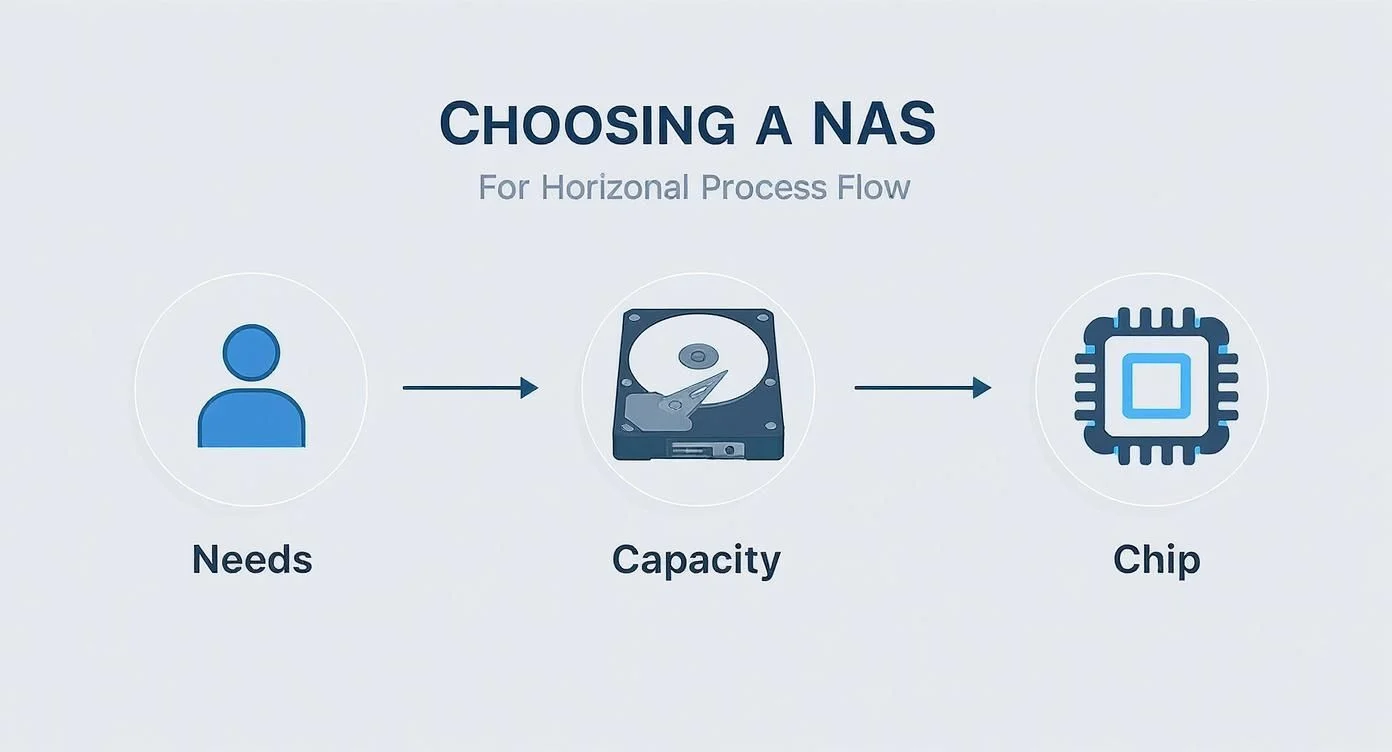
This visual guide underscores that the journey starts with understanding your specific requirements before moving to technical specifications and, ultimately, securing the chosen device.
The 3-2-1 Backup Strategy in Action
Even with Fort Knox-level security, you still need a bulletproof backup plan. Data loss happens—whether it’s from a hard drive failing, someone accidentally deleting a critical folder, or a disaster like a fire or flood. The industry-standard approach for total data protection is the 3-2-1 backup strategy.
It’s a simple but incredibly powerful concept:
- Keep Three copies of your data.
- Store them on two different types of media.
- Have at least one copy stored off-site.
Your Synology NAS is the perfect hub to make this happen. The live data on your NAS is your first copy. You can then use Synology’s brilliant Hyper Backup application to create the second copy by automatically backing everything up to an external USB drive plugged right into the NAS. That covers the “two different media” rule.
For the all-important off-site copy, Hyper Backup can send your encrypted data to a remote location. This could be another Synology NAS at a family member’s house, a separate business location, or a trusted cloud service like Synology C2, Backblaze B2, or Google Drive. This final step is your insurance policy against a local catastrophe. By automating this whole process, you get consistent, reliable backups without having to think about it.
Common Synology NAS FAQs
Jumping into the world of Synology can bring up a few questions, especially if it’s your first time using a NAS device. To give you some clear, straightforward answers, we’ve put together a list of the most common things we get asked by new and potential users.
Can I get to my files when I’m not at home or in the office?
Yes, absolutely. This is one of the most powerful features of owning a Synology NAS. Synology provides a free service called QuickConnect, which gives you a secure, personalised address for your device. Once set up, you can log into your NAS from any web browser, anywhere in the world, to access your files. Synology also offers a suite of mobile apps (like DS file and Synology Photos) to access, manage, and stream content directly to your phone or tablet.
What is RAID, and why is it important for a NAS?
RAID stands for Redundant Array of Independent Disks. It’s a technology that combines multiple hard drives into a single logical unit to provide data redundancy and/or performance improvements. For a NAS, its primary benefit is protection against drive failure. In a multi-drive NAS using a RAID configuration (like Synology Hybrid RAID or RAID 5), if one hard drive fails, your data remains safe and accessible on the remaining drives. You can simply replace the failed drive, and the system will automatically rebuild itself without any data loss.
Do I still need a cloud backup if I have a NAS with RAID?
Yes, it is highly recommended. RAID protects you from hardware failure, but it does not protect you from fire, theft, accidental deletion, or a ransomware attack. The best practice is to follow the 3-2-1 backup rule: have three copies of your data, on two different types of media, with at least one copy stored off-site. Your Synology NAS can automate this entire process using the Hyper Backup app to back up data to a cloud service like Synology C2 Storage or Backblaze B2, ensuring you have a secure off-site copy for total peace of mind.
Can a Synology NAS replace services like Dropbox or Google Drive?
For many users, yes. A Synology NAS allows you to create your own private cloud. With Synology Drive, you can sync files between your computers and the NAS, share files with others using secure links, and access everything via mobile apps—just like you would with Dropbox or Google Drive. The key difference is that you own the hardware, have complete control over your data, and avoid recurring subscription fees.
How Tbourke Solutions Can Help You Succeed
While a Synology NAS is built to be user-friendly, getting it dialled in for peak performance, security, and reliability often needs a bit of specialist knowledge. That’s where bringing in an expert can make a huge difference, ensuring you get the most from your investment right from day one. At Tbourke Solutions, we bridge the gap between powerful technology and practical, everyday use.
Expert Configuration and Ongoing Support
We can assist with every stage, from selecting the right model and hard drives to professional installation and network integration. Our team configures your device using industry best practices, setting up robust security measures, user permissions, and automated backup plans to protect your valuable data. This transforms your NAS from a simple storage box into a secure, efficient hub for your business.
For complete peace of mind, we also offer dedicated IT managed services to keep your system running in top condition. This includes system updates, security monitoring, and verifying your backups are working correctly, letting you focus on what you do best.
Ready to secure your data and streamline your digital life? Visit our contact page to submit a query, and let’s discuss how we can support your needs.
Share This Story, Choose Your Platform!