

Connecting your on-premises Exchange server to the cloud isn’t just a technical box to tick; it’s a strategic business decision. This guide cuts through the jargon and lays out the entire Exchange Server hybrid deployment process, based on real-world experience from countless migrations. We’ll look at why so many businesses are taking this route, whether it’s to ease into a cloud migration or to solve specific compliance headaches.
TLDR: Your Quick Summary
This guide is your end-to-end playbook for a successful Exchange Server hybrid deployment. We cover everything from initial planning and prerequisites to the technical setup using Azure AD Connect and the Hybrid Configuration Wizard. The goal is to provide the practical, hands-on knowledge you need to configure mail flow, move mailboxes, and secure your new environment smoothly.
What an Exchange Hybrid Deployment Actually Means for Your Business
An Exchange Server hybrid deployment is essentially a secure bridge between your local Microsoft Exchange Server and Exchange Online in Microsoft 365. It creates a single, unified email system where you can have some mailboxes living on your own servers and others in the cloud. To your team, it all looks and feels like one cohesive organisation.
This setup offers incredible flexibility, which is why it’s still such a popular choice. You can move people to the cloud at a pace that suits you, avoiding the chaos of a big-bang cutover. It’s the perfect solution for organisations that have sticky compliance rules or operational needs that make a full jump to the cloud impossible right now. For a deeper dive into managing on-prem systems, our overview of Microsoft Exchange Server services offers some extra context.
The real win with a hybrid model is that you keep control where you absolutely need it, while tapping into the power, scalability, and modern features of the cloud. You genuinely get the best of both worlds without disrupting everyone’s workflow during the transition.
Why Go Down This Path?
Businesses choose a hybrid setup for a few very practical reasons. It’s the go-to method for a gradual, controlled migration to Microsoft 365, letting IT teams shift mailboxes in small, manageable groups. It also handles specific scenarios perfectly, like keeping executive mailboxes on-premises for policy reasons while everyone else moves to the cloud.
Plus, it allows your administrators to keep using many of the management tools they’re already familiar with, which massively flattens the learning curve.
Setting the Stage for a Successful Migration
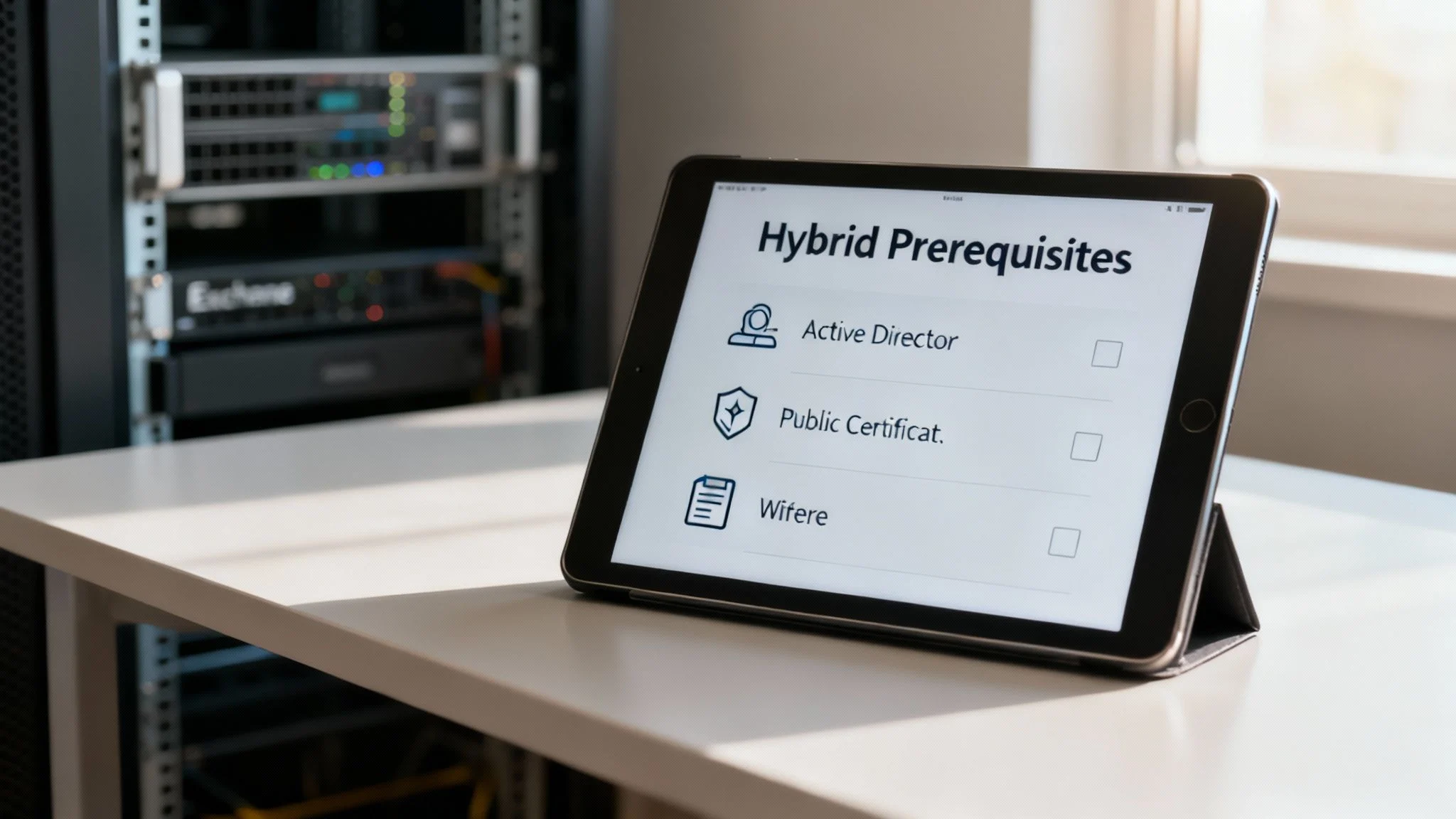
A successful Exchange server hybrid deployment begins long before you even touch the Hybrid Configuration Wizard. I’ve seen it time and again: getting the foundations right is the single most effective way to prevent frustrating errors and project delays down the line.
Think of it as preparing the ground before you build a house. You wouldn’t pour concrete on an unstable surface, and you shouldn’t try to connect your on-premises environment to Microsoft 365 without doing your due diligence first.
This prep phase is all about a thorough check of your existing setup. Let’s break down the non-negotiable prerequisites you need to get sorted.
On-Premises Exchange Server Health
First things first, your on-premises Exchange Servers must be running a supported version. While Microsoft has a minimum requirement to establish a hybrid connection, the real-world best practice is to be on one of the latest Cumulative Updates (CUs).
This isn’t just a friendly suggestion; recent CUs contain critical security patches and stability fixes that are absolutely essential for a healthy hybrid setup.
To use the modern hybrid features, you’ll need at least:
- Exchange Server 2019 CU14 or later
- Exchange Server 2016 CU23 or later
Trying to run the wizard on an older, unsupported version is a recipe for disaster. It can cause the process to fail outright or, even worse, lead to unpredictable mail flow and free/busy issues that are a nightmare to troubleshoot later. Always check your build numbers against Microsoft’s official support docs before you do anything else.
Active Directory and Domain Readiness
Your local Active Directory (AD) is the source of truth for all your user identities, so it needs to be in a healthy state. The Hybrid Configuration Wizard actually makes schema changes to your AD, so ensuring its stability is paramount.
Your AD environment must also meet minimum functional levels, which typically means a forest functional level of Windows Server 2012 R2 or higher. This is also the perfect time to run health checks on your domain controllers to fix any underlying replication issues that might be lurking.
For those planning further ahead, it’s always smart to understand what’s coming next. You can learn more about what’s new in Windows Server 2025 in our detailed article.
A common pitfall I’ve seen derail projects is overlooking lingering AD replication errors. A seemingly minor issue on one domain controller can explode into a major headache during the Azure AD Connect synchronisation, halting your entire migration dead in its tracks.
Public Certificates and Naming
Public SSL certificates are the linchpin for secure communication between your servers and Exchange Online. You’re going to need a valid, third-party certificate from a trusted Certificate Authority (CA). Self-signed certificates just won’t cut it here.
This certificate must include specific names, known as Subject Alternative Names (SANs), which are crucial for services connecting to your servers.
Your certificate absolutely must include these key hostnames:
- autodiscover.yourdomain.com.au This is non-negotiable for client connectivity.
- mail.yourdomain.com.au (or whatever hostname you use for webmail). This is used for critical services like Exchange Web Services (EWS) and Outlook Anywhere.
Forgetting a critical SAN is a frequent cause of baffling post-migration issues. Double-check, and then triple-check, that all your external-facing Exchange hostnames are present on the certificate you plan to use.
Firewall and Network Configuration
Finally, you need to make sure your network allows secure communication between your on-premises world and Microsoft 365. This means getting the right TCP ports opened on your firewall to let the traffic flow correctly.
The Hybrid Configuration Wizard needs access to specific endpoints for federation, and mail flow depends on the right SMTP ports being open. Microsoft publishes a comprehensive list of required IP addresses and URLs for Microsoft 365, so you’ll need to work with your network team to ensure your firewall rules permit outbound connections to these endpoints.
Skipping this step often leads to failed wizard runs and mysterious mail delivery delays. It’s a critical piece of the puzzle for ensuring mail routes correctly and features like calendar sharing work seamlessly from day one.
Designing Your Hybrid Mail Flow Architecture
Getting your mail flow architecture right is one of the most critical decisions you’ll make in an Exchange Server hybrid deployment. This isn’t just a technical box-ticking exercise; it directly shapes how emails travel between your on-premise servers and the cloud, impacting everything from security and performance to what your users experience every day.
Mess this up, and you could be facing frustrating delivery delays, security gaps, and a mountain of support tickets. We’ll walk through the main architectural choices to help you design a setup that works for your business, not against it.
Classic Hybrid vs Modern Hybrid Topologies
First up, you need to decide how your on-premise environment is going to talk to Microsoft 365. This boils down to a choice between two main models: Classic or Modern.
- Classic Hybrid: This is the old-school method. It means you have to publish your internal Exchange services, like Autodiscover and Exchange Web Services (EWS), directly to the internet. This involves setting up complex firewall rules to allow inbound traffic from Exchange Online, which can be a real headache and demands a very solid security posture.
- Modern Hybrid: This newer, smarter approach uses a lightweight piece of software called the Azure Hybrid Agent. Instead of opening up your network to inbound connections, the agent creates a secure, outbound connection from your network up to Microsoft 365. For most businesses, this completely removes the need for tricky inbound firewall rules, making the whole setup simpler and shrinking your attack surface.
Unless you have a very specific legacy reason not to, Modern Hybrid is the way to go. It’s more secure, easier to manage, and the recommended path for almost all new deployments.
Centralised vs Decentralised Mail Transport
Once you’ve picked your topology, the next big question is how mail actually gets routed. Do you want everything funnelled through one point, or do you want a more direct path?
Centralised Mail Transport
In a centralised model, every single email—both inbound and outbound, for cloud and on-premise mailboxes—is forced to route through your on-premise servers first. This is the go-to option for organisations that already have heavy-duty email hygiene services, compliance archiving, or journaling systems on-premise that need to inspect every message that comes in or goes out.
Think of your on-premise environment as a central post office. Every letter and package has to go through this main sorting facility before it gets delivered, no matter where it’s ultimately headed.
Decentralised Mail Transport
This approach is much more direct. Mailboxes that live in Exchange Online send and receive emails directly through Microsoft 365’s infrastructure, completely bypassing your on-premise servers for any external mail. This often means better performance and less load on your local gear. If you don’t have those complex on-premise compliance requirements, this is usually the simpler and more efficient choice. If you need a refresher on the basics, our guide on how to set up business email covers the fundamental concepts.
The Role of the Federation Trust
No matter which mail flow model you choose, the federation trust is the secret sauce that makes the whole hybrid setup feel like a single, unified system to your users. The Hybrid Configuration Wizard sets up this secure relationship between your on-premise Exchange organisation and your Microsoft 365 tenant.
This trust is what powers all the “rich coexistence” features that people actually notice and rely on.
Without a properly configured federation trust, you can kiss these essential features goodbye:
- Calendar Sharing: Users in the cloud won’t be able to see the calendar details of their on-premise colleagues, and vice versa.
- Free/Busy Lookups: Trying to schedule a meeting becomes a nightmare of guesswork.
- MailTips: Those handy alerts like “This recipient is out of office” or “This mailbox is full” simply won’t show up for cross-premises users.
- Online Archiving: You can’t enable Exchange Online Archiving for your on-premise mailboxes without it.
At its core, the federation trust is what authenticates requests between the two environments, making the user experience seamless. Getting this part right isn’t optional; it’s a non-negotiable step for a deployment that actually works the way it’s supposed to.
Alright, this is where the theory ends and the real work begins. We’re about to turn all that careful planning into a living, breathing hybrid environment. It can feel like a big leap moving from diagrams on a whiteboard to flicking switches in a live system, but if you tackle it in stages, it’s a very manageable process.
This part of the journey boils down to two critical tasks. First, we’ll get Azure AD Connect installed and configured to get your local Active Directory talking to Microsoft 365. After that, we’ll fire up the famous Hybrid Configuration Wizard (HCW) to build that all-important bridge between your on-premises Exchange and Exchange Online. Let’s get into it.
Getting Azure AD Connect in Place
Azure AD Connect is the glue that holds your user identities together. It synchronises your users from your on-premises Active Directory up to what is now called Microsoft Entra ID. This is non-negotiable; it’s what ensures a user has a single, unified identity across both worlds, which is the whole point of a seamless hybrid setup.
When you kick off the installation, you’ll be faced with a few options. For most small to medium businesses, the Express Settings are a decent starting point, but you absolutely have to nail a couple of key choices.
- Password Hash Synchronisation (PHS): This is the simplest way to get a single sign-on experience. It takes a hash of your user’s on-premises password and syncs it up to Azure AD. This means your team can use the same password they use to log into their local PC to access Microsoft 365 services, without the headache of setting up full-blown federation services.
- Enable Exchange Hybrid Deployment: You cannot skip this. Ticking this box is what tells Azure AD to write back specific Exchange attributes from the cloud down to your on-premises Active Directory. This is what allows your local Exchange server to recognise cloud mailboxes as actual mail-enabled users, which is essential for things like mail routing and keeping the global address list intact.
If you want to get a better sense of how these identity services fit into the bigger cloud picture, you can find more on our resources covering the Windows Azure Platform.
Running the Hybrid Configuration Wizard
With your identities now syncing happily, it’s time for the main event: running the Hybrid Configuration Wizard (HCW). You download this tool directly from your Microsoft 365 admin centre, and it does all the heavy lifting of stitching your two Exchange environments together. It automates everything from creating mail flow connectors to setting up the federation trust that lets people share their calendars.
The performance of your hybrid setup, especially during the migration phase, is a huge factor for Australian businesses. I’ve seen firsthand how an undersized on-premises server can bottleneck mailbox moves to the cloud, especially when dealing with older Exchange versions. If you want to dive deeper, there are some great expert insights on Exchange hybrid deployment sizing that show how hardware impacts migration speeds.
During the wizard, you’ll need to make some key decisions. Here’s a quick rundown of the most important choices you’ll face.
Hybrid Configuration Wizard Key Decision Points
This table summarises the critical choices you’ll make during the Hybrid Configuration Wizard and their impact on your setup.
| Wizard Option | Description | Recommended Setting for Most SMBs |
|---|---|---|
| Mail Flow | Determines how email is routed between on-premises and Exchange Online. | Centralised Mail Transport. Routes all outbound mail from M365 through your on-premises server for consistent filtering and compliance. |
| Transport Certificate | Selects the public SSL certificate used to secure mail flow between environments. | Choose your valid, third-party SSL certificate that is installed on your Exchange servers. |
| On-Premises FQDN | The public DNS name that Exchange Online will use to connect to your on-premises server (e.g., mail.yourcompany.com.au). | This should match the public-facing name on your SSL certificate and firewall rules. |
| Organisation Configuration Transfer (OCT) | Copies certain on-premises policies (like retention or mobile device policies) to Exchange Online. | Enable it. This helps maintain policy consistency as you migrate mailboxes. |
Making these choices correctly from the start will save you a world of headaches later on.
A great tip to remember is that the Hybrid Configuration Wizard is designed to be run again and again. Don’t be afraid to re-run it if you install a new Cumulative Update or need to tweak a setting. It’s smart enough to check the current configuration and only apply the changes needed.
The infographic below gives a great high-level view of the mail flow decision the wizard helps you configure.
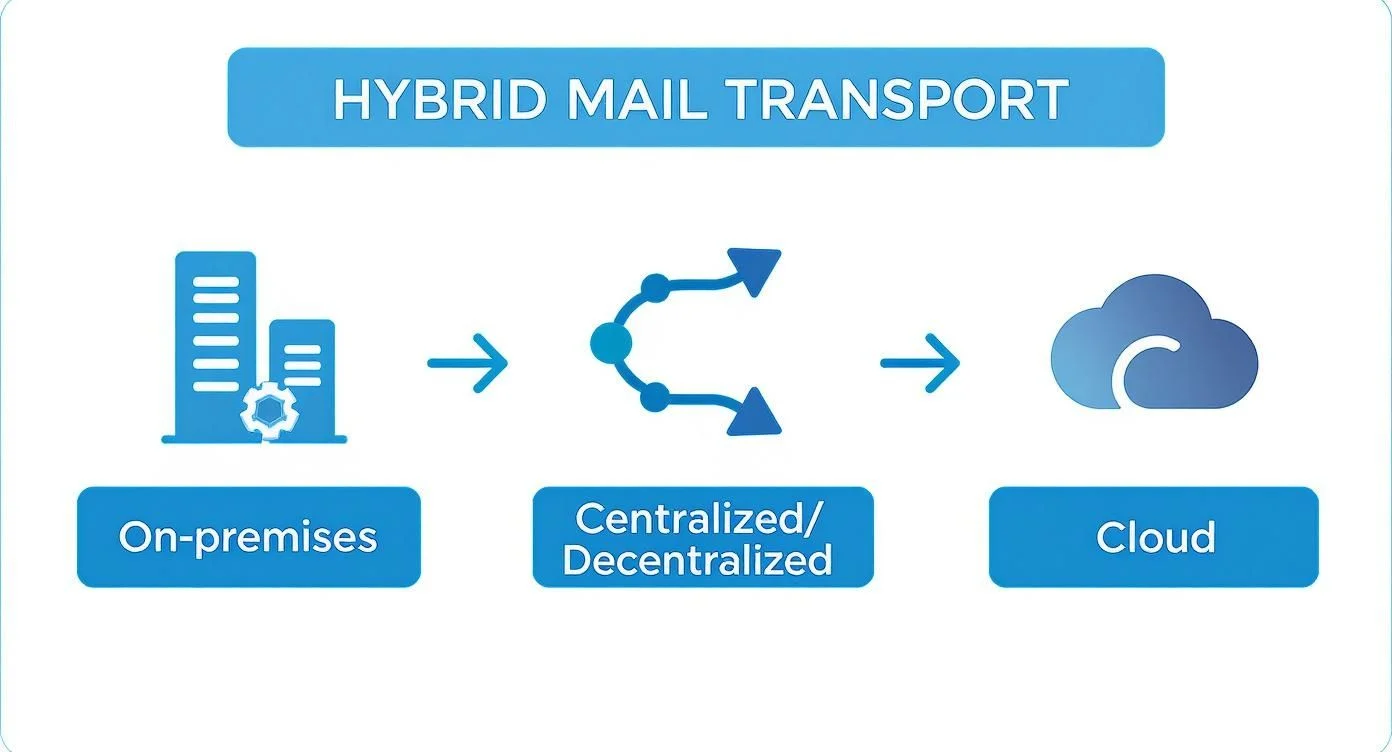
As you can see, this choice directly impacts whether all your company email funnels through your on-premises servers before heading out to the internet, or if cloud mailboxes can send directly.
Checking the Connectors and Relationships
Once the HCW finishes with a “success” message, don’t just take its word for it. You need to verify that it actually created all the necessary bits and pieces. Pop into both your on-premises Exchange Admin Centre (EAC) and the Exchange Online EAC to have a look.
You should be looking for a few specific things:
- Send Connectors: In your on-premises EAC, you’ll find a new send connector built specifically to route mail destined for Microsoft 365.
- Receive Connectors: Your on-premises servers will also have a new receive connector, locked down to accept secure, authenticated mail from Exchange Online IP ranges.
- Organisation Relationship: This is the magic piece that enables cross-premises free/busy calendar sharing and MailTips.
Confirming these components exist gives you the confidence that the core plumbing is sound before you even think about moving your first mailbox.
Moving a Pilot Mailbox to Exchange Online
This is the ultimate test of all your hard work. Always, always start with a pilot mailbox. This should be a dedicated test account or maybe someone from the IT team who knows what’s happening and can report back on the experience.
The whole process is kicked off from the Exchange Admin Centre. You’ll create a new migration batch, pick the user you want to move, and start what’s known as a “remote move request.” You can literally watch its progress as it syncs the mailbox data from your local server up to Exchange Online.
Once the initial sync is complete, you finalise the migration. This is the action that flips the switch on the user’s mailbox location. A moment later, when the user opens Outlook, the client will automatically reconfigure itself and connect to its new home in the cloud.
The final sanity check? Move that same mailbox back on-premises. If you can move it to the cloud and back again without a hitch, you can be confident your exchange server hybrid deployment is fully operational and ready for the rest of your users.
Validating and Securing Your New Environment

You’ve got the core configuration in place, and the urge to start moving users over is strong. I get it. But hitting the brakes for a thorough validation phase is one of the smartest moves you can make. Skipping this step is a classic mistake that almost always leads to user frustration and helpdesk tickets.
Think of this as your final quality check. Rigorous testing now ensures your new exchange server hybrid deployment is both rock-solid and secure before you flip the switch. This isn’t just about sending a couple of test emails; it’s a systematic check to make sure every moving part is working in harmony.
Comprehensive Mail Flow Testing
First up, and most critically, you need to confirm email can travel seamlessly through every possible route. Don’t just test from on-prem to the cloud. You have to cover every scenario to be certain there aren’t any black holes where emails can just disappear.
Your testing checklist should look something like this:
- An on-premises mailbox to an Exchange Online mailbox.
- An Exchange Online mailbox back to an on-premises mailbox.
- An on-premises mailbox to an external address (like a personal Gmail or Outlook account).
- An Exchange Online mailbox to that same external address.
This multi-directional testing is the only way to be sure your send and receive connectors—both locally and in the cloud—are behaving, and that your MX records are pointing mail exactly where they should be.
Verifying Coexistence Features
Beyond just getting mail delivered, the real magic of a hybrid setup is in the rich coexistence features. These are the functions that make two separate environments feel like one unified system for your users.
A successful hybrid deployment is one where users don’t even know or care where their mailbox is located. If they can book meetings and see colleagues’ availability without issue, you’ve done your job correctly.
Zero in on testing these key features:
- Free/Busy Information: Can someone on-prem see the calendar availability of a cloud user when scheduling a meeting, and vice versa? This is a big one.
- MailTips: When composing an email, are MailTips popping up correctly for cross-premises recipients? Think out-of-office notifications or warnings about sending to large groups.
- Global Address List (GAL): Does the GAL look complete and accurate for everyone, regardless of where their mailbox lives?
These features are entirely dependent on the federation trust and organisation relationships you built earlier. If they’re not working, it’s a red flag that something is wrong with that underlying configuration.
Hardening Your Hybrid Security Posture
A working deployment is great, but a secure one is non-negotiable. Security is a massive concern for Australian organisations, especially with vulnerabilities that specifically target these hybrid setups. The Australian Cyber Security Centre has made it clear that these environments are actively targeted, making a proactive security stance absolutely essential. You can discover more insights about recent Microsoft Exchange Server vulnerabilities on Tenable.com.
Start by locking down your on-premises Exchange server. Get it fully patched with the latest Cumulative Updates (CUs) and Security Updates (SUs). For a truly robust defence, you should align your controls with a recognised framework. We break down exactly how to do this in our guide on the ACSC Essential 8.
Over on the cloud side, the single most effective security measure you can roll out is Multi-Factor Authentication (MFA). Enforce it for all user accounts—and especially for your admins—to shut the door on credential theft. From there, dig into Microsoft 365’s security tools, like Conditional Access policies, to restrict access based on location, device health, or sign-in risk. This layered approach is what hardens your entire environment against modern threats.
Frequently Asked Questions (FAQ)
Do I really need to keep an on-premises Exchange server?
Yes. If you synchronise your Active Directory with Microsoft 365, Microsoft’s official stance is that you must keep at least one Exchange server on-premises for management. This is the only supported way to edit mail-related attributes (like email aliases) for synchronised users.
What’s the main difference between Classic and Modern hybrid?
The key difference is security and simplicity. Classic Hybrid requires you to publish your internal Exchange services to the internet, increasing your attack surface. Modern Hybrid uses the Azure Hybrid Agent to create a secure, outbound-only connection, which is far more secure and eliminates complex firewall rules. Modern Hybrid is the recommended approach for nearly all new deployments.
Can I run the Hybrid Configuration Wizard more than once?
Absolutely. Rerunning the wizard is a common and safe maintenance task, often done after installing updates or to troubleshoot issues. The wizard is intelligent enough to check your existing configuration and only apply necessary changes.
Is Exchange hybrid deployment still relevant with the push to the cloud?
Yes, very much so. For businesses with specific compliance needs, complex integrations, or those preferring a gradual migration, a hybrid setup remains the ideal solution. It offers the flexibility to leverage cloud benefits while retaining control over key on-premises infrastructure.
Need an Expert Hand with Your Exchange Hybrid Deployment?
Trying to pull off an Exchange Server hybrid deployment can feel like a high-wire act. There are a dozen moving parts, from mail flow routing to certificate management, and one wrong move can bring communication to a halt. But you don’t have to walk that wire alone.
At Tbourke Solutions, we specialise in getting Australian businesses through the complexities of Microsoft 365 migrations. We’ve been in the trenches with hybrid setups for years, so we know exactly where the common pitfalls are and how to steer clear of them. Our focus is always on practical, business-first solutions that minimise disruption and make the transition as smooth as possible.
How We Can Help
For most organisations, a hybrid Exchange deployment is not a one-off project. It requires ongoing monitoring, maintenance, and support to ensure mail flow, security, and user access continue to run smoothly long after the migration is complete.
That’s why many businesses choose to work with providers offering managed IT services in Melbourne, ensuring their entire IT environment, including Exchange, Microsoft 365, and identity systems, is proactively managed and supported.
At Tbourke Solutions, we go beyond project delivery. We provide long-term IT support to keep your systems secure, optimised, and aligned with your business as it grows.
Share This Story, Choose Your Platform!


